6-16 The Accutech Software Use
Automatic Backups
Accutech Software 7.0 will automatically backup the server database
daily. To modify backup schedule and save location, use the following
instructions:
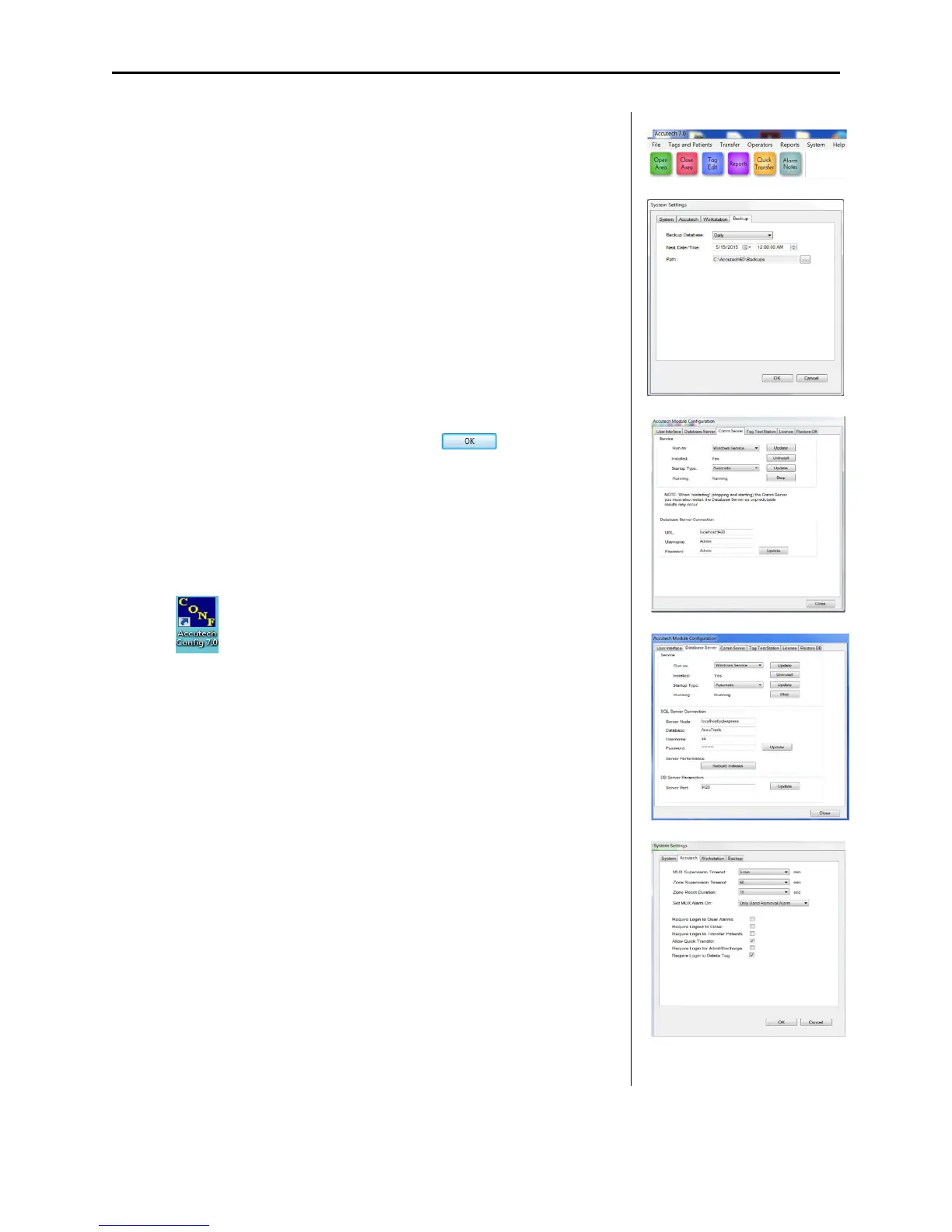
1. From the System menu (1), select Settings
The System Settings dialog box appears.
2. Select the Backup tab (2)
3. Adjust the Backup Database pull-down list (Daily or Weekly) as
desired
4. Adjust the Save Path location as desired
5. Once all parameters are set, select the button to exit
Trouble Shooting
In the event the software stops generating alarms,
1. Check the Database Server and or Comm server settings. Open
the Accutech Config 7.0 Icon from your desktop.
The Accutech Module Configuration dialog box appears. Check
both the Database Server tab (4) and the Comm Server tab (5).
The following settings should be selected in the service area:
Run As: Windows Service – (change and update if it isn’t)
Installed: Yes (install if it isn’t)
Startup Type: Automatic (change and update if it isn’t)
Running: Running (start if it is stopped)
2. Check “Only Band Removal Only Alarm”. From the System
menu (1), select Settings, The System Settings dialog box
appears. Select the WorkStation Tab (5). Next to Set MUX
Alarm On: “Only Band Removal Alarm” should be selected.
3. Restart computer. If the problem persists contact IT, your local
service provider or call 800-356-2671 for support.
1
2
3
4
5



 To Next Page