Drive Management
119
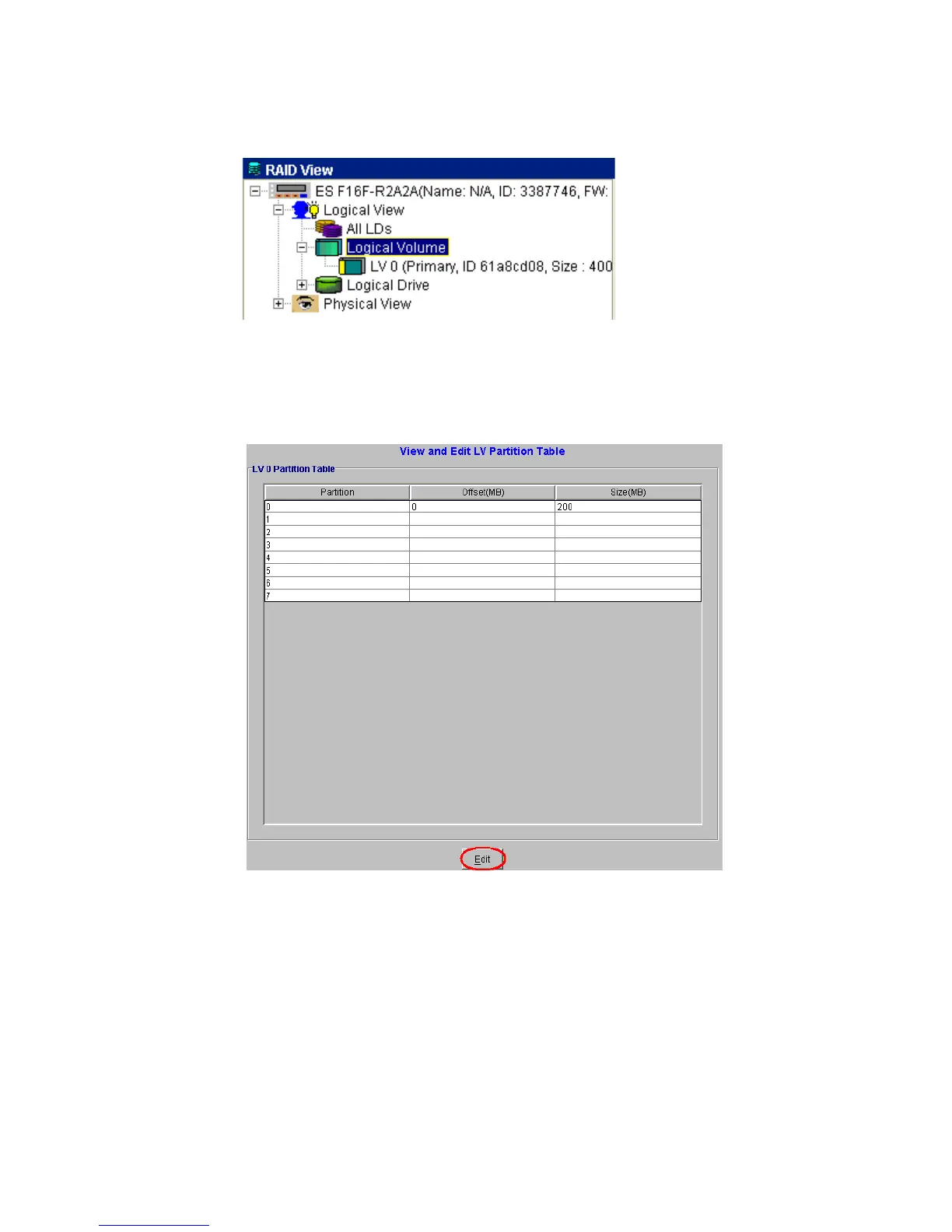
2 From the list shown in Figure 8–59, select the LV that you wish to partition. Once this LV has been
selected a “View and Edit LV Partition” table will appear in the content panel. See Figure 8–59.
3 To create a new partition, edit an existing one, or remove an existing partition, click the Edit button
at the bottom of Figure 8–60. You will be prompted for a password, enter it and click OK.
4 Select partition 0 or the last partition in the list to create a new partition. Only the Size(MB) field is
editable and partitions must be contiguous. Modify the value of partition 0 or the last partition so
that it will be the size you intend. All unallocated space will automatically be assigned to the new
partition.
Note Any partition can be modified using the method described here. Changes will be reflected in other
partitions as disk space is occupied or freed.
Figure 8–59 : List of LVs
Figure 8–60 LV Partition Table



 To Next Page