Altos RAIDWatch User Guide
68
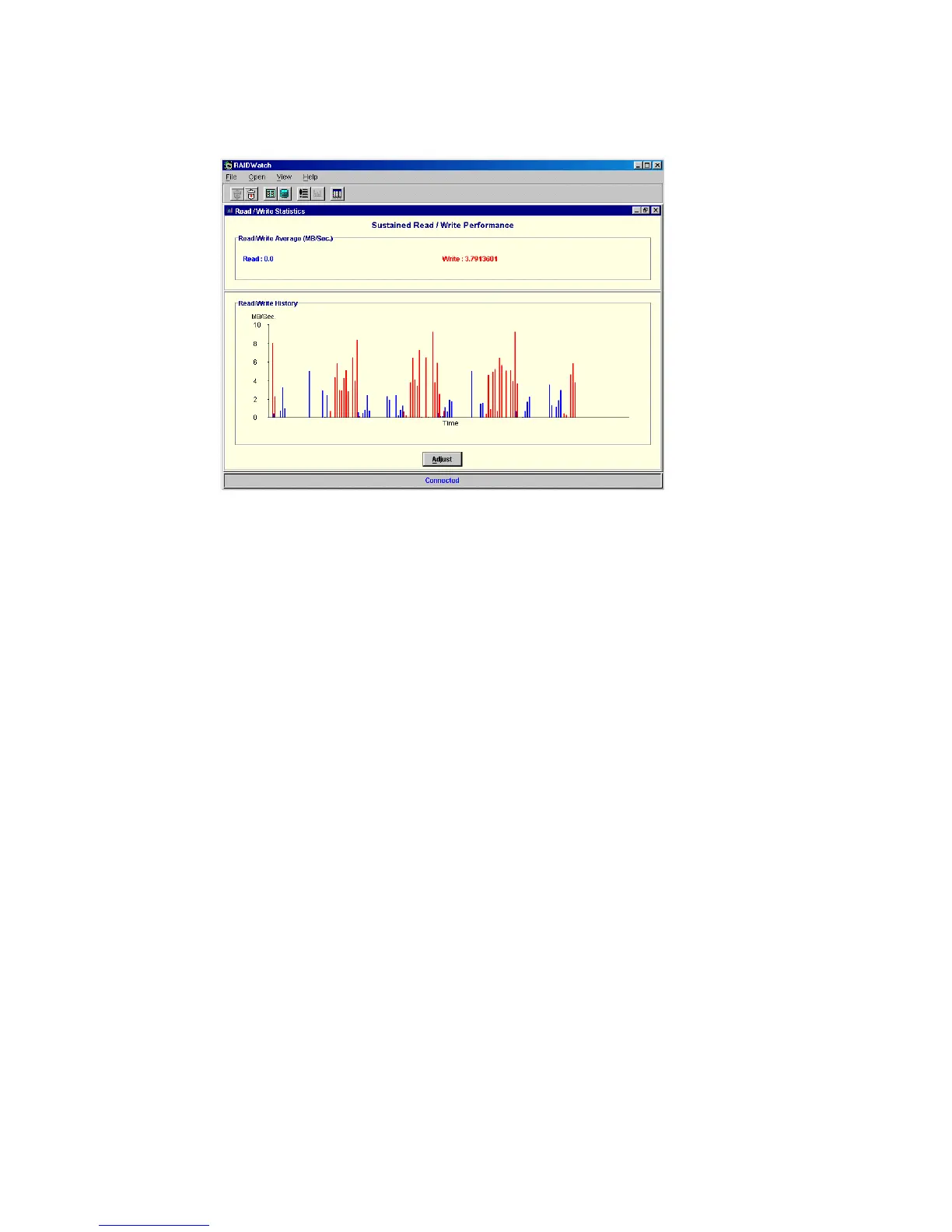
Figure 4–31 Cache Hits Performance Statistics window
• Sustained Read/Write Performance is also displayed as both an average and historically. Read/
write performance is another way to evaluate the current RAID controller and disk array I/O
throughput.
• Read/Write Average is a measure of the average data throughput, in MB/second, at the most
recent data sample.
• Read/Write History shows read/write performance over the last few minutes and indicates data
throughput consistency.
The read/write data display scale can be modified using the Adjust button at the bottom-center of
the Read/Write Statistics window. Scales from 10MB/second to 200MB/second are available.
4.9.3 Arranging Windows
The View menu provides you with a command for rearranging the currently open Altos RAIDWatch
Manager windows. You can manually manipulate the window frames to display them as you like,
or use the Tile In-Window command under the View menu to arrange open windows to fit next to
each other on the screen. Tile In-Window is also available via a command button on the tool bar.
Note Currently, the Tile In-Sequence function under the View menu is not supported.



 To Next Page