Page 20 of 42
3.8.1 Using the Buttons to Navigate Menus
Press the ‘Menu’ button to bring up the display menu.
3.8.1.1 Selecting Menu Options
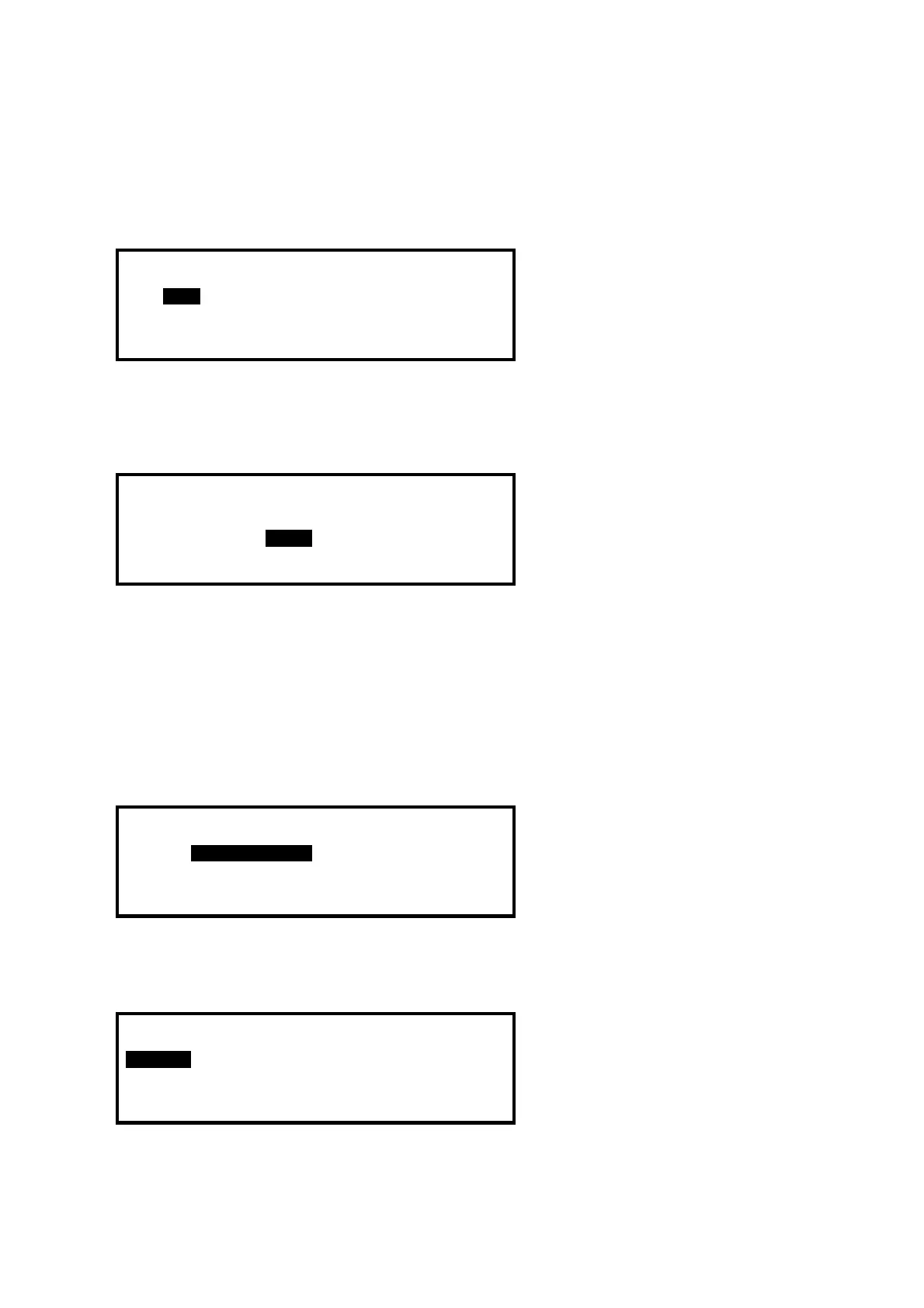
The Level 2 Menu is shown below:
[Level 2 Menu] User 1 Node 1
VIEW DISABLE ENABLE
TEST DELAY TOOLS
STATUS
Press the ÍÏÐÎ buttons to highlight the required menu option and then press the button to
select it.
For example, press the Î button followed by the Ð button to highlight the DELAY option (as shown
below) and then press the button to select this option.
[Level 2 Menu] User 1 Node 1
VIEW DISABLE ENABLE
TEST DELAY TOOLS
STATUS
Press the ‘Esc’ button from within a menu option to return to the previous menu.
Press the ‘Esc’ button from the Main Level 2 Menu (shown above) to return to the normal operating
display.
If a button is not pressed for one minute (15-seconds if the panel is in a fire alarm condition) the
display will automatically revert to the normal operating display. Press the ‘Menu’ button to return
directly to the Level 2 Menu display previously shown.
3.8.1.2 Selecting Individual Zone Numbers
When the display is showing a list of Zone Numbers, it is possible to select a specific zone number
by using the number keys. For example, if the display is showing a list of zones:
[ Inputs] More>
Zone Mode Location
0001 Enabled BASEMENT WEST
0002 Enabled BASEMENT EAST
0008 Enabled GROUND FLOOR
0009 Enabled MAIN RECEPTION AREA
To select a particular Zone, move to the zone number column. The existing zone number will then
be highlighted.
Enter the required Zone Number using the number buttons, for example 12.
[ Inputs] More>
Zone Mode Location
# 12 Enabled BASEMENT WEST
0002 Enabled BASEMENT EAST
0008 Enabled GROUND FLOOR
0009 Enabled MAIN RECEPTION AREA
Finally press the button to confirm. The display will then show a new list of Zones with the
selected Zone highlighted at the top of the list.
If the number is entered incorrectly, press the ‘Esc’ button.


 To Next Page