Page 36 of 42
3.13.4 Test - Printer
To invoke the printing of a test print sequence, highlight the Test Print Option and press the
button to confirm. The panel transmits 16 lines of test characters to the printer. The information sent
is echoed on the display.
When the test print is completed, the display automatically reverts to the Test Options Menu.
Press the ‘Esc’ button at any time to cancel the test print.
3.13.5 Test - Outputs
Output devices can be individually tested for operation.
To test an individual output device (sounder or relay), highlight the Test Outputs Option and press
the button to confirm. The display will present a list of the zones that contain output devices.
If the current User ID does not have the necessary permission, the display prompts for entry of a
password to guard against inadvertent operation.
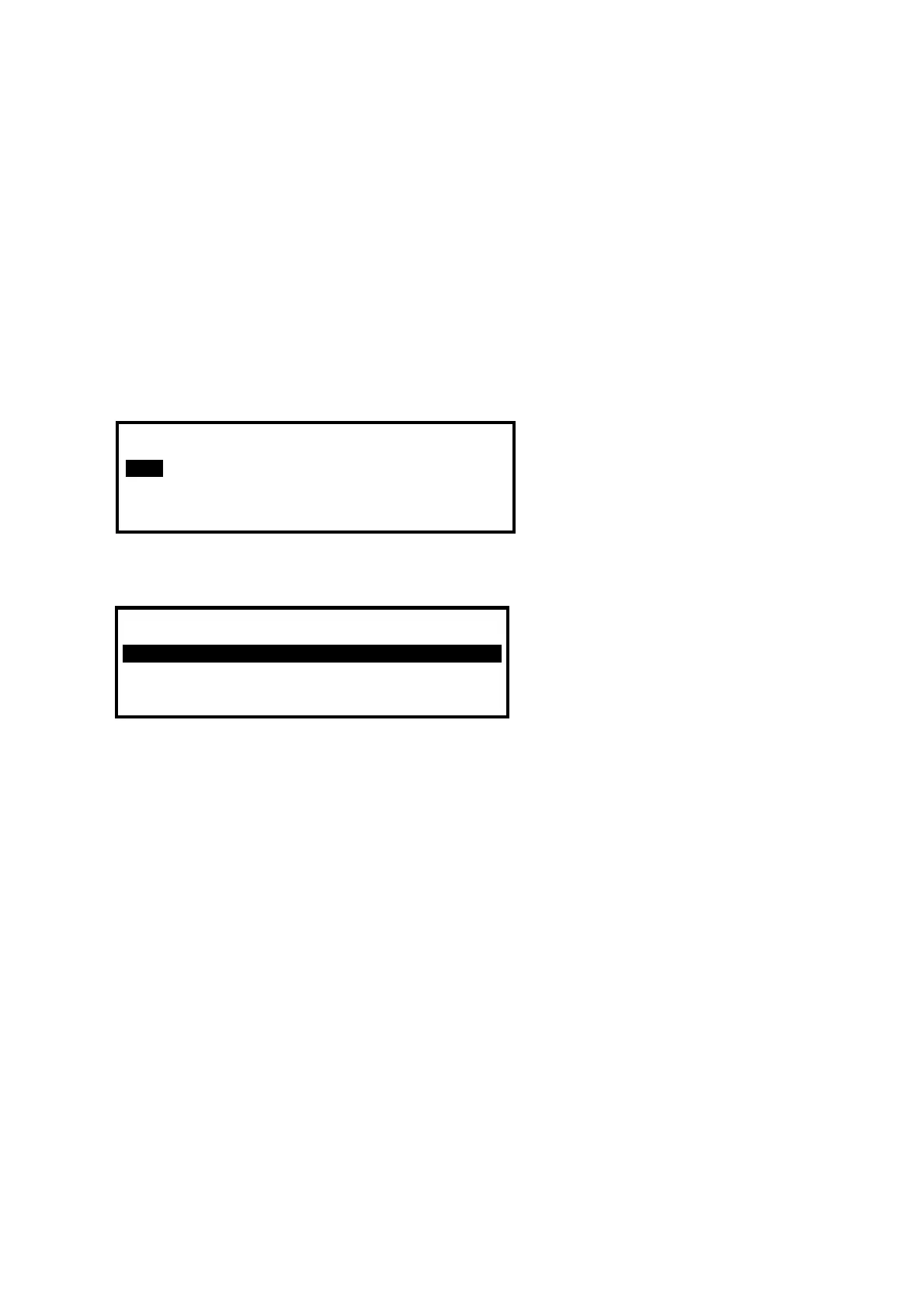
[Outputs]
Zone Location
0001 BASEMENT WEST
0002 BASEMENT EAST
0037 EAST PLANT ROOM
0100 MAIN RECEPTION
Press the ÏÐ buttons to scroll and highlight the required zone (or key in the required zone number)
and then press the Î button to show the output devices in that zone. For example:
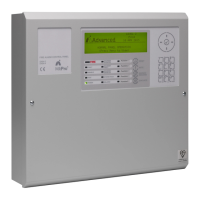
[ Outputs in Zone 37] <More>
Mode Device Text
Enabled Room 151
Enabled Room 152
Press the ÏÐ buttons to scroll and highlight the required output and then press the button to test
the output. The display will prompt to confirm the “Test this device”. Press the button again to
accept. The output device will turn on and this will be confirmed on the display by the status
changing from OFF to ON. Press the Î button to show further information on the output.
The general “TEST” LED will illuminate whenever an output is in test. The test is cancelled by either
pressing the ESC button or by scrolling to the next / previous device in the list. If the display is left
for one minute without pressing any buttons, the output will revert to its quiescent state.
On networked systems, the Test – Outputs option also supports testing of outputs connected to
other panels.


 To Next Page