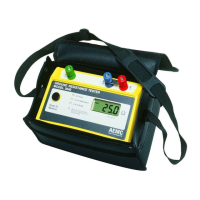
Ground Resistance Tester Model 6471
59
NOTE: The connection status can be seen in the lower right-hand corner of
the Control Panel and in the Instrument window under status.
8.4 Configuring the Instrument
To congure the instrument, perform the following steps.
1. Double-click the Ground Tester icon on your desktop.
2. Go to Instrument > Congurefrom the main menu of the Control Panel.
NOTE:If a connection has not been previously established, the Communi-
cation dialog box will appear (see Fig. 8-5).
3. Once identication is complete, a Conguration dialog window will appear
(if not already open).
The descriptions of the features below appear on several Conguration dialog
boxes, depending on the type of test selected.
•
LoadfromFile:Retrieves stored congurations to be used in programming
the instrument.
• Save to File: Saves the current conguration. This le will reside on the
computer’s disk drive. Saving different conguration setups can be useful
for future functions and tests.
• SetInstrumentClock: Updates the clock to the PC clock.
• Buzzer: When selected, buzzer is ON.
• Alarm: When selected, alarm is ON.
•
Drop-downIndicators: Indicates the conguration available for each mea-
surement range.
NOTE: To set the Terminal Label markings (e.g. H, S, ES, E or Z, Y, Xv, X),
Measurement units and Rho units, go to Tools > Options.
8.4.1 DC Continuity Test
When DC Continuity is selected from the tool bar, you can:
• Select a 2- or 4-Wire test.
• Select a test current (positive, negative or Auto ±).
• Enter and activate an alarm from 1 to 999Ω (2-Wire only), if desired.
www.ShopAEMC.com
Shop for AEMC products online at:
1.888.610.7664



 To Next Page