68
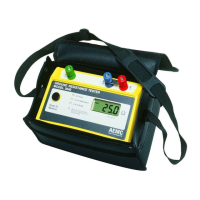
Ground Resistance Tester Model 6471
The Operator and Site tabs allow you to maintain lists of operators and sites,
saving you time when specifying parameters for reports.
On the left of the Operator and Site tabs is the list of previously dened Operators
and Sites. On the right of the Operator and Site tabs is the individual parameters
that will be saved in an associated database. Only a single set of operator and site
elds are saved in the recording database.
The Custom tab contains a list of user dened parameters. Along side each user
dened parameter is a check box. Items that are checked will be added to an
associated database. Only a single set of Custom parameters can be maintained
(unlike the Operator and Site lists). The Custom tab allows you to specify any user
dened parameters (in addition to the comments eld of the Site tab) that are to be
used in displaying a report.
NOTE: You can also set defaults for session properties within the Ground
Tester Control Panel by selecting File > Edit Session Properties.
8.8 Saving/Exporting Data to a Spreadsheet or PDF File
Measurement values stored in a database can be saved to a spreadsheet (.csv
le, which can be opened in Microsoft
®
Excel) or exported to a PDF le (which can
be opened using free Adobe
®
Reader software).
NOTE: Exporting to a PDF file can only be performed from within DataView
®
itself, not the Micro-ohmmeter Control Panel.
8.8.1 Saving Data to a Spreadsheet from the Control Panel
Tosavedatatoaspreadsheet:
1. With a database open, go to File > Save As.
2. In the Save As dialog box that appears, choose a location to save the le
from the “Save in” drop-down menu.
3. Select .csv or .xls from the Save as type drop-down menu, then click
Save.
NOTE: To export the data to a PDF from the Micro-ohmmeter Control Panel,
first go to File > Create Dataview Report, save as a .dvb, then open the
saved .dvb file from within DataView
®
and perform the steps below.
www.ShopAEMC.com
Shop for AEMC products online at:
1.888.610.7664



 To Next Page