66
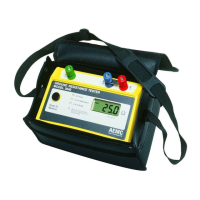
Ground Resistance Tester Model 6471
8.5.2 Tools > Colors
Sets colors for measurement channels.
8.5.3 Tools > Recover Data
Every time the directory of recorded data is displayed by the Ground Tester Control
Panel, a backup copy of all the data is saved to a le. Use this option to recover
previous data.
8.6 Starting a Test
Press the START button to begin a test. Some tests congurations are automatic
and end when the data is stable. Others, generally when there is a manual fre-
quency, show a "Stop" button, which should be pressed when the data is available
on the screen and has stable values..
8.7 Downloading Data to Database
Select Recorded Data from the View menu to download the recorded data.
1. Select the data you want to download by clicking on the le name (see
Figure 8-13).
2. Select Create DataView Report. DataView
®
will be open with the newly
created report.
3. Alternatively, select Create Spreadsheet. Type a name for the download-
ed le. In the Save as type drop-down menu, select either .xls (saves it
as an Excel spreadsheet le), or .csv (saves it as a comma delimited le),
then click Save.
4. Alternatively, select View. After the download is complete, a window will
appear with a graph of the data, and some viewing or channel options. In
that window, you can select Create DataView Report, Create Spread-
sheet, or Print.
5. Also, from the Instrument tree view, expand the sections under Recorded
Data from the instrument, then click on a line that describes the re-
corded data. It will bring up a window with a graph of the data.
www.ShopAEMC.com
Shop for AEMC products online at:
1.888.610.7664



 To Next Page