Acceptance Test
Subject to Export Control, see Cover Page for details.
4-3
Restoring Factory Default State
If the Test Set has been used, or if there is any possibility that values have been changed, perform
the following steps to restore the Test Set to factory default settings:
1. Connect the Test Set to an AC Power Supply.
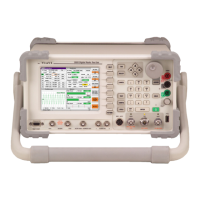
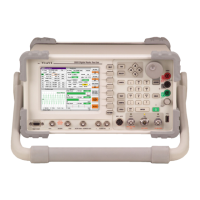
2. Turn the AC Power Supply Switch
on the rear panel to the ON position. The LED above the
On/Standby Key
should change to RED.
3. Press the On/Standby Key
and wait for the Test Set to restore the condition it was in when
last powered down.
4. Press the UTILS Key twice to access the Utilities menu.
5. Select Store/Recall from the Utilities menu.
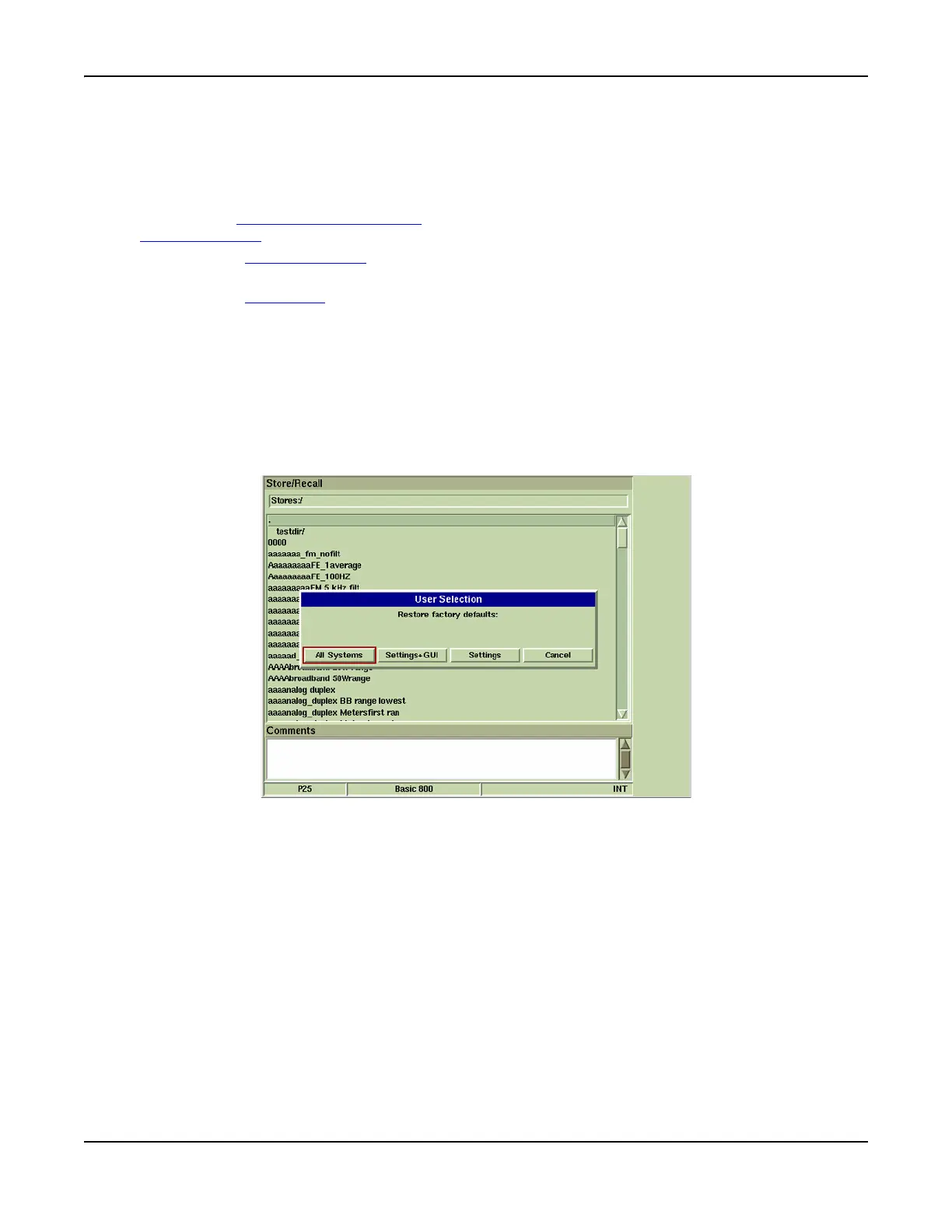
6. Select the [Restore Factory Defaults] soft key.
7. Select the desired Restore Option. When option is selected the Test Set initiates update
process.
8. If All Systems were restored, Test Set restarts the last loaded operating system.
Restore Options
The Test Set provides the user with several options for restoring factory defaults.
Fig. 4-3 Restore Factory Defaults - Restore Selections
All Systems
Restores GUI and data fields in all Test Systems to factory default settings. Test Set will reload
the last selected operating system after default settings have been restored.
Settings + GUI
Restores GUI and data fields of current operating system to factory default state. Last selected
operating system does not need to be reloaded.
Settings
Restores data fields of current operating system to factory default state. Last selected
operating system does not need to be reloaded.



 To Next Page