:Anapurna M4F - Operator Manual Stay ahead. With Agfa Global Services.
14 Operations - The Wasatch SoftRIP
b. Universal Controls.
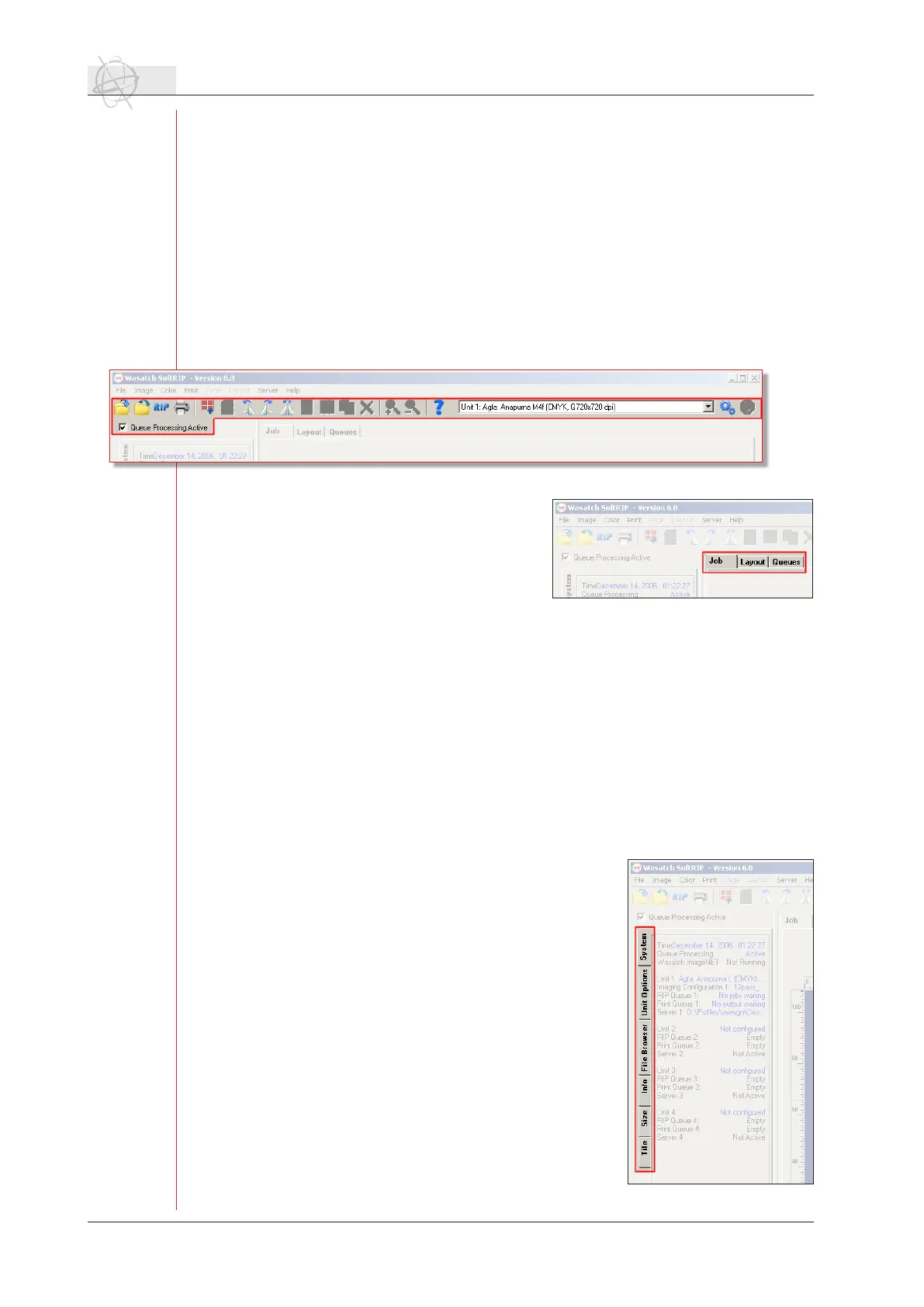
Unit Window: Selects the printer to use for current job or layout processes. SoftRIP
drives up to four printers.
Queue Processing Active: Unchecking this checkbox will completely shut down all
new jobs from processing in the queues! Under normal conditions, this
box is checked. When unchecked it ashes red. All processing stops
when Queue Processing Active is unchecked. Uncheck the box to stop
all printing in order to change system congurations or re-prioritize
jobs.
Tool Bar: Buttons on the tool bar are active or grayed-out depending on various
selections of the tabs found below them on the main window. All tool
bar operations can also be accessed from menu selections within the
program, and all are documented with tool tips.
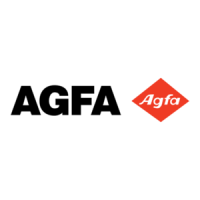
c. Top tabs.
The tabs along the left and upper edges
of the main window include many of the
keylepreparationandworkowtoolsin
SoftRIP. Based on your top tab selections,
tabs along the left of the screen may ap-
pear, disappear, or modify.
JobTab: WhentheJobtabisselected,youcanopenanindividualinputle,or
job, to be prepared for printing. With the Job tab selected, a full set of
options for sizing, cropping, scaling, and tiling appear.
Layout Tab: When the Layout tab is selected, you use the full width of your media
as a digital canvas upon which you can prepare images to print as part
of your complete production run. With this workow, you can easily
drag and drop images into the layout, manipulate them, and nest them
totefcientlyaspartofyouroverallprintrun.TheentireLayoutcan
then be submitted to RIP and print.
Queues Tab: When the Queues tab is selected the view becomes the master pro-
duction control station of the RIP. On the Queues tab, all RIP and Print
queues are displayed with the status of each job updated in real time.
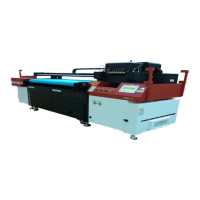
d. Left tabs.
System Tab: Displays the status of all printers and job
queues.
Unit Options Tab: Includes settings for immediate
or delayed nesting printing, annotations,
crop marks, and registration marks.
FileBrowserTab:Letsyouquicklydraganddroples
into the Job, Layout, or Queues windows.
Info Tab: Displays information about an open job,
including real-time values for input and
output color at any point on the previewed
image.
Size Tab: Controls sizing, cropping, rotation, and
mirroring for the current image on the Job
tab.
Tile Tab: Provides controls for “paneling” or “tiling”
print jobs that are too wide for the current
printer.


 To Next Page