Stay ahead. With Agfa Global Services. :Anapurna M4F - Operator Manual
Operations - The Wasatch SoftRIP 15
2.2 Open an image.
YoucanopenimageinWasatchviathe‘le’menuandthecom-
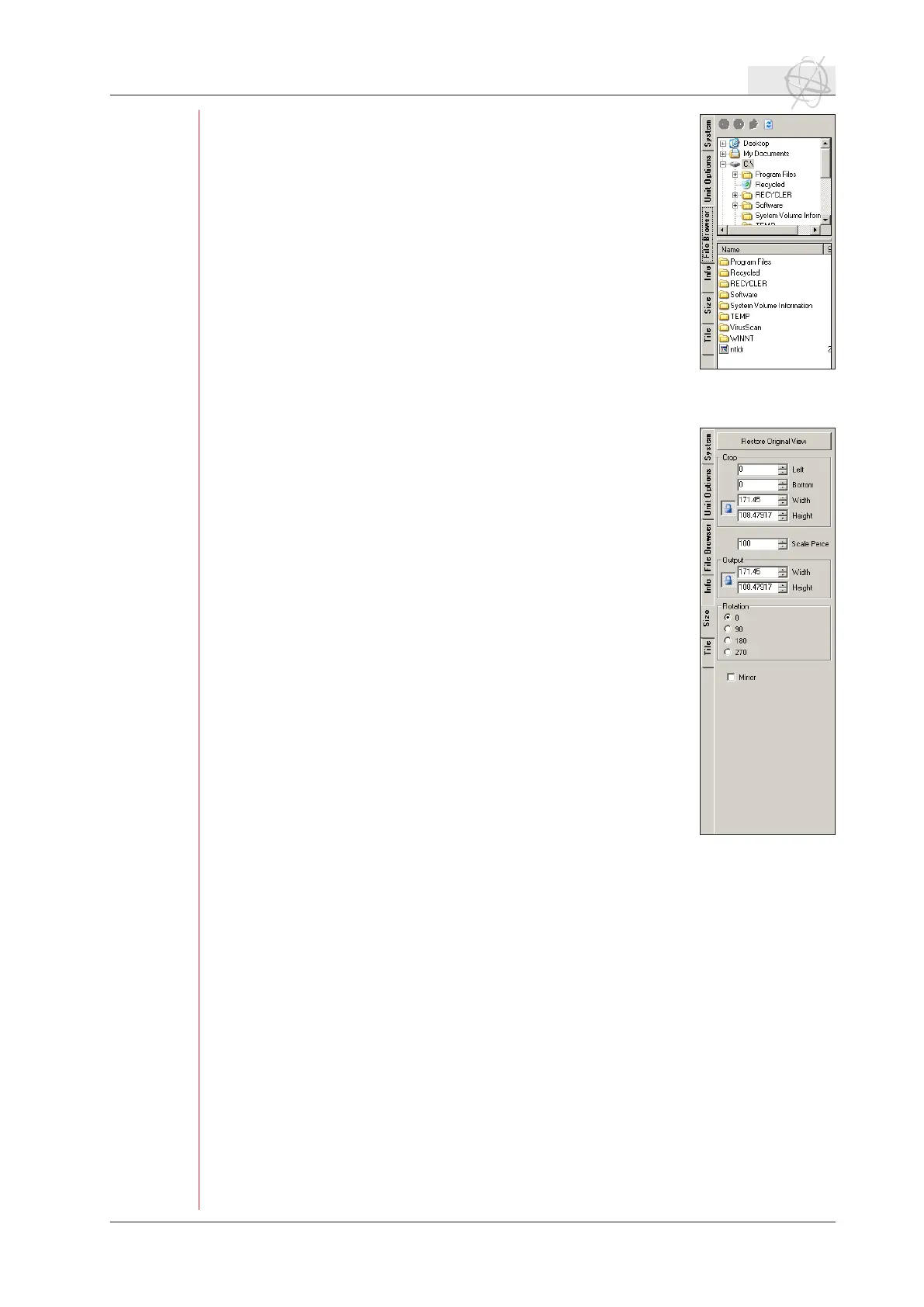
mand‘open’orviaoneofthelefttabs:thelebrowser.
Usingthelebrowsertab,youcanquicklysearchandopenim-
ages.Youcansimplyselectanimageinthelebrowsertaband
drag onto the preview window. If an image does not require any
le preparation, you can drag and drop it directly from the le
browser tab to a RIP Queue. You will be asked whether or not you
would like to generate a preview. If you select not to generate a
preview, the image will display as “Preview not available” when
added to a layout.
Wasatachsupportsdifferentkindsofletypes:
ps, prn, pdf, eps, tif, jpg, gif, png, psd, bmp, csf.
2.3 Cropping, resizing an image.
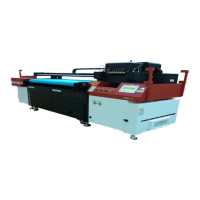
The Size tab contains several key features that scale and other-
wise transform images prior to printing. The Size tab automatical-
lyappearsontheMainScreenwheneveraleisopened.These
utilities are found on the Size tab: Sizing (or scaling), cropping,
rotating and mirroring.
a. Resizing.
To enlarge or reduce an image, enter a new value in the win-
dow next to the Scale Percent heading. Your ENTER or TAB
key activates the change. The new dimensions are displayed
in the Width and Height windows in the Output area, while the
original dimensions are displayed next to Width and Height in
the Crop area. If your scaling percentage will produce an im-
age larger than the printer’s maximum output format, SoftRIP
alerts you by marking the surplus area with a red and black
ashingcrosshatch. Youmusteitherreduce thescalingper-
centage, or use the Tiling feature.
Computing Scaling Percentage Automatically: SoftRIP will
size an image if you enter the desired width or length of the
nalprintineithertheWidthorHeightwindowsintheOutput
area. For example, you can enter the printable width of your
print media or one dimension of a light box or display hard-
ware. Make sure the Constrain Proportions box to the left of
the Width and Height boxes is checked, then press ENTER or
TAB to activate the change.
The new percentage appears in the Scale Percent window, while the other dimen-
sion (either Width or Height) is displayed in the appropriate window. A cropping
marquee also appears around the entire image (see Cropping, below). You only need
to enter one dimension in an Output window (Width or Height); if you attempt to
enter a value in the other, SoftRIP activates the automatic scaling process. For au-
tomatic scaling to work, the Constrain Proportions box next to the Output windows
must be checked.
b. Cropping.
Thistooldenesasmallerareaoftheoriginalimageandprintsonlythatarea.This
is true cropping, because only the selected area will be RIP’d. This saves RIPing
time and is an excellent tool for printing test strips for color evaluation. The crop-
ping tool can also be used to magnify selected areas of the image (see below under
Zoom into Crop Box).
Adjustment modes: There are two options for adjusting marquee borders: free or
proportional. Free means that the marquee edge you select moves independently
of other edges. Proportional means the width and length stay proportional to the
original dimensions of the marquee. The mode of marquee adjustments is selected
in the Constrain Proportions boxes, the same way that image width and height are
locked during scaling. Check the Constrain Proportions boxes to select a propor-
tional mode; uncheck them for free mode. You may also right-click inside of the


 To Next Page