AgfaPhoto Compact 104
48
Trim
The Trim function allows you to trim an image to another image size. This function is only available
for still images.
To trim an image:
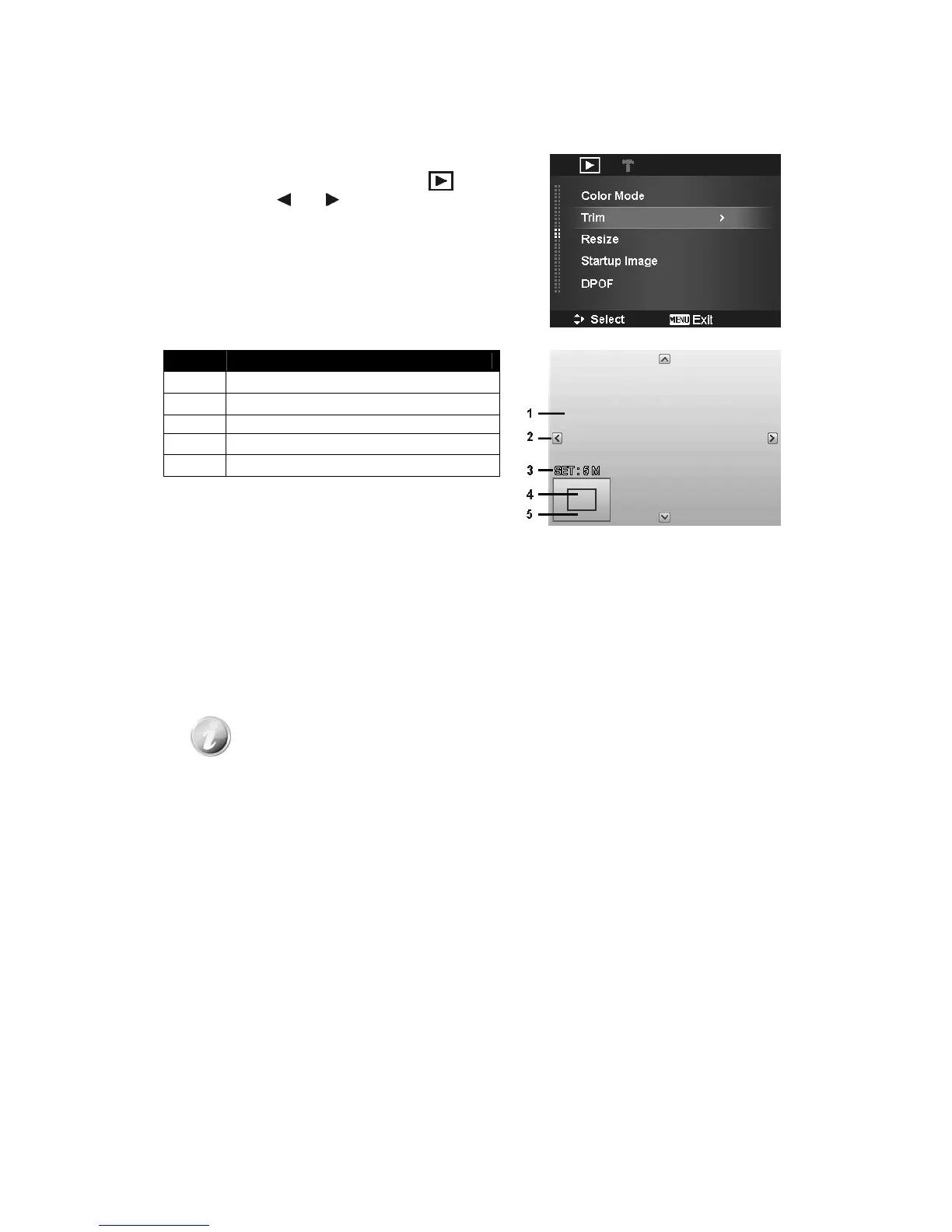
1. Set the camera to Playback mode .
2. Use the or keys to scroll and select an
image to trim.
3. Press the MENU button to launch the Playback
Menu.
4. Select Trim. The Trim screen layout is displayed on
the LCD monitor.
5. Use the Zoom buttons to change size as zoom
in/out.
6. Use the navigation controls to move the image.
7. Press the SET button to apply changes. A menu selection appears.
8. Select whether to:
• Overwrite. Save and replace the old file with the new one.
• Save As. Save the new file as a new one.
•
Cancel. Cancel Trim.
9. Press the SET button to save/cancel changes.
• Trim function is not available for images with image size set to VGA.
• All images will be trimmed in 4:3 ratio regardless of its original image ratio.





 To Next Page