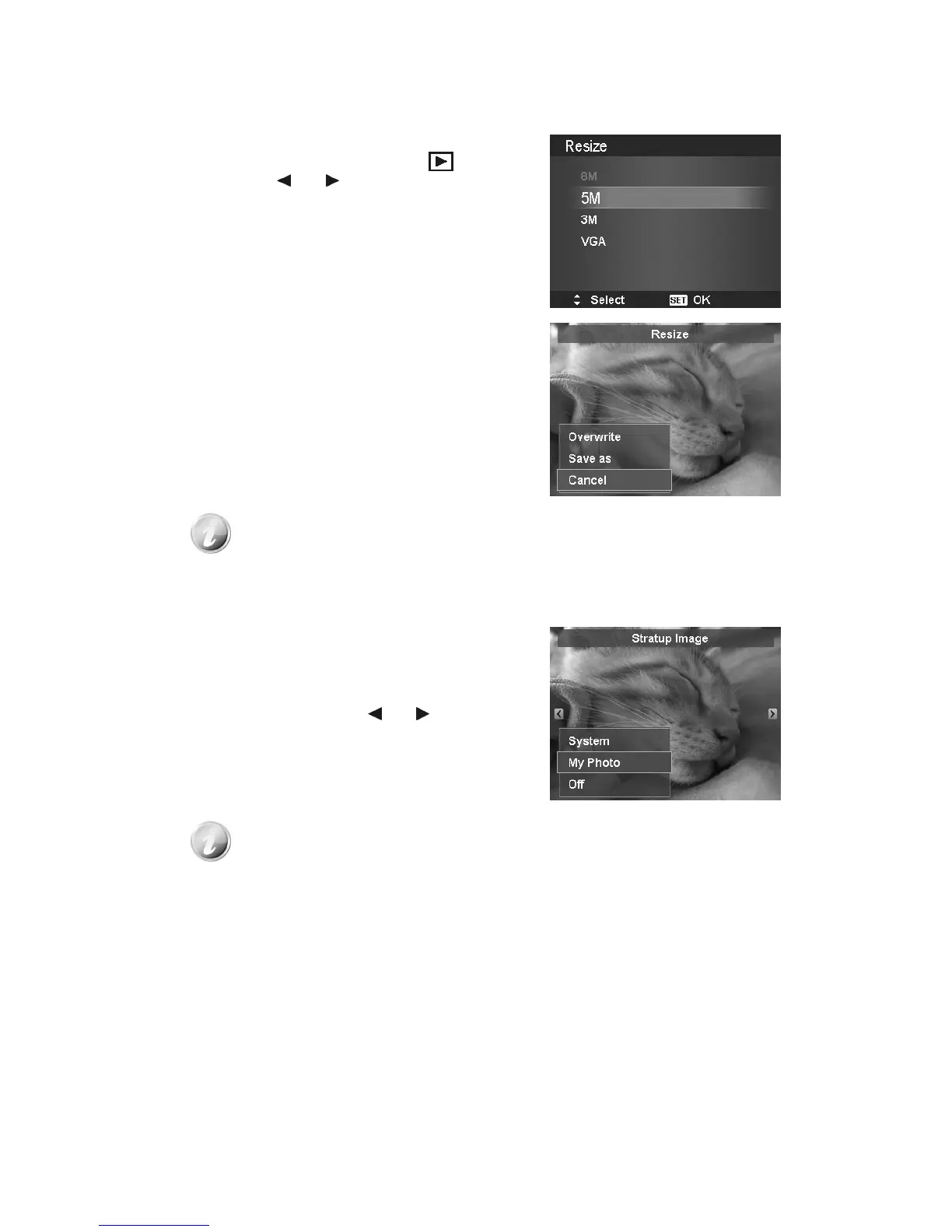
To resize an image:
1. Set the camera to Playback mode .
2. Use the or keys to scroll and select an
image to resize.
3. Press the MENU button to launch the Playback
Menu.
4. Select Resize. The Resize submenu is displayed on
the LCD monitor.
5. Select size among: 8M, 5M, 3M, and VGA. Available
size settings may vary depending on original image
size. Unavailable settings appear as gray icons in
Resize submenu.
6. After selecting size, a menu selection appears. Select
whether to:
• Overwrite. Save and replace old file with a new
one.
• Save As. Save the new file as a new one.
• Cancel. Cancel resize.
7. Press the SET button to save/cancel changes.
Resize function is not available for images with image size set to VGA.
Startup Image
You can specify the startup image from the captured images for camera.
1. Press the MENU button to launch the Playback
Menu.
2. Select Startup Image. The menu selection appears.
3. Select options:
• System. Use camera default image.
• My Photo. Use the or keys to scroll
and select desired image.
• Off. Disable the startup image.
4. Press the SET button to apply changes.





 To Next Page