AgfaPhoto OPTIMA 104
23
Setting the AF Area/Face tracking/Touch Shot
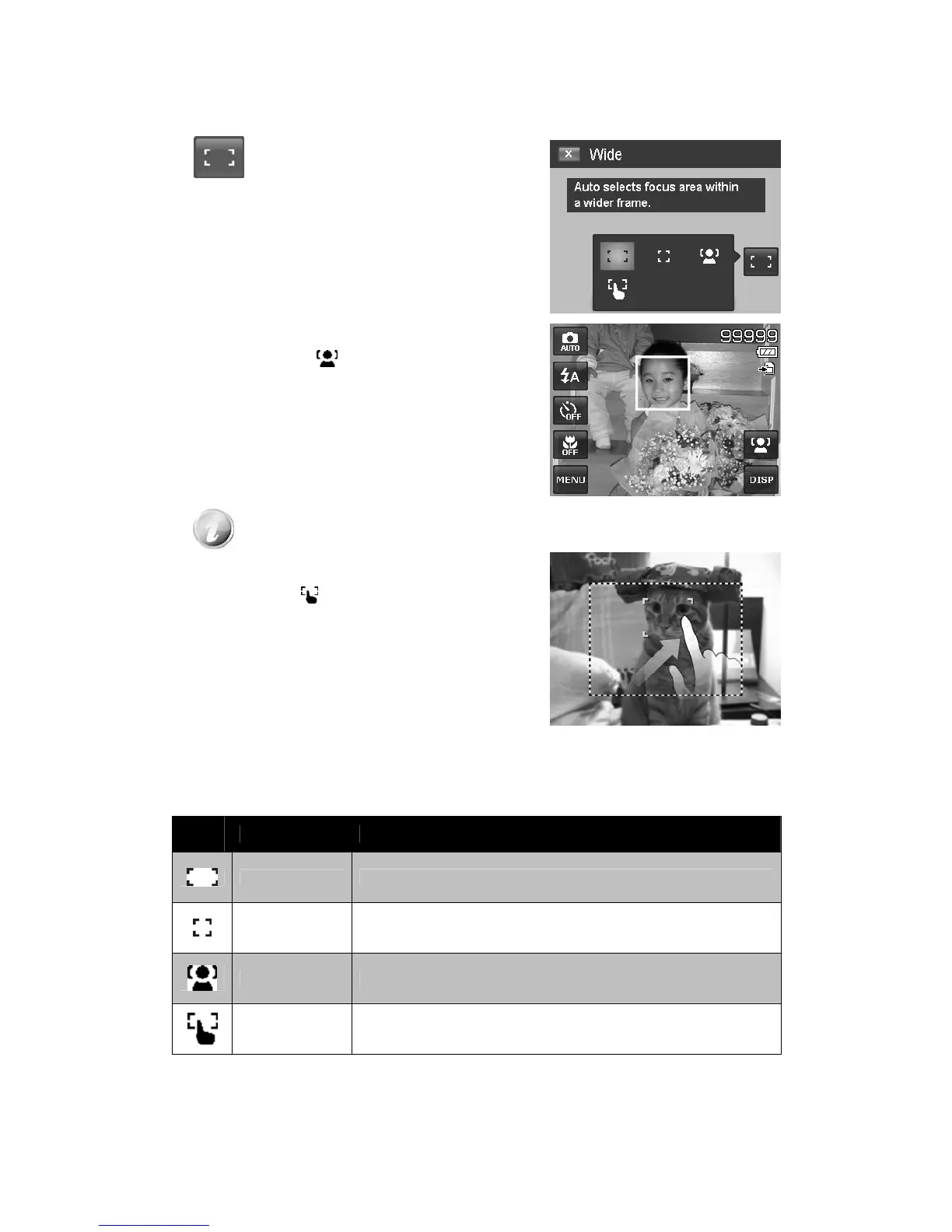
AF stands for Automatic Focus. This feature determines the area on which the camera focuses.
To set AF Area:
•
Tap the onscreen AF Area button to
display the popup
AF Area menu and tap
the desired icon.
How to use Face tracking:
1. Tap the onscreen AF Area button and then choose
Face tracking
.
2. Frame the target(s), when a face is detected, a white
focus box appears on the screen and tracks the face
continuously.
3. Press the shutter button halfway, the white box turns
into green (success focus), or red (focus failed).
4. If the box of main focus target turns green, press the
shutter (full press) to take the shot.
5. Or, release the shutter to re-focus target(s).
Up to 10 faces can be detected in the same time.
How to use Touch shot:
1. Tap the onscreen AF Area button and then choose
Touch shot
.
2. Frame the subject with the yellow focus frame on the
screen.
3. Tap the yellow focus frame and a dotted line area
appears on screen.
4. Drag the focus frame to desired position within the
dotted line area.
5. Release your finger from the screen, the camera
performs AF and then captures the image.
6. If your finger left the screen outside the dotted line
area and the camera did not perform AF and shooting,
please repeat step 2 to 5 again.
The table below shows the available AF Area settings.
Icon
Item Description
Wide The camera automatically selects focus area within the wide frame.
Center The focus area is fixed on the center.
Face Tracking The focus area traces human face automatically.
Touch Shot The focus area is controlled by finger and performs AF and shooting.




 To Next Page