AgfaPhoto OPTIMA 104
41
Playback
You can playback the still images, videos and audio clips on the LCD monitor.
File Navigation
There are 4 playback modes for file navigation in this camera:
• Single navigation
• Photo Steam
• Thumbnail
• Calendar
Viewing in Single Navigation Mode
The single navigation mode displays the image one by one on the LCD monitor.
To view images/videos/audio clips, follow the steps below:
1. Press the Playback button on the camera.
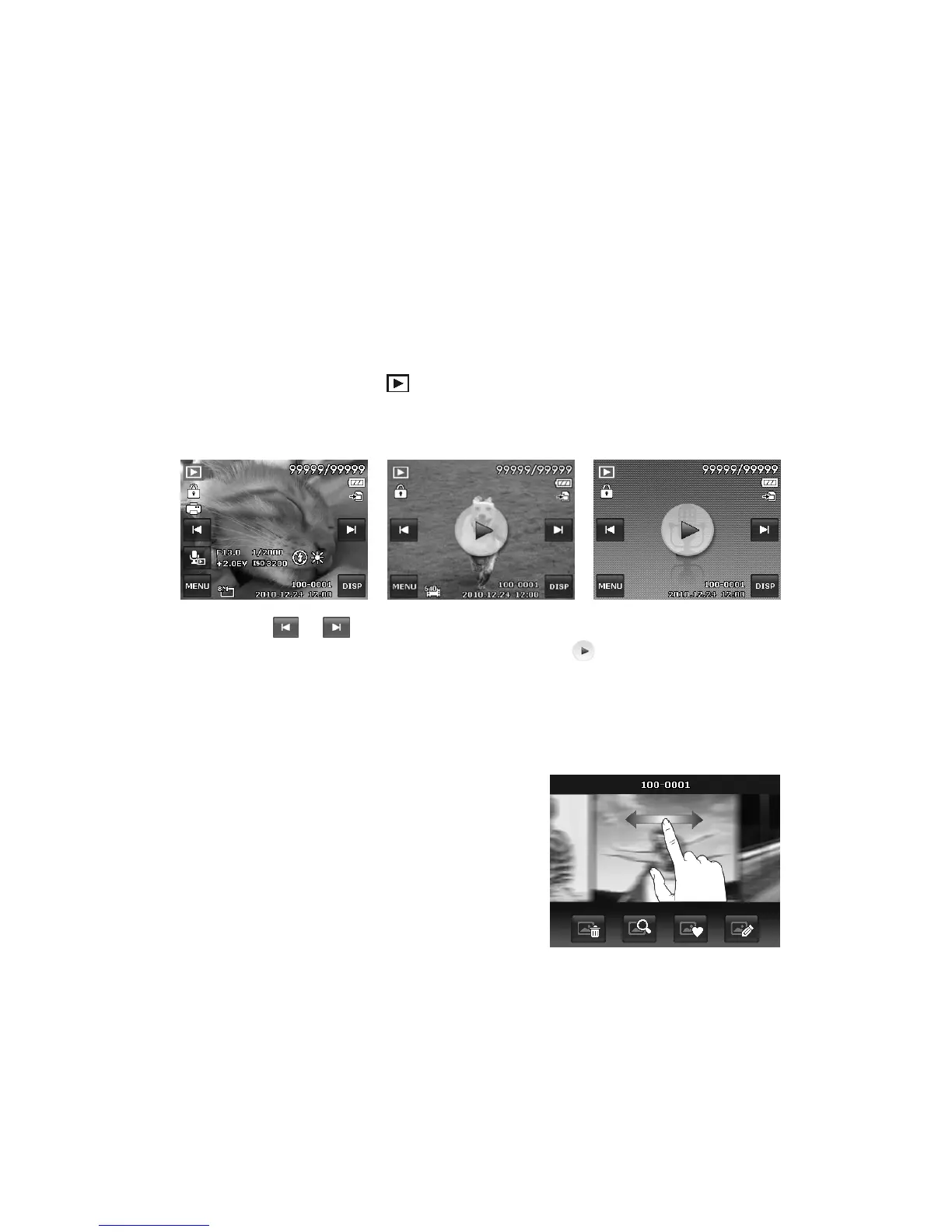
2. The LCD monitor displays an image. To understand the icons and other information on the screen,
please see "Photo Mode Screen Layout" on page 13.
Still Image Video Audio Clip
3. Tap the or onscreen buttons to view next/previous image/video/audio.
4. To play a video or audio clip, tap the onscreen Play button .
See "Playing Videos" on page 44 and "Playing Voice Recording" on page 44 for more details.
Viewing in Photo Stream Mode
The photo stream mode displays files side-by-side and supports finger motions allows you to browse
files with ease.
To use photo stream navigation:
• Switch from single navigation by tapping any part
of the screen, except onscreen buttons.
• Drag left or right to scroll. (Dragging to scroll won’t
choose or activate anything on the screen)
• Flick to scroll quickly. You can wait for the scrolling
to come to a stop, or touch anywhere on the
screen to stop it immediately.
• Tap the center displayed image to view it in single
navigation mode. Or, you can tap the half-hidden
displayed image on the left/right side of the screen
to view previous/next file in single navigation
mode.
Drag to scroll images




 To Next Page