CHAPTER 6
20
21
MXm
As far as Wi-Fi connection is concerned
two possible Wi-Fi modes are available.
1 – As an access point (AP – default)
This is the ideal configuration if you
have one only device and one only
computer. In this situation your MXm
creates a Wi-Fi network and works as
an Access Point you can connect your
PC to.
2 – Existing network (to connect to
an existing Wi-Fi network – WLAN)
This mode is complex and implies an
external access point (AP) but it is also
more flexible and powerful because al-
lows you to communicate with more
than one device and with more than
one computer in the same network.
MXm and the PC must connect to an
existing Wi-Fi network made by a de-
vice that works as an external access
point.
n
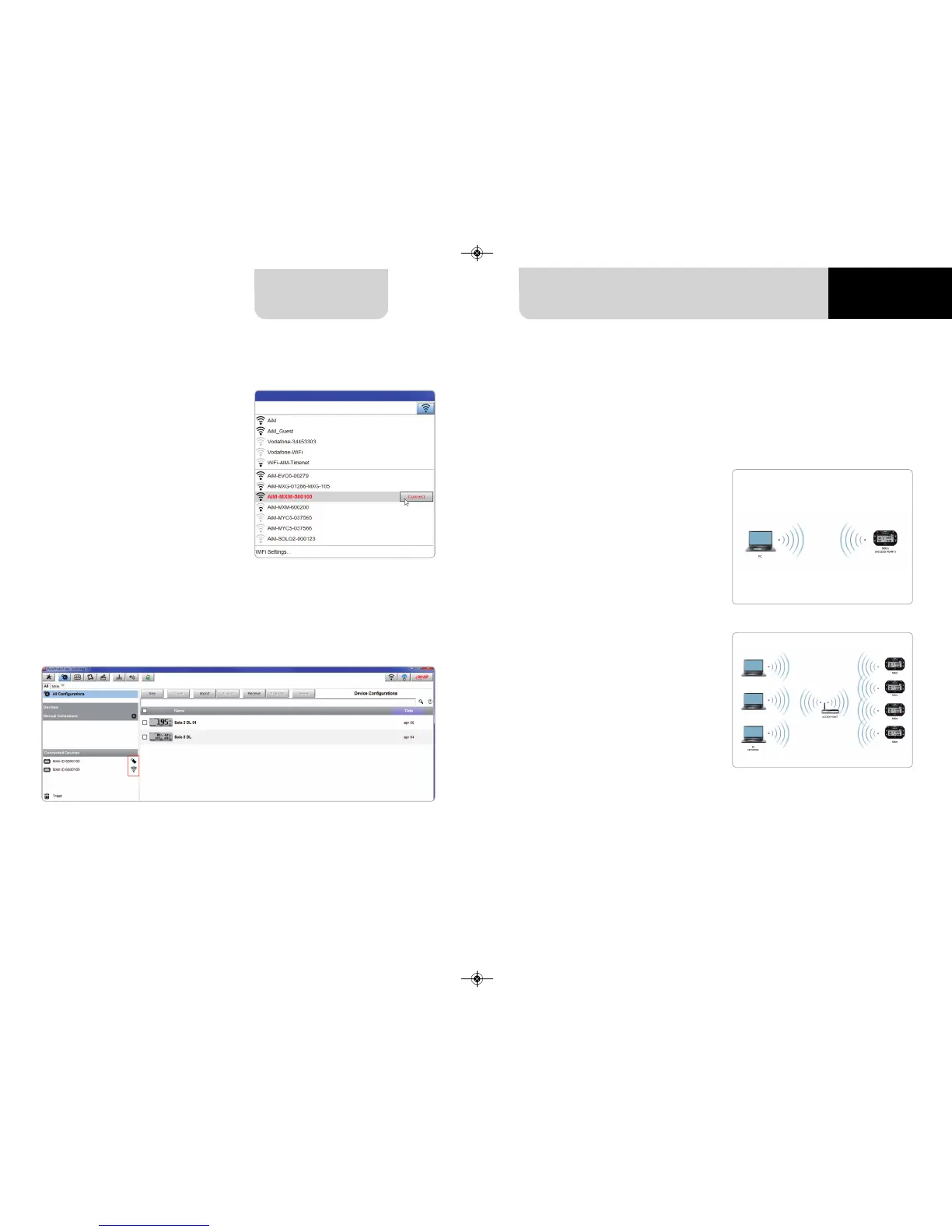
click Race Studio 3 Wi-Fi icon and se-
lect your MXm
n
press “Connect” and wait just a few
moments
Once the system is connected to the PC the software shows it bottom left of the
software home page showing also the way it is connected: an USB icon for USB
connection and a Wi-Fi icon if connected via Wi-Fi as shown here below.
6.1.1 Wi-Fi configuration
When working in WLAN mode MXm has two available security levels:
n
network authentication: network password
n
device authentication: MXm password
Both levels allow you to use different strategies. A PC in WLAN, for example, can see
several AiM devices but can communicate only with those he knows the password
of. If you forget the password you can reset Wi-Fi configuration from MXm menu as
explained before.


 To Next Page