CHAPTER 5
16 17
MXm
n
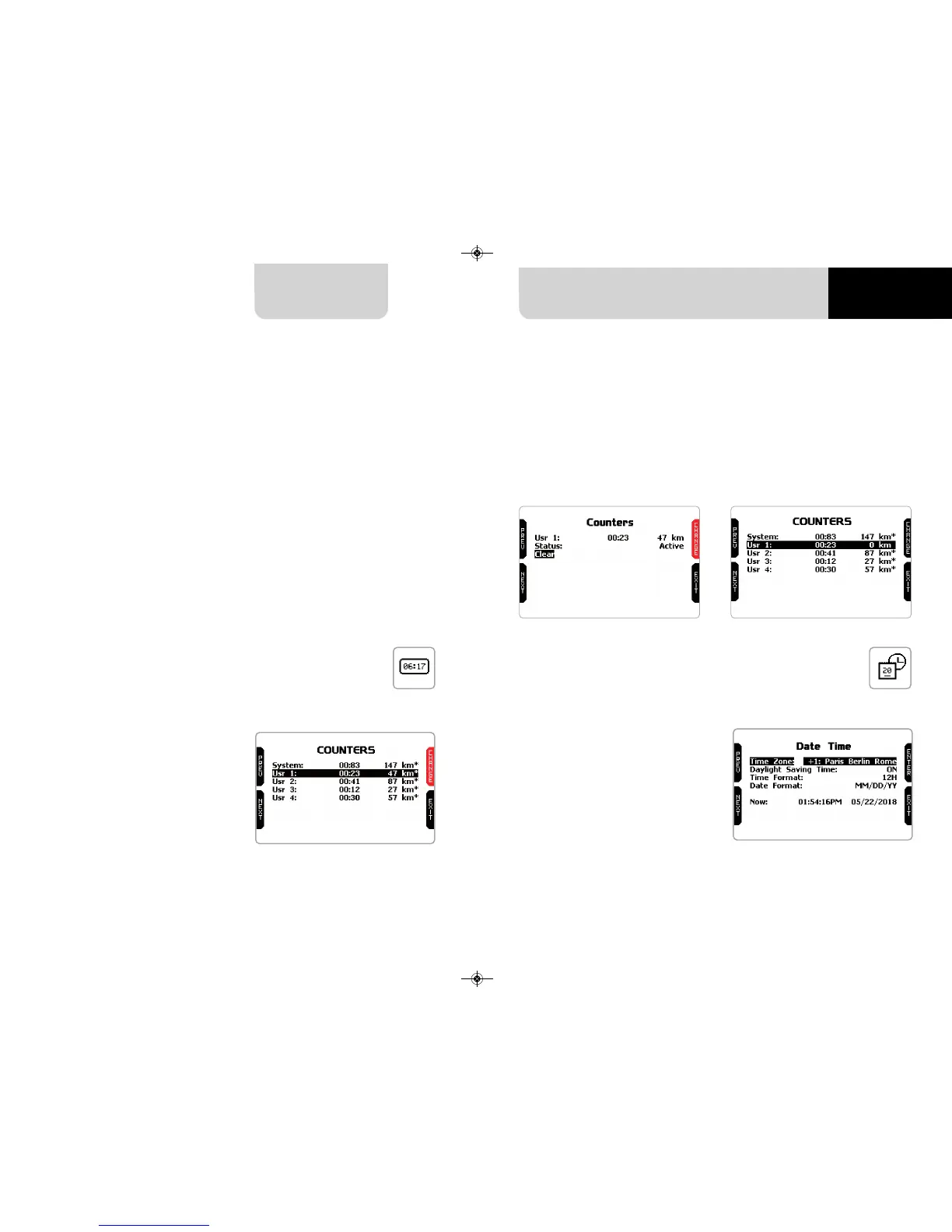
scroll to Status and press “CHANGE” to switch from “Active” to “Stop” and vice-versa
n
scroll to clear and press “CHANGE” to reset an odometer (left image below)
n
pressing “EXIT” you come back to odometer page and the odometer you
stopped/reset will not show the asterisk and will show “0” km (in the example
below both operations have been performed on odometer 1 (right image below).
5.4.1 Creating a track with MXm
5.5 Counters 5.6 Date and Time
If you are running in a track NOT included in MXm database the device switches to
“learning” mode and behave this way:
n
it starts sampling all track points
n
when detects that it is crossing the same points for the second time it realizes that
the track is closed and sets a temporary start/finish line showing lap time each
time it crosses that point;
n
at the end of the session the system shows the track map with start/finish line:
you can move start/finish line using MXm side buttons;
n
you can add this new map to MXm database, modify start/finish line coordinates,
name the track and transmit it to the PC at first PC-MXm connection
You find a deeper explanation of track management with Race Studio 3 in the related
chapter and a “Track manager” user manual is available in documentation area, fir-
mware/ software of www.aim-sportline.com.
This page manages the 4 resettable
odometers of MXm.
The system odometer is not resettable.
All odometers are shown on Race Stu-
dio 3 too (see chapter about MXm and
the PC).
Each odometer can be activated/deac-
tivated and/or reset. To select the odo-
meter you want to manage press
“CHANGE”.
Here you can set the time zone of your
MXm as well as enable/disable Day-
light Saving Time” option. Time zone is
always set manually. Date and time can
be shown in different format.
Time is automatically synchronized as
MXm receives the GPS signal.


 To Next Page