EasyManua.ls Logo

Aim MXm - User Manual

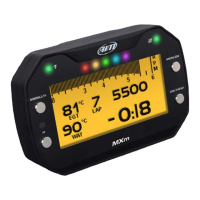
Aim MXm
40 pages
Print Icon
To Next Page IconTo Next Page
Loading...
Made in Italy
MXm
USER GUIDE 1.00
www.aim-sportline.com
MANUALE MXm 1.00 2018.qxp_Layout 1 01/08/18 15:08 Pagina 1
Question and Answer IconNeed help?

Do you have a question about the Aim MXm and is the answer not in the manual?

Summary

MXm Overview

What is in the MXm Kit?

Installation and Accessories

Keyboard Operations

Backlight Settings

Set backlight to AUTO, ON, or OFF using the light sensor.

Unit of Measure

Manage speed, temperature, and pressure units.

Wi-Fi Configuration

Configure Wi-Fi modes (ON, AUTO, OFF) and reset settings.

Tracks Management

Use GPS for lap time, speed, predictive lap time, and track position.

Counters

Manages the 4 resettable odometers of MXm.

Date and Time Settings

Set time zone and synchronize date/time via GPS.

Language Selection

Set MXm language.

System Information

Displays serial number, firmware, and boot version.

MXm and the PC

Connection to the PC

Connect MXm to PC via Wi-Fi or USB.

Wi-Fi Configuration

Two Wi-Fi modes: Access Point (AP) or Existing Network (WLAN).

Configuring MXm as Access Point (AP)

Default AP configuration for direct MXm to PC communication.

Adding MXm to Existing Network

Connects MXm to an existing Wi-Fi network for team use.

Wi-Fi Network Settings

Configure WLAN for AiM devices and PC, including router and DHCP.

Internet Connectivity

Recommends not allowing Internet on the same network for speed.

Connection Issues

Troubleshooting Race Studio 3 Wi-Fi connection issues.

Working on Mac with Virtualized Windows

Guide for Mac users using virtualized Windows for Race Studio 3.

Device Visualization Issues

Troubleshooting devices not shown or delayed in Race Studio 3.

MXm Configuration

Configure MXm settings via Race Studio 3 software.

Channels Configuration

Configure MXm channels, enabling disabled ones like Speed and Analog.

ECU Connection and Configuration

Connect MXm to vehicle ECU. Explains how to load ECU protocols.

LCU-One CAN Setting

Connect MXm to LCU One CAN lambda controller and set it up.

Math Channels

Create math channels like Bias, Calculated gear, Linear correction.

Status Variables Setting

Set user-defined conditions for alarms and logging.

Parameters Settings

Configure GPS lap detection and start data recording conditions.

Shift Lights and Alarms

Set shift lights and alarm LEDs for the MXm.

Power Outputs Setting

Configure the 2 power outputs, detailing function and limits.

Display Settings

Set up to eight display pages, each with 1 to 4 fields.

SmartyCam Stream Setting

Connect MXm to SmartyCam to display desired data on video.

Managing Tracks with Race Studio 3

Create, delete, and modify tracks using Race Studio 3.

ECU Driver Builder

Create custom CAN protocols for vehicle ECUs not in software.

The Device Window

Access device functions like Live Measures, Wi-Fi, and settings.

On Track Operations

Track Page

Displays selected track, satellite status, and learning mode.

Other Pages

Describes other MXm pages for visualization, scrollable via NEXT.

Data Recall

Data Analysis

Firmware Upgrade

RPM Measurement

RPM from ECU

Sample RPM from the ECU by connecting MXm to the ECU.

RPM via 5-50 V Square Wave or Coil

Sample RPM using the 'RPM' wire from the 37-pin harness.
SmartyCam and LCU-One Connection

Technical Specifications

Summary

MXm Overview

What is in the MXm Kit?

Installation and Accessories

Keyboard Operations

Backlight Settings

Set backlight to AUTO, ON, or OFF using the light sensor.

Unit of Measure

Manage speed, temperature, and pressure units.

Wi-Fi Configuration

Configure Wi-Fi modes (ON, AUTO, OFF) and reset settings.

Tracks Management

Use GPS for lap time, speed, predictive lap time, and track position.

Counters

Manages the 4 resettable odometers of MXm.

Date and Time Settings

Set time zone and synchronize date/time via GPS.

Language Selection

Set MXm language.

System Information

Displays serial number, firmware, and boot version.

MXm and the PC

Connection to the PC

Connect MXm to PC via Wi-Fi or USB.

Wi-Fi Configuration

Two Wi-Fi modes: Access Point (AP) or Existing Network (WLAN).

Configuring MXm as Access Point (AP)

Default AP configuration for direct MXm to PC communication.

Adding MXm to Existing Network

Connects MXm to an existing Wi-Fi network for team use.

Wi-Fi Network Settings

Configure WLAN for AiM devices and PC, including router and DHCP.

Internet Connectivity

Recommends not allowing Internet on the same network for speed.

Connection Issues

Troubleshooting Race Studio 3 Wi-Fi connection issues.

Working on Mac with Virtualized Windows

Guide for Mac users using virtualized Windows for Race Studio 3.

Device Visualization Issues

Troubleshooting devices not shown or delayed in Race Studio 3.

MXm Configuration

Configure MXm settings via Race Studio 3 software.

Channels Configuration

Configure MXm channels, enabling disabled ones like Speed and Analog.

ECU Connection and Configuration

Connect MXm to vehicle ECU. Explains how to load ECU protocols.

LCU-One CAN Setting

Connect MXm to LCU One CAN lambda controller and set it up.

Math Channels

Create math channels like Bias, Calculated gear, Linear correction.

Status Variables Setting

Set user-defined conditions for alarms and logging.

Parameters Settings

Configure GPS lap detection and start data recording conditions.

Shift Lights and Alarms

Set shift lights and alarm LEDs for the MXm.

Power Outputs Setting

Configure the 2 power outputs, detailing function and limits.

Display Settings

Set up to eight display pages, each with 1 to 4 fields.

SmartyCam Stream Setting

Connect MXm to SmartyCam to display desired data on video.

Managing Tracks with Race Studio 3

Create, delete, and modify tracks using Race Studio 3.

ECU Driver Builder

Create custom CAN protocols for vehicle ECUs not in software.

The Device Window

Access device functions like Live Measures, Wi-Fi, and settings.

On Track Operations

Track Page

Displays selected track, satellite status, and learning mode.

Other Pages

Describes other MXm pages for visualization, scrollable via NEXT.

Data Recall

Data Analysis

Firmware Upgrade

RPM Measurement

RPM from ECU

Sample RPM from the ECU by connecting MXm to the ECU.

RPM via 5-50 V Square Wave or Coil

Sample RPM using the 'RPM' wire from the 37-pin harness.

SmartyCam and LCU-One Connection

Technical Specifications

Aim MXm Specifications

General IconGeneral
BrandAim
ModelMXm
CategoryOther
LanguageEnglish

Related product manuals