TEMPUS. User Manual
9
2.1.2. Akiyama ASIO drivers Configuration
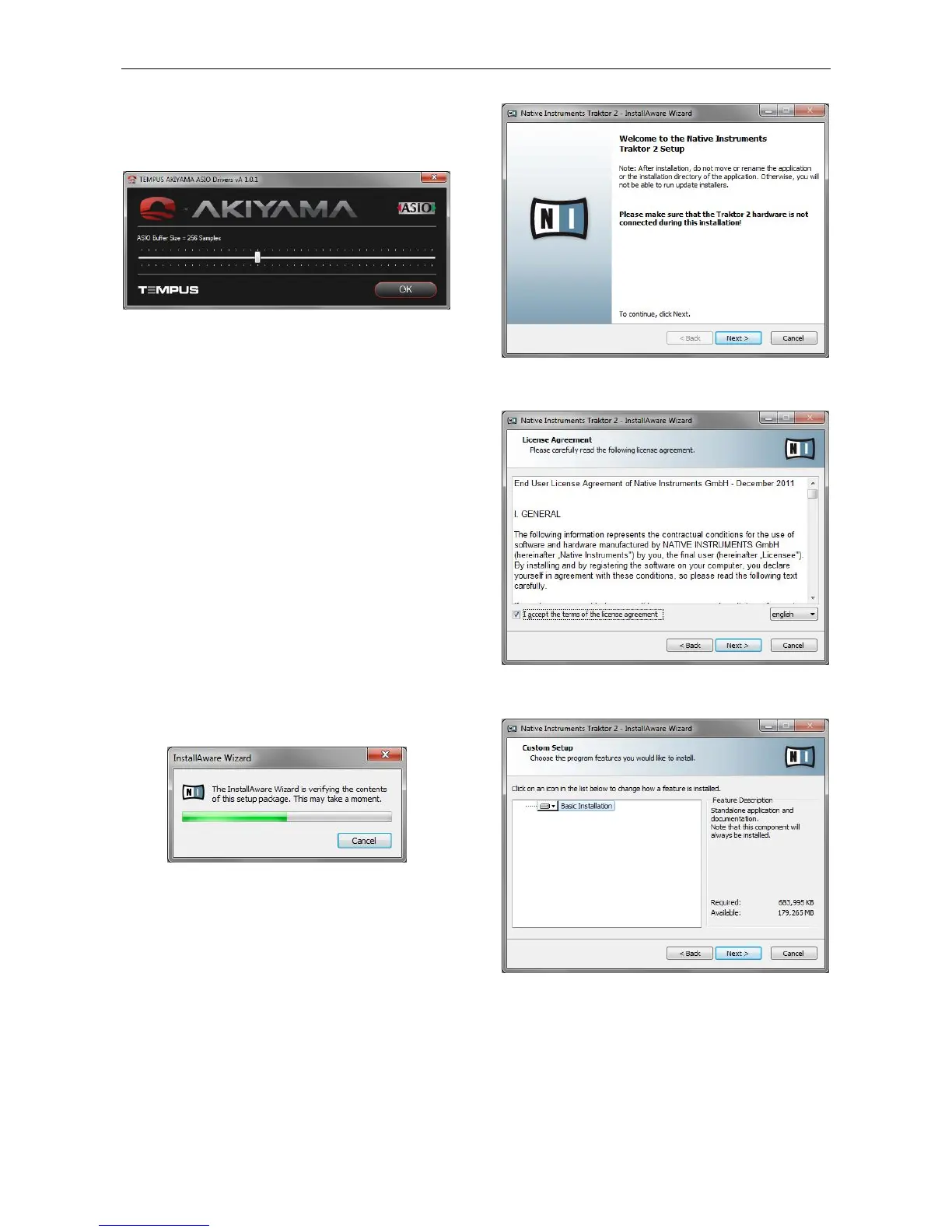
At the DJ Software select drivers’ configuration and the
following window will appear.
Set “ASIO Buffer Size”. There is not an optimal buffer size
since this parameter will depend upon many factors. As a rule
of thumb lower the “ASIO Buffer Size” until you can hear
noises and distortion when playing audio. When this happens,
raise a little the “ASIO Buffer Size” until no unwanted sound
appears at the audio. To exit press “OK”.
Next you have to configure the DJ Software inputs and outputs
as explained in the chapter related to Traktor Setup Wizard in
this manual.
2.2. Traktor 2
TEMPUS is bundled with Traktor 2 LE. We will go through the
steps to install and configure Traktor 2 LE and PRO to be
controlled by TEMPUS.
System Requirements:
Windows XP (latest Service Pack, 32 Bit),
Windows Vista/Windows 7 (latest Service Pack, 32/64 Bit),
Intel Pentium 4 2.4 GHz or Intel Core Duo or AMD Athlon 64,
2 GB RAM
Mac OS X 10.6 (latest update) or 10.7, Intel Core Duo, 2 GB
RAM
500 MB free disk space required (minimum), DVD drive
2.2.1. Windows installation
Execute the Traktor 2 installation file. Installation will start with
the verification of the setup package.
Afterwards, a welcome window will appear as seen below:
Select “Next” to start the installation. Following the license
agreement will show up.
Read the Licence agreement carefully, select the accept box
and press “Next”.
At this point you can select which features you would like to
install; we recommend you start with the default “Basic
Installation”. Press “Next”.


 To Next Page