TEMPUS. User Manual
10
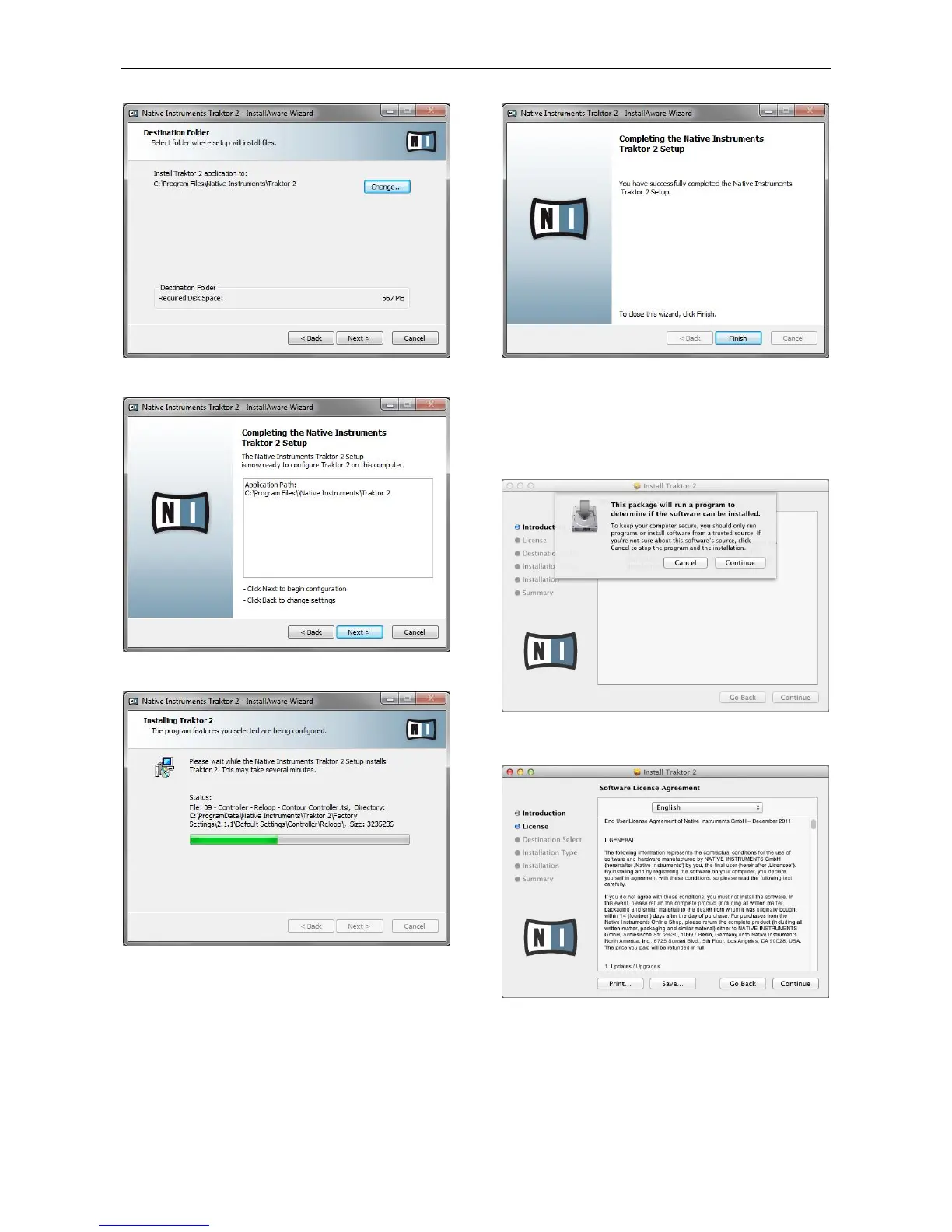
Select the folder where setup will install files and click “Next”.
Check that everything is correct and select “Next”
Wait until the following window appears:
Traktor 2 will be successfully installed. Click “Finish” to exit
from the Installation Wizard.
2.2.2. MAC Installation
Execute the Traktor 2 installation file. Installation will start with
the verification of the setup package.
Select “Continue” to start installation. Following the license
agreement will show up.
Read the License Agreement carefully and select “Continue”
and the license agreement confirmation window will appear.


 To Next Page