TEMPUS. User Manual
8
2. SOFTWARE INSTALATION AND SETUP
Before you can start using Akiyama TEMPUS it is necessary to
install Akiyama ASIO drivers to optimize the performance of
the sound card of TEMPUS.
ASIO drivers can only be installed on Windows. MAC uses
CoreAudio drivers which don’t need to be installed.
Also you will need DJ Software. We will explain how to install
Traktor 2 LE and how to configure Traktor 2 LE as well as
Traktor 2 PRO.
2.1. TEMPUS Akiyama ASIO Drivers
After connecting TEMPUS to your computer USB port, the
hardware will be recognised as an audio device. Now you can
start using TEMPUS, however we strongly recommend the
installation of the purpose designed TEMPUS Akiyama ASIO
drivers. If you are going to use the inputs then you must install
the TEMPUS Akiyama ASIO drivers.
For multi soundcard configurations, download the generic
Akiyama ASIO Drivers for free at www.akiyamadj.com. You will
find more information about the Akiyama ASIO drivers in the
manual that is installed together with the drivers.
System Requirements:
In order to successfully run TEMPUS Akiyama ASIO Drivers,
you need a WDM-compatible operating system, such as
Win98SE /ME /2k /XP /2003 /XP64/ Windows Vista x86/x64 or
Windows 7 x86/x64
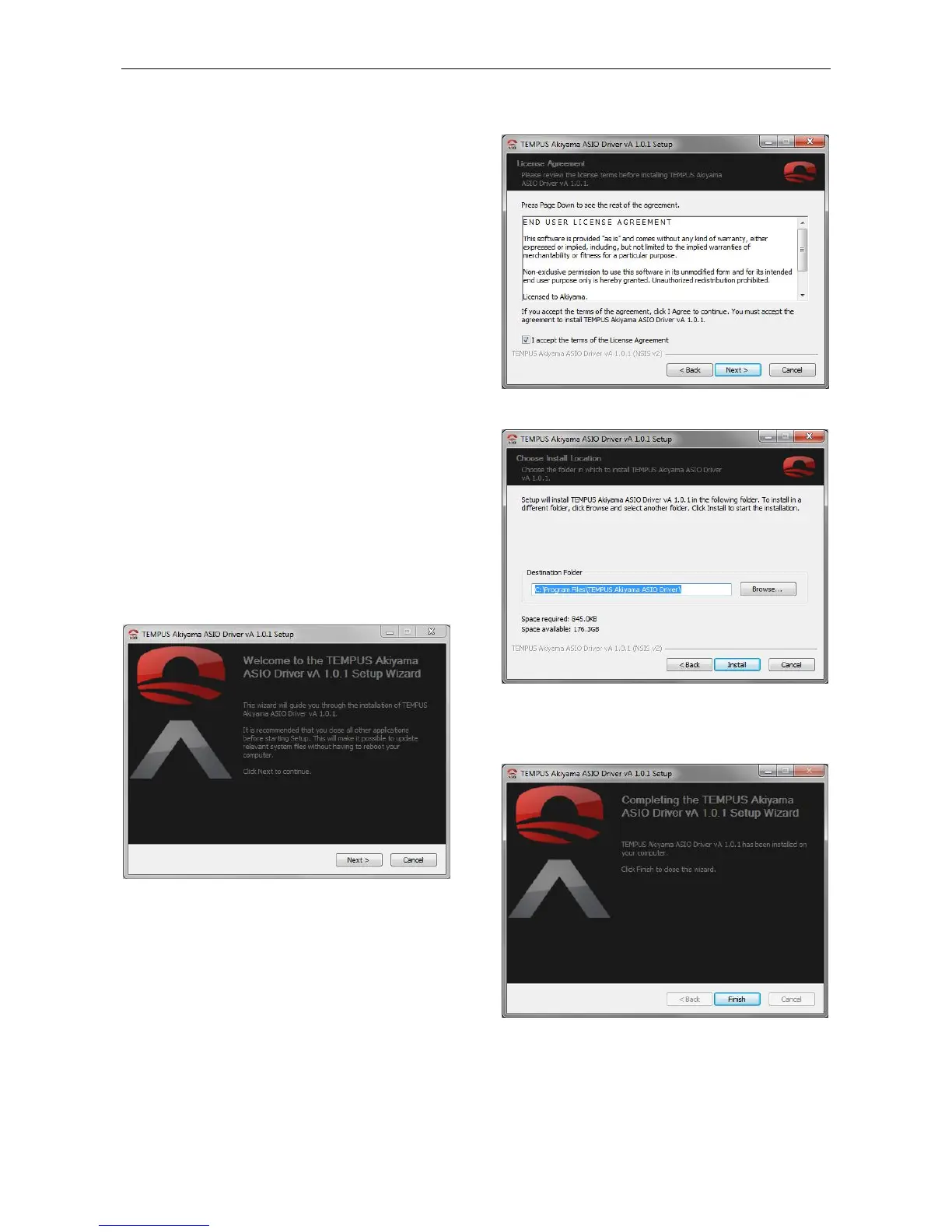
2.1.1. Akiyama ASIO drivers’ installation
Double click the icon of the file:
TEMPUS_Akiyama_ASIO_Driver_Setup.exe. Installation will
start at once. Firstly, it will appear the welcome window as
seen below.
Before click “Next” read the information at welcome window.
While installing the drivers we recommend you close all other
applications running in your computer. This will enable
important file upgrades without the need to reboot the
computer. Select “Next” to start the installation. Following
license agreement window will appear.
Select the accept box and press “Next”.
Select the folder where the driver will reside, by default it will
be: C:\Program Files\TEMPUS Akiyama ASIO Driver\
To select another folder click “Browse…” and search for the
desired folder. Following select “Install”.
Finally press “Finish” to exit install wizard.


 To Next Page