TEMPUS. User Manual
21
4. SETUP AND FIRMWARE UPDATE
There are two approaches to set the device. One is setting
through the Settings and Update software. The other is directly
control by the hardware.
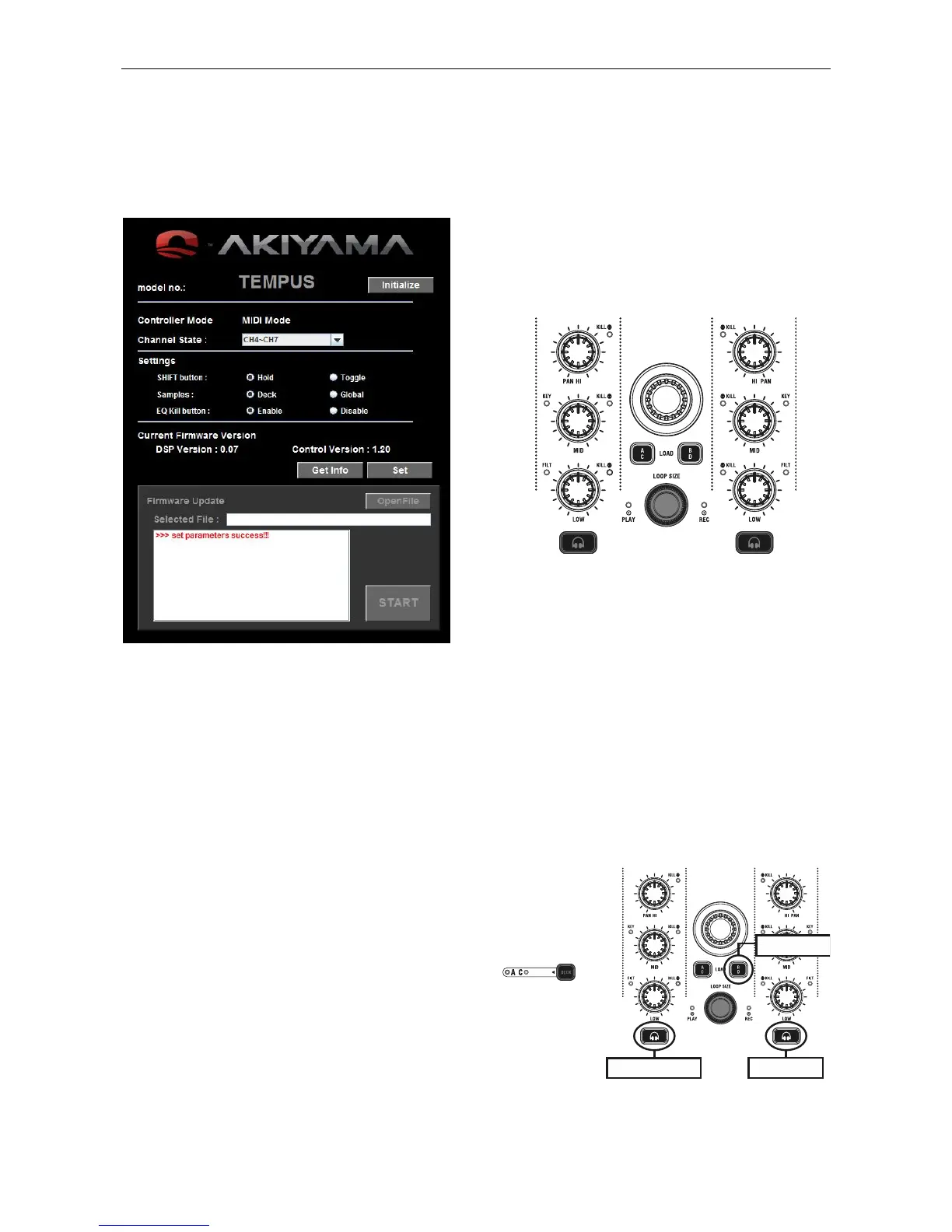
4.1. Setting Software
Initialize
Initialize the program to get model no. of the device.
Channel
Set the controller’s channels. The default channels are
Channel 1 to Channel 4.
Settings
Following functions you can set this device by your
requirements.
- SHIFT button: Press or hold the SHIFT button you can
Access the secondary functions of other control elements.
There are two modes for SHIFT button. The HOLD mode
you have to press the button until you finished the secondary
functions. Under the TOGGLE mode Press the button to
active the secondary functions. Press the SHIFT button
again to de-active the secondary functions.
- Samples: Depend on different DJ software the samples
could be on “Global” section or “Deck” section. Global
section: The left deck and right deck sample buttons are in
the Global Section like the crossfader. The channels of
samples are not affected by the “DECK SWITCH button” and
always keep the same channel. Deck section: When you
change deck by “DECK SWITCH” button the channel of
Samples will be changed as normal Deck control elements.
- EQ KILL button: The EQ knobs have Full Kill Function by
press the EQ knobs. You can switch On/Off the function by
your DJ style.
Current Firmware Version
Before you update firmware for this device you had better
recheck the firmware version.
To indicate the current firmware version of this device, you can
follow the below statement:
- Get Info: You can get the current setting info of this device
by click the “Get Info” button.
- Set: After you change the settings as you want. Click the
“Set” button to finish the settings to this device.
4.2. Firmware Update
- Before you turn on the device please HOLD the “Channel 1
Monitor Cue”, “Channel 2 Monitor Cue” and “Center Encoder”
at the same time, and then turn the power on. You can find the
LED of Left deck “Hot Cue 1” is lit. Right now the device is
ready for firmware update.
- Execute the device Setting and Firmware Update program.
NOTE: If you have not turned on the device holding the
buttons specified in the first step, the Firmware Update part will
not be available.
- Click the “Open File” button to select the firmware from your
computer.
- Click “Start” to begin the firmware update process. During the
update process you can find the Hot Cue buttons will lead in
sequence from left deck to right deck.
- After successfully update the firmware the device will
automatically restart.
4.3. Changing Settings through the Controller
You can get the current settings info by hold the “Left DECK
SWITCH” button for 3 seconds and press the “Center Encoder”


 To Next Page