TEMPUS. User Manual
13
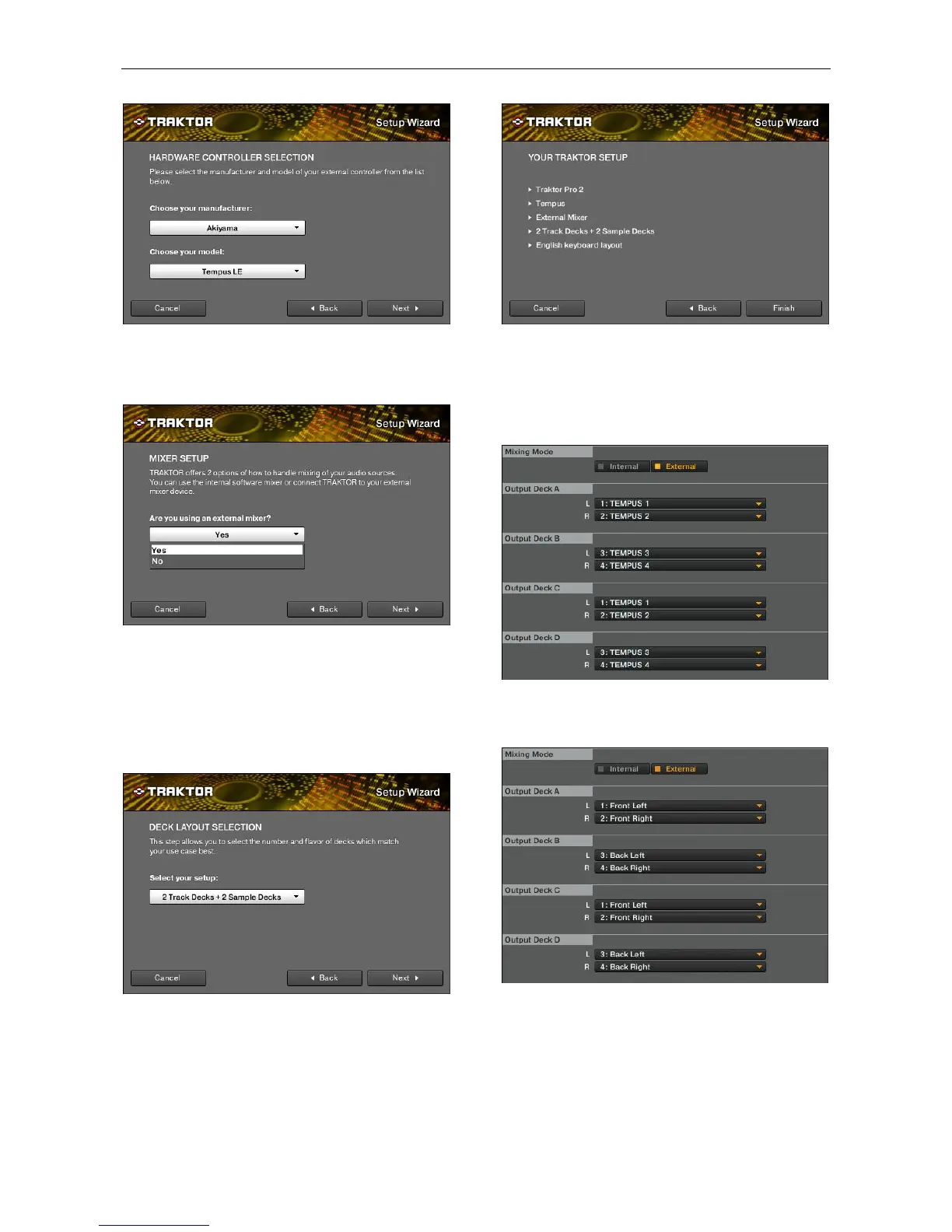
Choose “Akiyama” as manufacturer and “Tempus LE” or
“Tempus” on model depending on if you are using Traktor 2 LE
or PRO. Again confirm this selection with “Next” to jump to the
next step.
We recommend selecting the external mixer option if you plan
to use two decks on Traktor 2 PRO or you are using Traktor 2
LE.
Select internal mixer if you need to control 4 decks.
NOTE: You must configure the controller accordingly (point
1.4-11).
After clicking “Next” you will go to next step. In Traktor 2 LE the
next step is a summary of the setup while in Traktor 2 PRO
you will see the following window.
Here, you have to select the desired deck layout.
NOTE: You must configure the controller accordingly (For
more information go to the point 3.2 of this manual).
Click “Next” to go to the setup summary.
Check the setup and click “Finish” to exit from the Setup
Wizard. If there is anything wrong on the setup you can come
back to reconfigure it by clicking “Back”.
If you select external mixer and a four deck configuration,
output deck C and D will not be routed anywhere. Therefore,
you will have to configure it by hand as you can see in the
picture:
The names of the outputs on MAC are different from the
names on Windows. On MAC you must configure Outputs as
follow:
The same outputs are assigned to 2 decks and consequently
you won’t be able to mix them separately. We recommend
using internal mixer for four decks configurations.
Read Traktor and TEMPUS Akiyama ASIO driver manuals for
advanced configurations.
Traktor Scrach Cerified users will have to configure their NI
Time Code compatible sound card after executing the Setup
Wizard.


 To Next Page