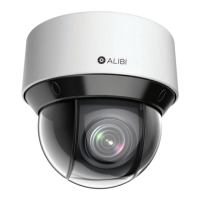
23ALI-NS8014VR IP PTZ Camera Installation and Setup Guide
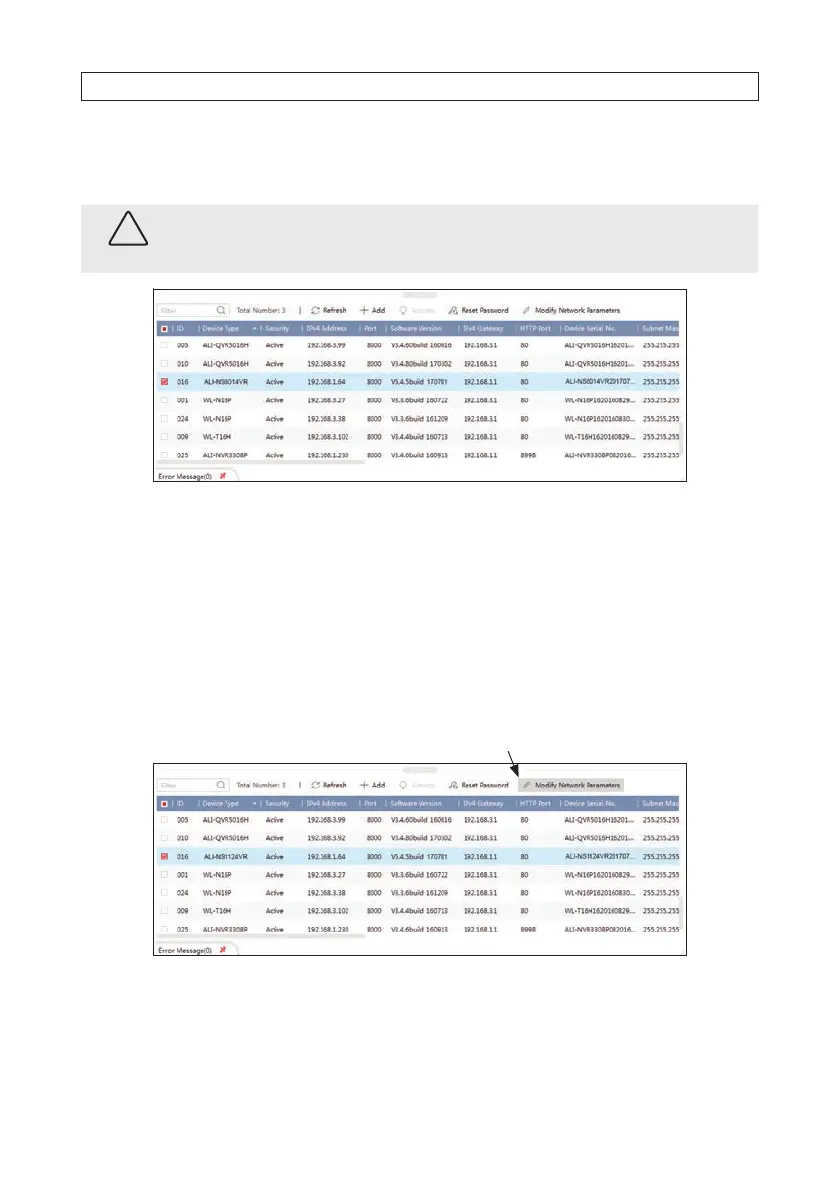
b. Enter the admin password again in the Conrm eld, and then click Activate. In the screen below, notice that the
device Security status shows “Active”. Record your admin password for reference later.
CAUTION
If you lose your admin (administrator) password, you cannot congure the device or restore it to its factory settings. To reset
your password, call your support organization for specic instructions.
Notice that although the device is now activated, it retained the default IP address.
3.3 Modify Network Parameters
NOTE: If the camera LAN extension cable is attached to a Network Video Recorder (NVR), skip this step. The camera will receive
network conguration settings from the NVR. Refer to the documentation available for your NVR rmware for more information.
You can change the network parameters of devices that are active.
1. In the list of devices discovered, click on the device you want to change the network settings for, and then click the select box
to check it. See below.
Modify Network Parameters
2. In the popup window, edit the current network parameters, and then enter the admin user password in the eld at the bottom.
a. Enable DHCP: You can select Enable DHCP to acquire compatible network settings from a DHCP server installed on
the LAN. However, these settings can be changed by the DHCP server. Since it is recommended to use an unchanging
SECTION 3: CONFIGURE NETWORK ACCESS




 To Next Page