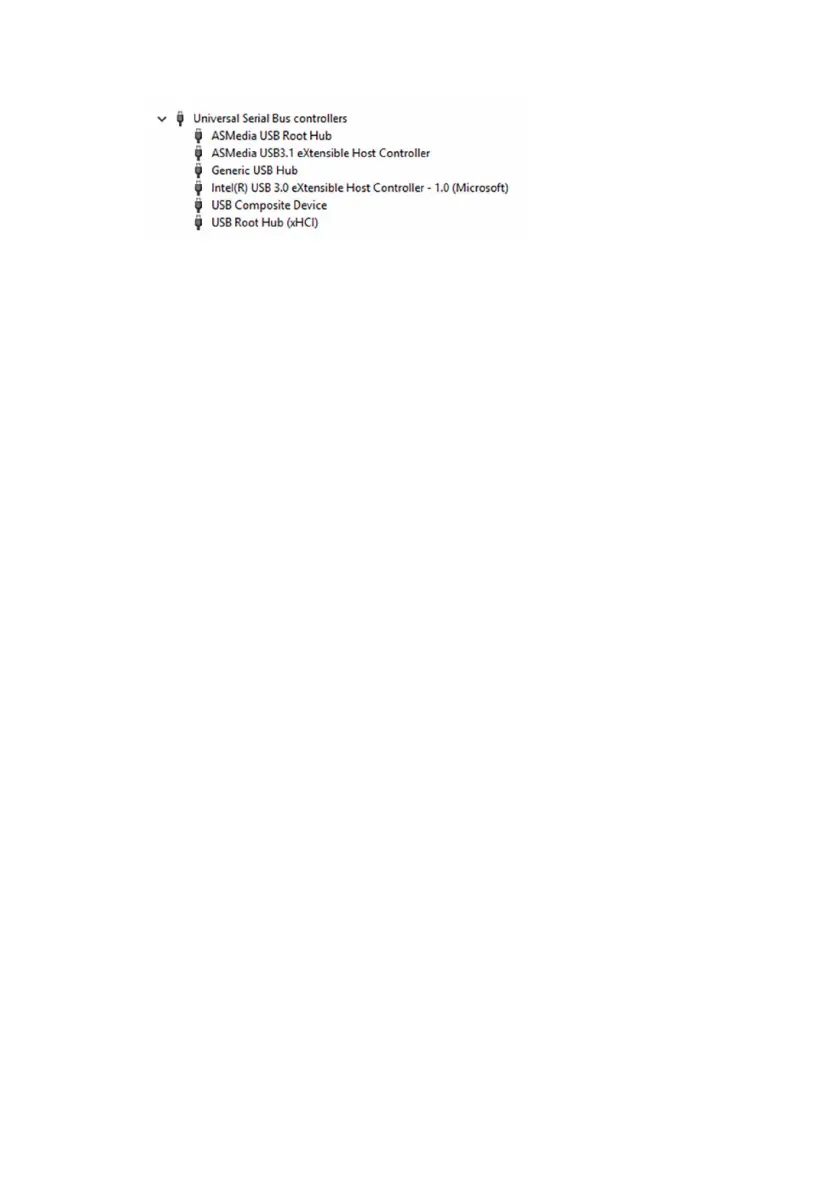
3 Expand System devices.
Enabling or disabling the USB in BIOS setup
program
1 Turn on or restart your computer.
2 Press F2 when the AlienHead logo is displayed on the screen to enter the
BIOS setup program.
The BIOS setup program is displayed.
3 On the Advanced tab, select USB Configuration.
4 Select the Front USB Ports or Rear USB Ports options to enable or
disable the ports respectively.
5 Save the BIOS setup program settings and exit.
Fixing a no-boot issue caused by USB emulation
Sometimes the computer does not boot to the operating system when USB
devices are connected to the computer during startup. This behavior occurs
because the computer is looking for bootable files in the USB devices. Follow
these steps to fix the no-boot issue:
1 Turn on or restart your computer.
2 Press F2 when the AlienHead logo is displayed on the screen to enter the
BIOS setup program.
The BIOS setup program is displayed.
3 On the Advanced tab, select USB Configuration.
4 Select the USB Boot Support to disable it.
5 Save the settings and exit.
Wi-Fi
Alienware Aurora R5 is shipped with Wi-Fi 802.11b/g/n or Wi-Fi 802.11ac.
134









 To Next Page