Hard drive
The following table shows the hard-drive options available in Alienware Aurora
R5.
Options Dimensions
SSD One M.2 drive
SATA
• One 3.5-inch drive bay
• Two 2.5-inch drive bays
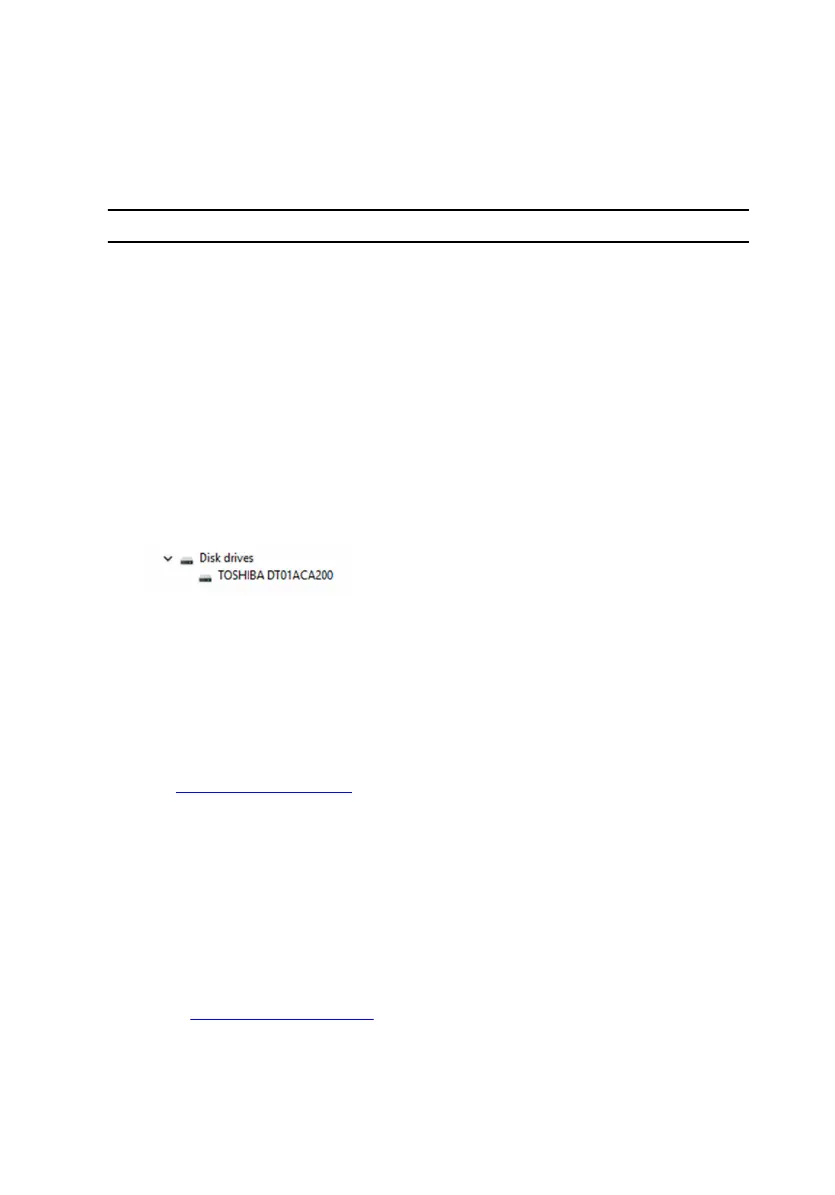
Identifying the hard drive
1 On the taskbar, click the search box, and then type Device Manager.
2 Click Device Manager.
The Device Manager window is displayed.
3 Expand Disk drives.
Identifying the hard drive in BIOS setup program
1 Turn on or restart your computer.
2 Press F2 when the AlienHead logo is displayed on the screen to enter the
BIOS setup program.
A list of hard drives is displayed on the Main tab. For more information,
see System setup options.
Chipset
Alienware Aurora R5 is shipped with the Intel Z170 chipset.
Downloading the chipset driver
1 Turn on your computer.
2 Go to www.dell.com/support.
139









 To Next Page