In the Device Manager, check if the Bluetooth driver is installed.
Install the driver updates from www.dell.com/support.
BIOS overview
The BIOS manages data flow between the computer's operating system and
attached devices such as hard disk, video adapter, keyboard, mouse, and
printer.
Boot menu
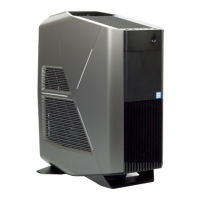
The Alienware Area-51 R2 includes a one-time boot menu. By using this feature,
you can change the sequence of devices that your computer attempts to boot
from, for example, CD-ROM, hard drive, or network.
Boot menu enhancements
The boot menu enhancements are as follows:
• Easier Access — Press F12 to access the boot selection menu.
• User Prompting — The user is prompted to use the keystroke on the
BIOS screen.
• Diagnostics Options — The boot menu includes the ePSA diagnostic
options.
Timing key sequences
The keyboard is not the first device initialized by Setup. As a result, if you press
a keystroke too early, the keyboard is locked out. In such case, a keyboard error
message is displayed on the screen, and you cannot restart your computer with
the Ctrl+Alt+Del key combination.
To prevent the keyboard from locking, wait until the keyboard is initialized
completely. The keyboard is initialized if one of the following occurs:
• The keyboard lights flash.
• The F2=Setup prompt appears at the top-right corner of the screen during
boot.
149









 To Next Page