AlphaVision ML User manual Rev. 2.60 – 01-01-2015 16
Arming and disarming with wireless keyfob transmitters
When the AlphaVision ML has been expanded with the optional wireless receiver module, the system can
also be armed and disarmed with wireless keyfob transmitters. Up to 8 wireless keyfob transmitters can be
enrolled into the AlphaVision ML’s’ memory. Each keyfob transmitter uses an encrypted code for arming
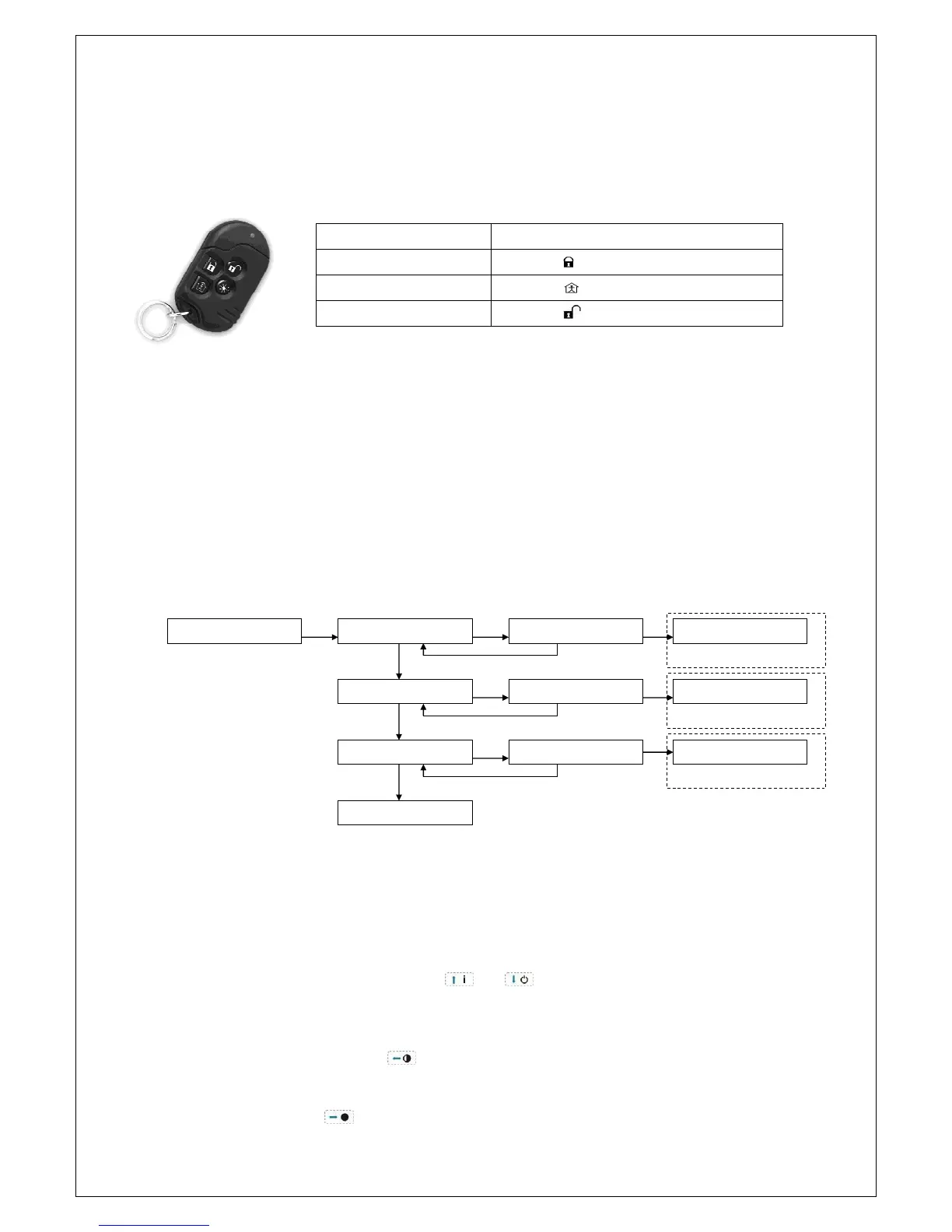
and disarming. The transmitter has 4 buttons each with the following function:
Your installation company can program which sections are armed with Partial and which with Total arming.
The fourth button on the keyfob transmitter is the so-called AUX button () and is used (depending on
programming) for requesting the system status, stopping the exit delay or activating an output.
USER MENU
The AlphaVision ML control panel has a user menu for programming and modifying user settings. The user
menu offers six sub-menus, each with various programming options or functions. The user menu is only
accessible with the supervisor code.
Use the navigator (arrow) keys to scroll through the menu’s and options.
START
OK
USERMENU
OK
ENTER CODE: DATE AND TIME
valid code
invalid code
INSTALLATION ENTER CODE: INPUTS
valid code
invalid code
LOGBOOK ENTER CODE:
valid code
DISPLAY LOGBOOK
invalid code
PREVIOUS MENU
User menu
Installation menu
Log menu
The user menu is only accessible with the supervisor code (code number 90, default code = 445566). From
software V2.03 and above also 4-digit codes van be used. Use this code once to enter the user menu and
change the supervisor code immediately.
To enter the user menu, press <#/OK>. The display will change to “USER MENU”. Press <#/OK> to confirm,
the display will now prompt for the supervisor code. Enter the 4 or 6-digit supervisor code and the first
submenu “DATE AND TIME” will appear. Use the and navigator keys to scroll to the desired
submenu and press <#/OK> to enter the submenu’s.
The installer menu is only accessible for the installation company, with a separate installer code.
To return to a previous menu, press the key. This key is also used to move back one position in a
programming option (e.g. telephone number).
To leave the user menu, press . The display will change to “Exit menu? <OK>”. Press the <#/OK> key to
leave the menu.


 To Next Page