18
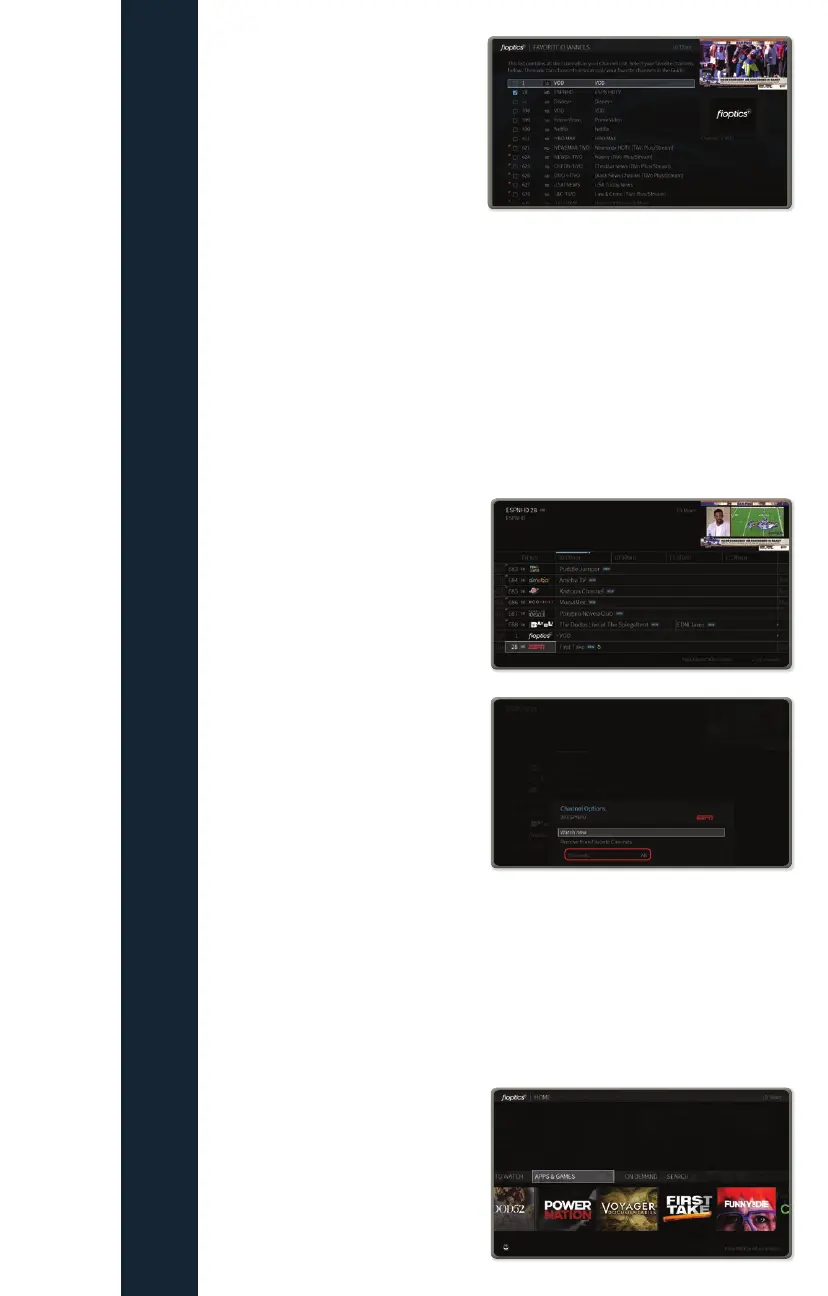
Once all channels have been added
to your Favorites list, press the Guide
button on the remote control. Move
the cursor to the left to highlight the
channel name and number and then
press the OK button on the remote.
A pop-up will appear at the bottom
of the screen. Move the cursor to
highlight Channels. The default for
this setting will be All. Using the
left or right arrow keys, change
this setting to Favorites. Press the
Back button on the remote control
to return to the Guide. The Guide
will now display only the channels
that were selected in the Favorites list. To change back to the full Guide, repeat
these steps and change the Channels selection back to All.
Highlight Favorite Channels and
press the OK button on the remote.
A list of all channels will now display. To add a channel to your Favorites list,
highlight it and press the OK button. This will place a checkmark in the box to
the left of the channel number.
Repeat these steps for all channels you wish to add to the list. To remove
a channel from the list, highlight it and press the OK button to remove the
checkmark.
When finished, press the Back button on the remote.
FIOPTICS+ - Favorite Channels, Apps and Games
Activating Favorite Channels
Apps and Games
How to add apps and games to your Fioptics+ account
You can download other video, music or gaming apps to your Fioptics+ set top
box by opening the Google Play Store within the Apps and Games menu.
1. Select Apps & Games from
the Home screen.



 To Next Page