29
FIOPTICS INTERNET - Email setup
QUICK TIP
Need Help? Scan this QR Code to visit our support page.
Set Up Email
If you have chosen a free altafiber email account, please follow these instructions to
activate:
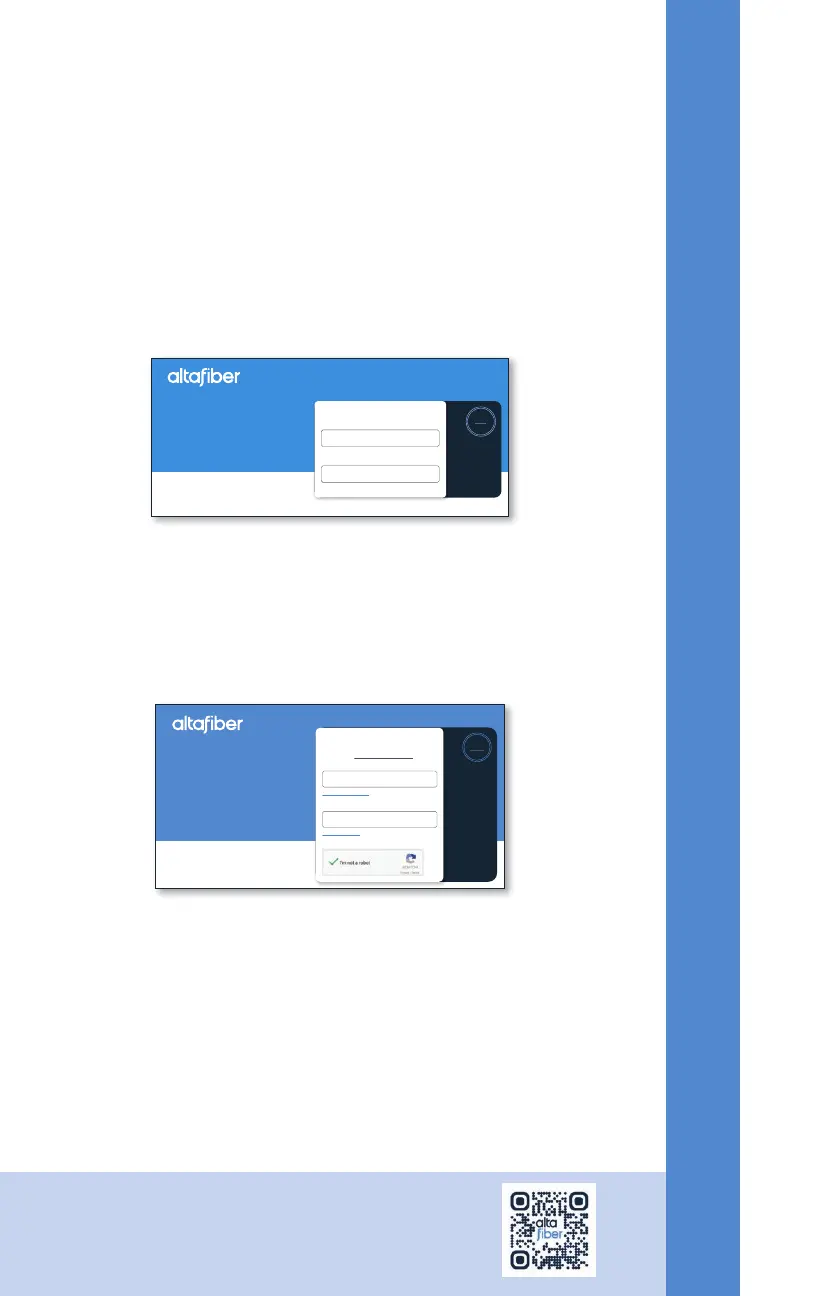
1. Go to https://email.altafiber.com
2. Select Activate New Email Address
3. Enter your new Email Address and Account Number, select Next
4. Follow the steps for adding the new email address
System Requirements
Currently, we support the following:
» Web browsers: Internet Explorer 6.0+, Firefox 1.5+ and Safari
» Operating systems: Windows 2000, XP, 7, 10 or Vista, and Mac OS X
» Processor: minimum Intel Pentium 600MHz
» Available hard-drive space: 320MB
While other browsers and operating systems should work with our network,
altafiber does not provide technical support for them at this time.
To add up to 4 additional email addresses or change your password:
1. Login to your altafiber email account by visiting https://email.altafiber.com
2. Under your primary email address, select the (+) sign to add an additional email address
3. Follow the instructions to add an additional email address
4. To change your password, simply follow the instructions
Internet Gateway / Modem Self Installation
If you are setting up a gateway / modem provided by altafiber, please follow the
instructions provided with your equipment.
Manage My Email
Welcome to the altafiber Email Portal. Update
and manage your email accounts associated with your
altafiber service.
Activate Your Account
Email Address
Account Number
NEXT
Manage My Email
Welcome to the altafiber Email Portal. Update
and manage your email accounts associated with your
altafiber service.
Login to Your Account
Email Address
Activate New Email Address
Forgot Email Address?
Forgot Password?
Password
LOG IN
..............
testemail1@optics.com



 To Next Page