89
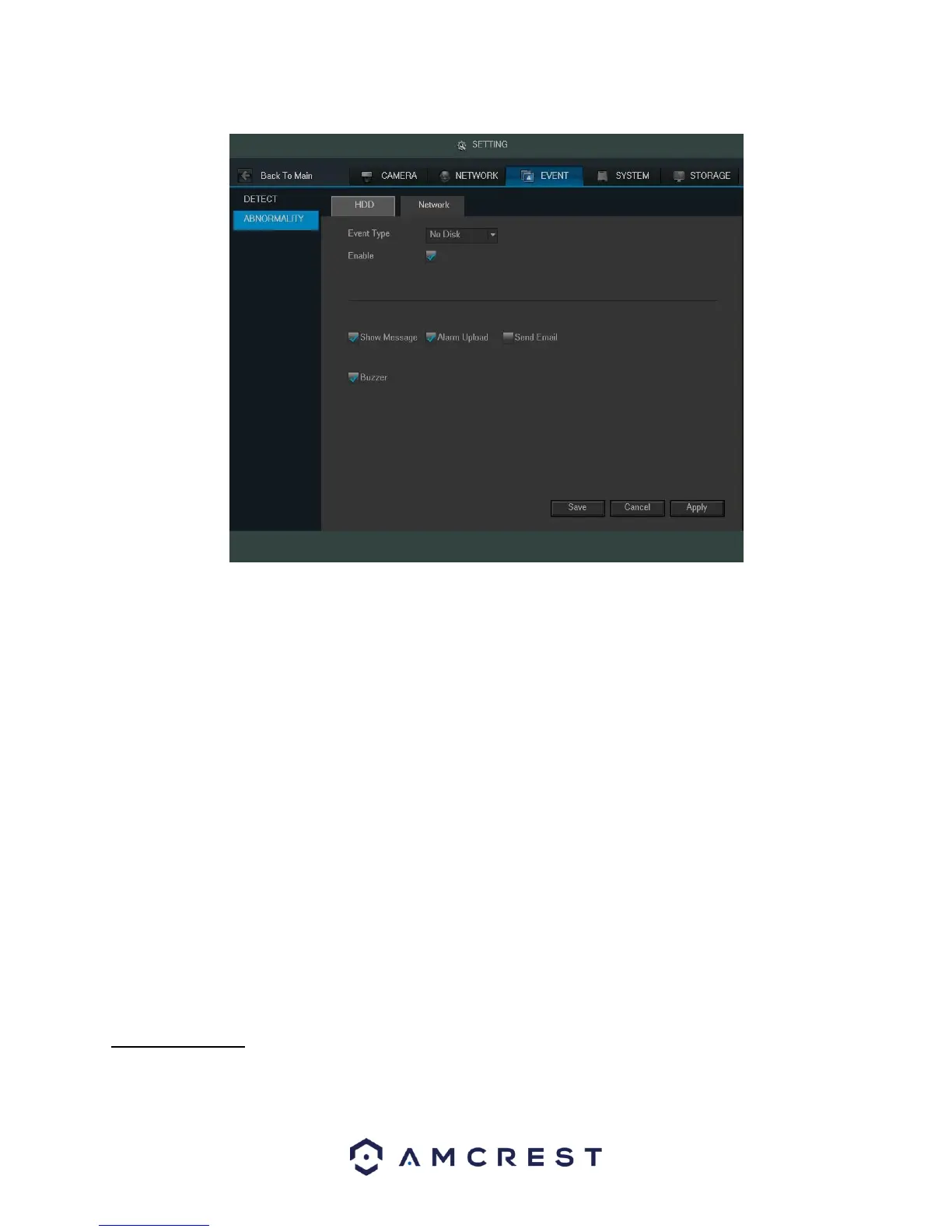
Below is an explanation of the fields on the HDD Abnormality settings screen:
• Event Type: This field allows the user to specify which HDD abnormality event type they would like to
configure settings for. o No Disk: No hard drive is detected. o Disk Error: The hard drive has an
error.
o Disk No Space: The hard drive is about to or has run out of space.
▪ Less Than: This field allows the user to specify at what percentage of free disk space
this condition should be triggered.
• Enable: This checkbox allows the user to enable the features below for the specified event type.
• Show Message: This checkbox allows the user to enable the system to show an on-screen message when an
HDD abnormality occurs.
• Alarm Upload: This checkbox allows the user to enable the system to upload alarm information when an HDD
abnormality occurs.
• Send Email: This checkbox allows the user to enable the system to send an email when an HDD abnormality
occurs.
• Buzzer: This checkbox allows the user to enable the system to activate a buzzer when an HDD abnormality
occurs.
To save settings, click the Save button near the bottom right hand corner. To cancel any modifications, click the
Cancel button near the bottom right hand corner. To apply the settings, click the Apply button near the bottom
right hand corner.
4.10.3.7 Network
This screen allows the user to specify actions that occur when there is an abnormality with the DVR’s network
connection. Below is a screenshot of the Network Abnormality settings screen:



 To Next Page