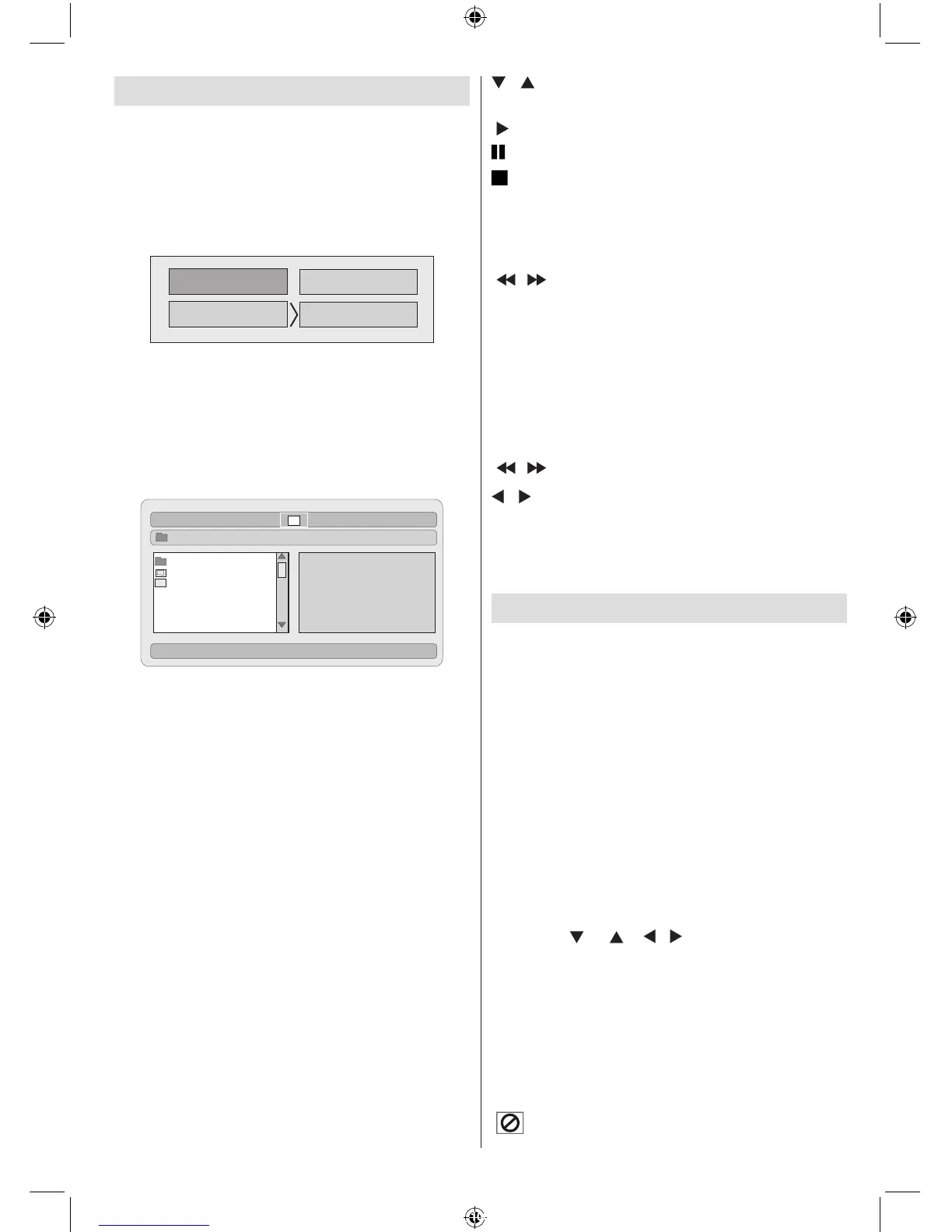
You can view or play contents of your device by
using the related remote control buttons. See,
General Control Buttons for Media Mode and
Control Buttons for Video Playback.
Note:
• Whenever you press the SWAP key, available
media sources will be listed.
• If there is an active playback, you have to press
STOP button rst and then SWAP key to list
available DMP inputs.
• If you have plugged only one source, then only
that source will be available to be selected.
• Do not pull out the MC module while playing
a le.
• It is possible that certain types of MC or USB
devices may not be compatible with this TV.
General Control Buttons for Media
Mode
OK / SELECT > Enter/View
/ > Highlight an item
by moving up or down.
> Play
> Pause
> Stop
RETURN > M e d i a s o u r c e
selection.
Control Buttons for Playback
/ > Rapid reverse /
rapid advance/ .
SEARCH > Search for a
specic time.
DISPLAY > Displays time.
ZOOM > Zooms picture.
Picture Playback
/ > Previous - next picture.
/ > Rotate picture
REPEAT > Displays repeat options.
ZOOM > Zooms picture.
ROOT > Go back to root folder.
DVD Playback
Basic Play
1. Press on the power button
2. Please insert a disc to the loader.
The disc will be automatically loaded and play
commences if the disc does not have any menus
recorded on it.
A menu may appear on the TV screen after a
few moments or the lm may start immediately
after the introduction of the Film Company. This
behaviour depends on the disc content and
may change.
NOTE: Step 3 and 4 is available only when a menu
is recorded on the disc.
3. Press “ ” / “ ” / / or the number button
(s) to select the preferred title.
4. Press SELECT.
Play of the selected items now starts.The played
item may be a motion picture, a still picture or
another submenu depending on the disc.
For your reference:
If an action corresponding to a button is prohibited the
“
” symbol appears.



 To Next Page