English - 86 -
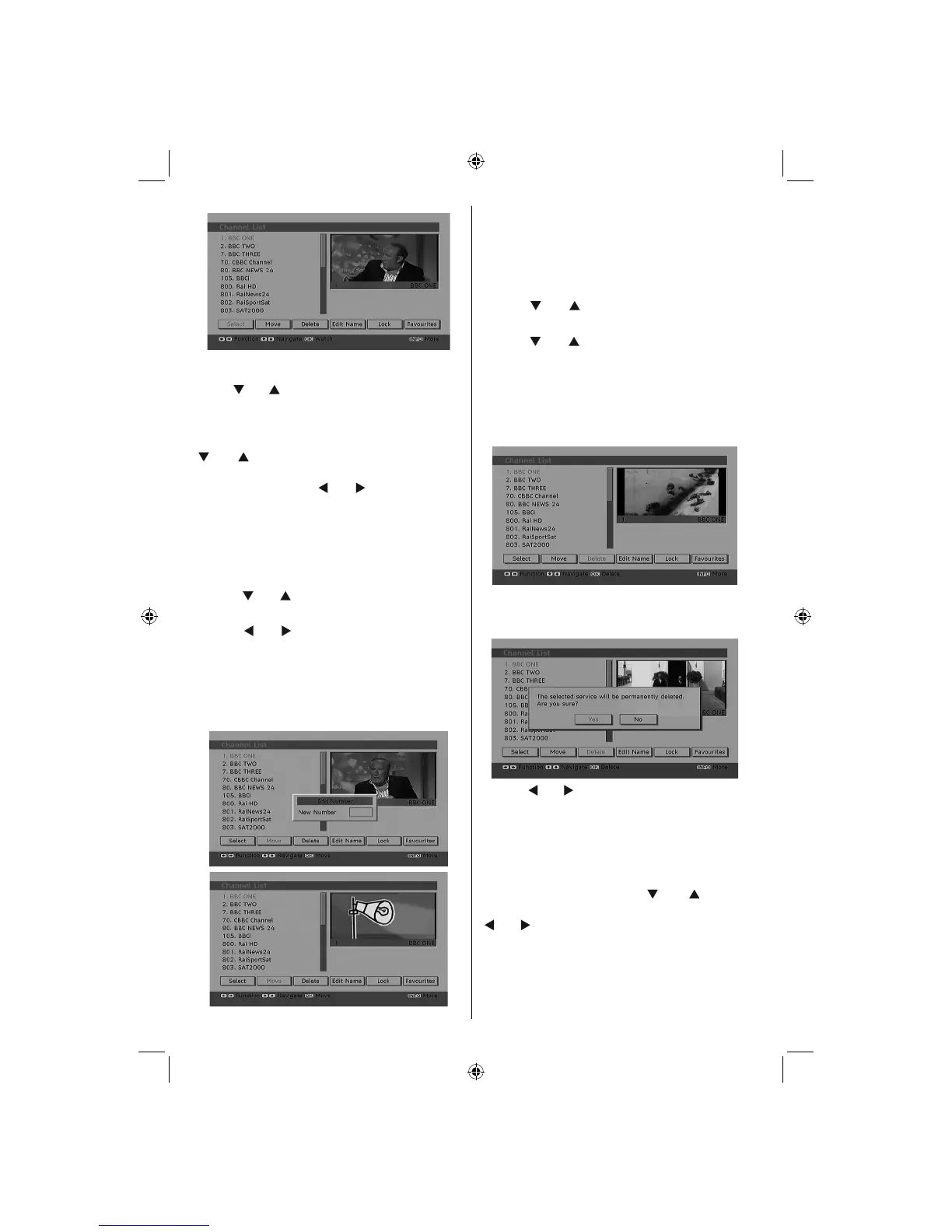
Navigating the Entire Channel List
Press “
” or “ ” button for selecting the previous
or next channel. You can press RED or GREEN
button to move page up or page down.
To watch a specifi c channel, highlight it using
“ ” or “ ” button and then press “ OK ” button,
while the “Select” item on Channel List menu is
highlighted by using “ ” or “ ” button.
Then the name and number of the selected
channel will be displayed in the top-left and
top-right of the channel display at the top-right
of the screen, respectively.
Moving the channels in the channel list
• Press “
” or “ ” buttons to select the channel
that will be moved.
• Press “ ” or “ ” buttons to select the “ Move ”
item on Channel List menu.
Following OSD will be displayed next to “ OK ”
item to indicate that enter a number by using
the numeric buttons on the remote control and
press “ OK ” to confi rm.
Note: If you enter the same programme number
of the channel that you want to move, “.... channel
services will be replaced. Do you want to continue?”
OSD will be displayed. Press OK to confi rm or select
“No” to cancel.
Deleting the Channels in the Channel List
• Press “
” or “ ” button to select the channel
that will be deleted.
• Press “
” or “ ” button to select the “Delete’’
item on Channel List menu. As seen on
Channel List menu, SELECT is displayed next
to Delete item at the bottom of the screen to
indicate that you must press the OK button to
delete the highlighted channel in the channel
list.
• Press the OK button to delete the highlighted
channel in the channel list. Then the message
below appears on the screen:
• Press “
” or “ ” button to highlight the desired
option. If OK button is pressed while “ Yes ” is
highlighted, the highlighted channel is deleted.
Selecting “ No ” cancels the deletion.
Renaming Channels
To rename a specifi c channel, the channel must
be highlighted by pressing “ ” or “ ” button.
Then highlight the Edit Name item by pressing
“
” or “ ” button as illustrated below. Press the
OK button to activate the rename feature.
A02_MB25 [GB] (01-TV)_19855W_1900UK_IDTV_NICKEL5_10061155_50141077.indd 23A02_MB25 [GB] (01-TV)_19855W_1900UK_IDTV_NICKEL5_10061155_50141077.indd 23 25.02.2009 17:08:1525.02.2009 17:08:15



 To Next Page