EN 84 2017/06 Rev. 2.0
OptiBean (XL) Touch
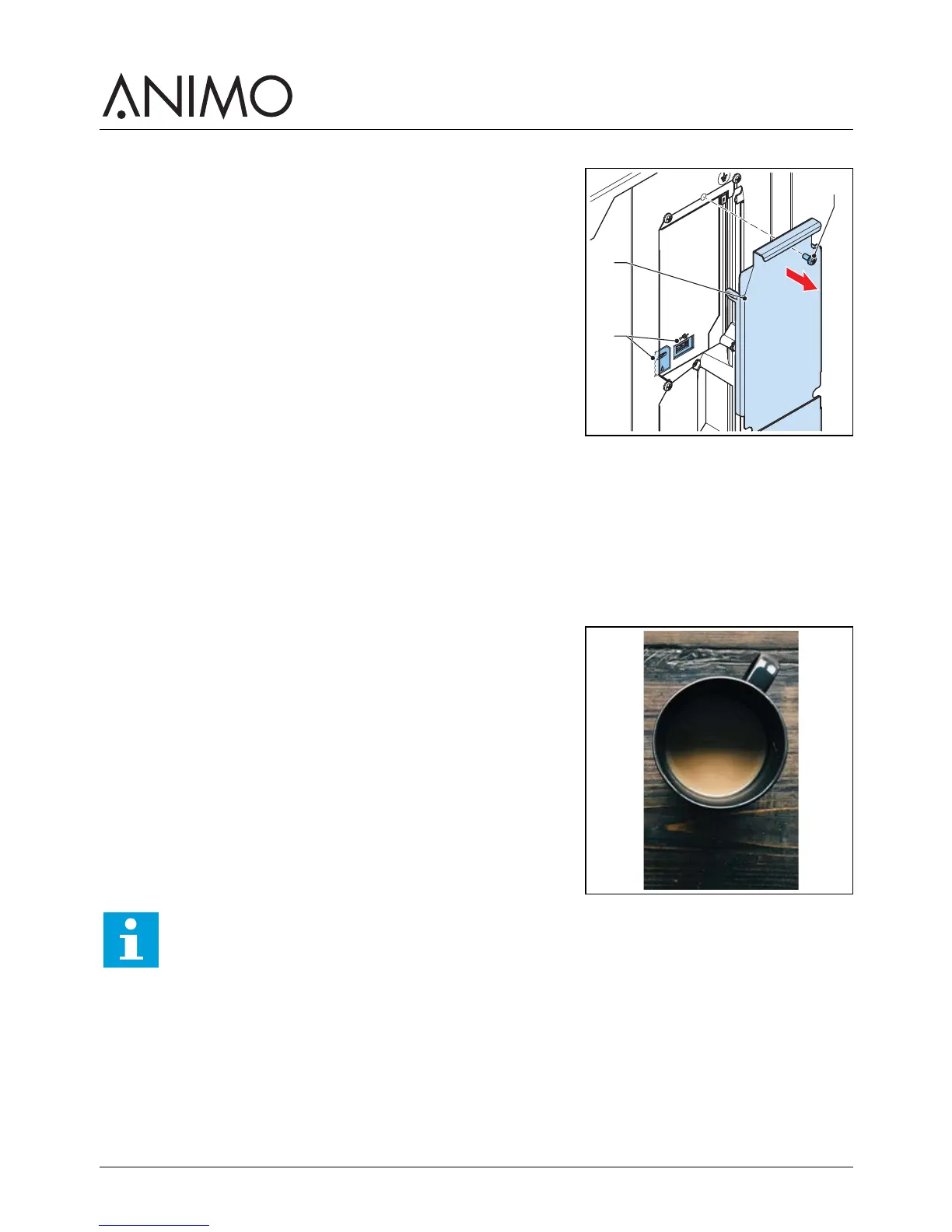
3.3.3 Connect the storage device to the port
1 Open the machine door. Refer to 4.1
2 Behind the door, remove the screw (A) and the cover (B).
3 Connect the storage device to the port (C).
3.3.4 Delete media files
1 Access the Sound and Vision menu. Refer to 3.3.1
2 Navigate to the <Advertising screen> or the <Logo on the cup> screen.
3 Select the media type of the screensaver for deletion.
4 Tap the button to remove the media type.
5 Select the files to delete and confirm your choice.
3.3.5 Configure an image as a screensaver
1 Upload the media file. Refer to 3.3.2
2 Tap on the <Image> button
3 Tap on the <Choose image> button.
4 Select the image file, and confirm your choice.
5 When the file is loaded, tap the confirmation button.
6 Tap <X> to close the Sound and Vision menu.


 To Next Page