2017/06 Rev. 2.0 83 EN
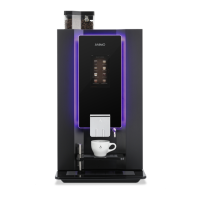
OptiBean (XL) Touch
3.3 Customize the touchscreen
3.3.1 Access the Sound and Vision menu
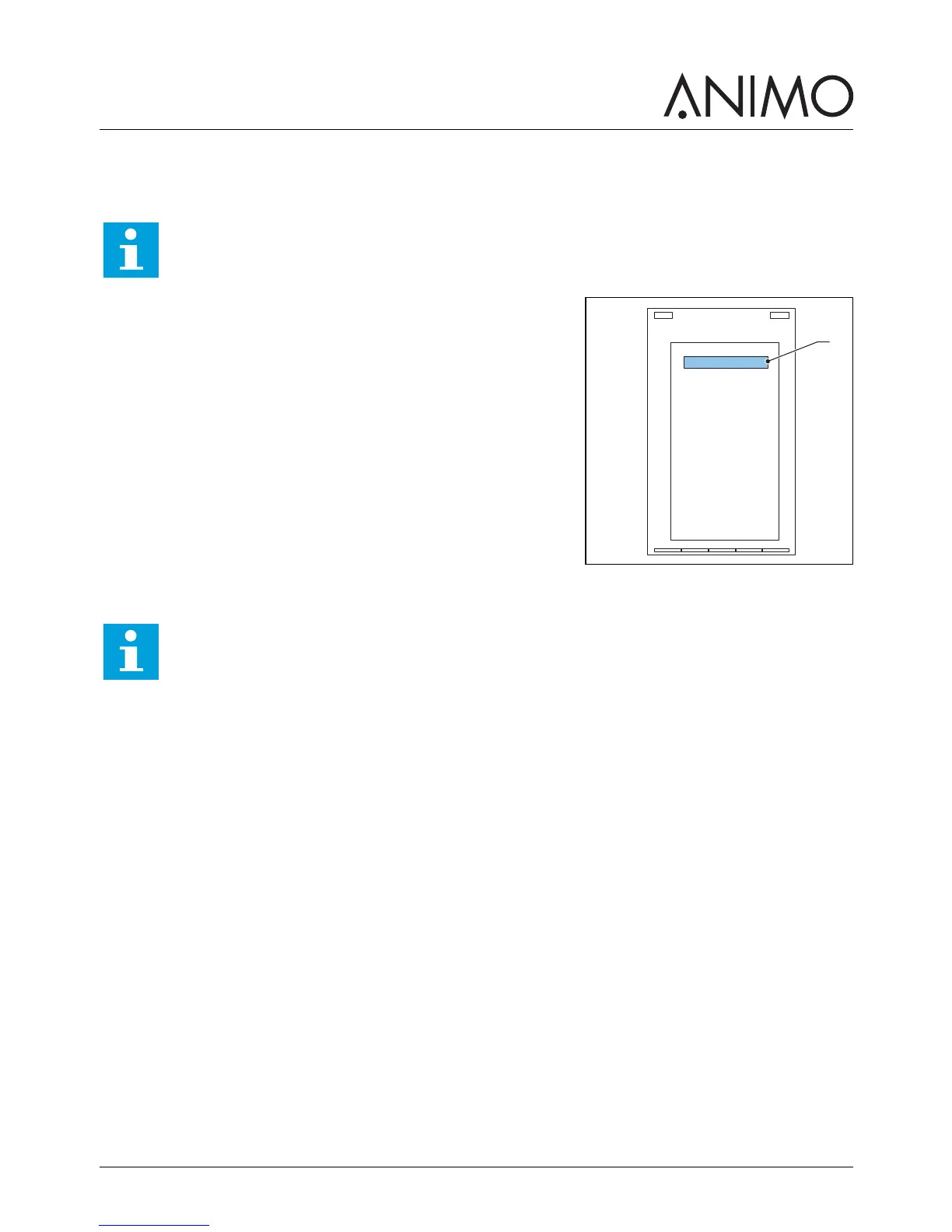
1 At the main screen of the touchscreen, tap and hold on the
main message (A).
2 Tap to select the Operator menu.
3 Insert the login code: 11111.
4 Tap to select 1.11 Sound and Vision.
3.3.2 Upload media files
1 Access the Sound and Vision menu. Refer to 3.3.1
2 Navigate to the <Advertising screen> or the <Logo on cup screen>. Refer to 2.5.12
3 Select the desired media format.
4 Connect the storage device to the port. Refer to 3.3.3
5 Tap the button of the type of the storage device.
6 Select the file type and confirm your choice.
7 When the file is loaded, tap the confirmation button.
Note
You must have a login code to access the Operator menu.
A
Note
• Use a USB storage device or an SD storage device to upload your media files.
• The media files must be of the correct specification. Refer to 2.3.4
• The folder structure of the storage device must be in the correct configuration. Refer to
2.3.5
• To upload a movie file, after Step 2, tap the Full screen video button and select No for
landscape, or Yes for the full screen portrait. Refer to 3.3.6


 To Next Page