2017/06 Rev. 2.0 85 EN
OptiBean (XL) Touch
3.3.6 Configure a movie as a screensaver
1 Upload the media file. Refer to 3.3.2
2 Tap on the <video> button.
3 Tap on the <Select video> button.
4 Select the video file, and confirm your choice.
5 When the file is loaded, tap the confirmation button.
6 Tap <X> to close the Sound and Vision menu.
3.3.7 Configure a slideshow as a screensaver
1 Upload the media file. Refer to 3.3.2.
2 Tap on the <slideshow> button.
3 Tap on the <Choose images> button.
4 Select the slideshow file, and confirm your choice.
5 Tap on the <Effect duration time> button.
6 Set the duration time for each slide. Follow the touchscreen
prompts.
7 Tap on the <Slideshow effect> button, then tap the
confirmation button.
8 Tap <X> to close the Sound and Vision menu.
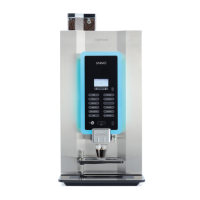
3.3.8 Configure your logo on the cup buttons
1 Upload the media file. Refer to 3.3.2.
2 Tap on the <Show logo on the cup> button
3 Tap on the <Choose the logo> button.
4 Select the logo file, and confirm your choice.
5 Tap <X> to close the Sound and Vision menu.
Note
The screensaver will open after the delay time is elapsed. To set the delay time refer to 3.3.9.


 To Next Page