1. Monitor Out Trim
2. Line Out Trim
3 & 4. Oscillator 1 and Mute
5 & 6. Oscillator 2 and Mute
7. Oscillator level
8. Line Out Volume
9. Talkback HP 1/Talkback HP 2/Talkback Monitor On/Off: Enables or disables the Talk Back
mic to each of those outputs.
10. S/PDIF SRC
By clicking on this button the S/PDIF input is sample rate converted to match the sample rate
of the Orion Studio internal clock (eg. If you want the clock to run at 192 kHz and your S/
PDIF input is at 44.1 kHz, simply press this button to match the sample rate frequency of
the Orion Studio internal clock).
8. Advanced User Tips
Ground Loop Hum and Noise
The design of Orion Studio minimizes the possibility of ground loop hum and noise. However, we
recommend the use of shorter, shielded cables and balanced connections for all the audio signals
of your system. All power cables of the system should be connected to a dedicated outlet box
or power conditioner unit to avoid ground current noise affecting the audio signal path. It is also
advisable to keep the layout of your signal and power cables separate.
9. In The Box
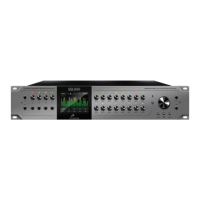
●● Orion Studio - Thunderbolt™ and USB AD/DA Interface with 12 mic pres
●● Owner’s Manual
●● Warranty Card
●● 1 DC Power supply
●● 1 USB cable
10. Troubleshooting
Start up and Sound:
●● Are you running the latest control panel and firmware?
If not, please update your control panel and firmware.
●● Are you correctly routing the audio signal via the routing panel?
For ThunderboltTM or USB playback, route the ThunderboltTM or USB-play channels to
the Line Out channels by dragging and dropping from the top section to the bottom. For
more info on routing see the “Orion Studio - Routing with ease” video from the Antelope
Audio You Tube page.
●● Have you set the correct sample rates matching your DAW with your computer’s sound
and the Orion Studio?
On Mac, first check that the sample rate is correct in the audio midi set up, then proceed
to check in the DAW before finally checking the Orion Studio sample rate.
For Windows, first check in play back devices, right click on the Orion Studio then click
properties before then moving to the advanced tab. Then repeat the above by checking
the DAW’s sample as well as the Orion Studio.
11. Windows, only: ASIO Control – Buffer Size & USB Streaming Mode
12. Display Brightness : Adjusts the brightness of the display screen of the Orion Studio


 To Next Page