© Ikonix USA
41
4.5 Edit, Copy, Delete, and Load Test File
After creating test les the user has the option to edit, delete, copy, or load the test le to start testing.
4.5.1 Edit
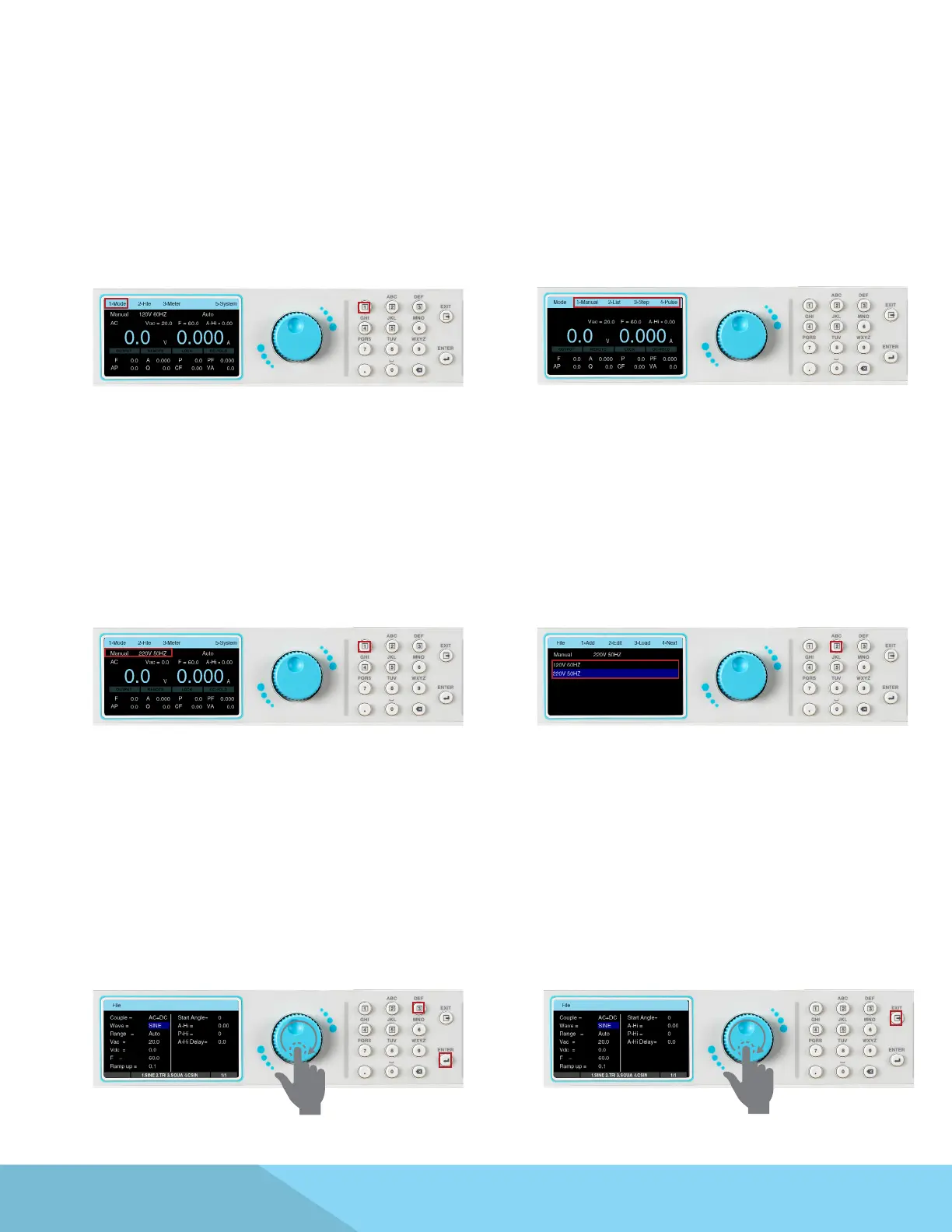
1. To edit an existing test le the user must
rst select the Mode in which the test le was
created. From the test screen press any key to
drop down the menu bar and press the number
1 key on the keypad:
2. The Mode options will appear on the drop
down menu bar:
3. Using the keypad, select the desired Mode.
For example, if the number 1 key is pressed the
Manual Mode will be selected and the screen will
display the mode and the le name that was last
used in this mode.
4. The menu bar will display the selection for
File Press the number 2 key on the keypad
to enter the File menu and all the previously
created test les will be listed:
5. Use the rotary knob to highlight the le
you wish to edit. Press the rotary knob to view
the test parameters. Once the le name is
highlighted, the user can also press the number
2 key, or the ENTER key, on the keypad to view
the test parameters:
6. To edit the test parameters use a combination
of the rotary knob and keypad, as explained
in the previous sections. Once all the test
parameters have been edited, press the EXIT key
on the keypad to view the list of test les and
press the EXIT key again to go back to the test
menu.



 To Next Page