48
Printing a Configuration Report
To perform a self-test and print a configuration report, helping to
check printer’s print quality and internal settings. Steps as below:
1. Turn off the printer.
2. Load media and ribbon.
3. Press and hold the FEED button while turning on the power.
4. When “SELF-TEST …” is displayed on the LCD, release the
FEED button.
(The Ethernet models will first prompt “ETHERNET CARD
INITIALIZING” on LCD after Power-on and then show the
“SELF-TEST …” message as described above.)
5. The printer now prints out a configuration report.(as the
sample in next page)
6. Printer will enter Dump mode after printing configuration. In
Dump mode, all characters will be printed in 2 columns: the
right shows characters received from your system, and the
left are the corresponding hexadecimal values of the
characters. It allows users or engineers to verify and debug
the program.
To return to normal operation mode from Dump mode,
press the CANCEL button. Another way is to turn off printer
power, and then restart printer.
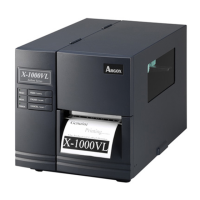
Note: For X-1000VL, the steps about LCD can be ignored.
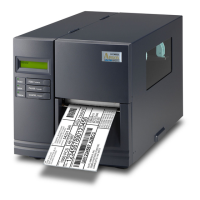
Sample of Configuration Report – based on X-2300E:



 To Next Page