37
Modes, Rules, and Smart Alerts
8. If you used a browser to specify the settings, click Save.
Your settings are saved.
Manage Alerts
Arlo can push notifications to your smartphone, send you email alerts, or do both. To
receive Arlo notifications on your phone, you must get the Arlo app.
Note: If you log out of the Arlo app on your smartphone or mobile device, you will stop
receiving push notifications.
¾ To change the alert settings for a camera:
1. Tap the Arlo icon
on your mobile device.
You can also enter
arlo.netgear.com in the address bar of a browser.
The Devices page displays.
2. Tap or click Mode.
A list of cameras displays.
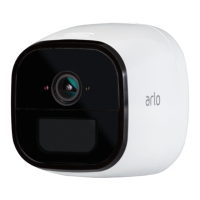
3. Tap or click the Arlo Go camera.
A list of modes displays.
4. Tap or click Edit
next to Armed or your custom mode.
The Edit Rule page displays.
5. Under If the following, specify the motion detection and audio detection
settings.
6. Under Then do the following, specify the settings for Arlo Go to respond to
motion or sound detection by recording video.
7. Under Alert, tap or click Push Notification to turn alerts on and o for your
mobile device.
8. For email notifications, make sure that the Email Alerts check box is selected.
9. To specify an email address, tap or click Edit
next to Email Alerts and enter
the email address.
37


 To Next Page