53
5.5.3. How a Touch Sensor Works
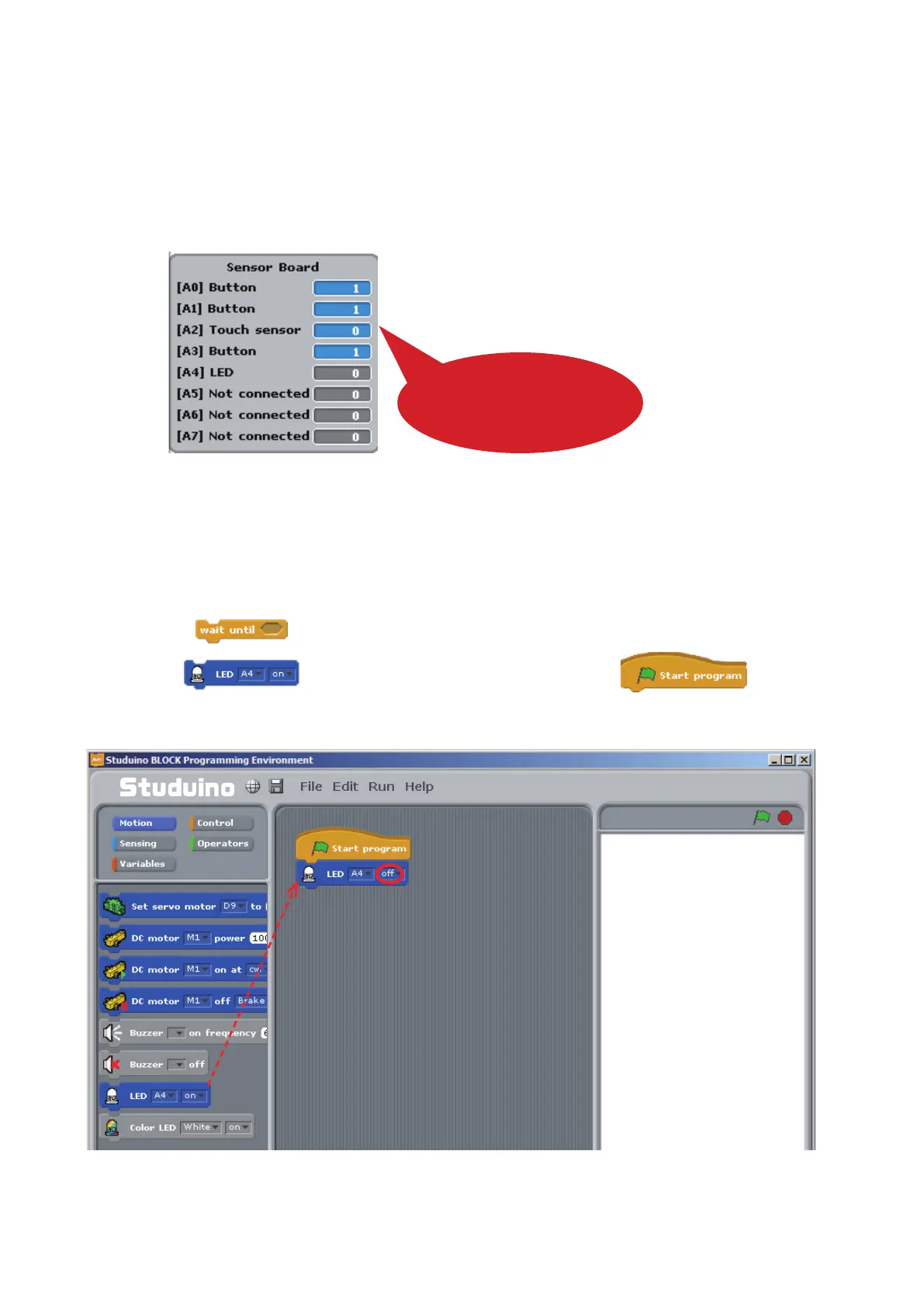
Let’s take a look at your Touch Sensor’s values. Use a USB cable to connect your Studuino to your PC.
Now choose Test ON from the Run menu. Start Test Mode and you’ll see the Sensor Board displaying [A2]
Touch Sensor.
Touch Sensors send a value of 1 when released and a value of 0 when you press them. Now try pressing
your Touch Sensor while looking at the Sensor Board to see how the values change.
Press the Touch Sensor
and the value will change to 0
Once you’re nished, choose Test OFF from the Run menu to close Test Mode.
5.5.4. Programming
Now we’re going to program your LED to turn on when you press the Touch Sensor. We’ll also be learning
how to use the
block.
①
Drag
from the Motion Palette and connect it to the block, then
set it to o.
Drag and drop


 To Next Page