1.3. Getting started
1.3.1. Powering your AudioFuse Studio
AudioFuse Studio is a professional-grade recording interface and it has higher power
requirements than most consumer products. For this reason, it must be powered using its
included worldwide DC power supply (15V, 3A).
1.3.2. Setting your Operating System
1.3.2.1. Setup on macOS
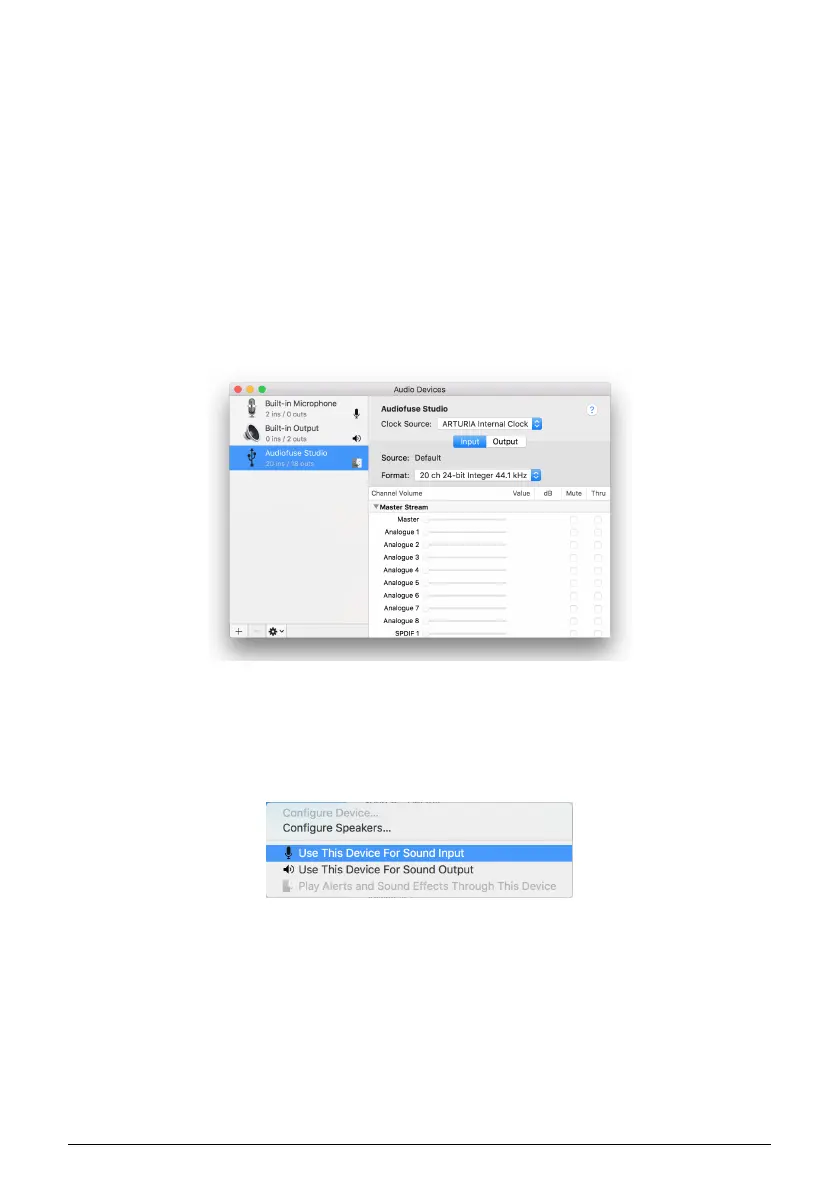
Connect AudioFuse Studio to your computer's USB Port and switch on the unit. AudioFuse
Studio will appear in the
Audio MIDI Setup
as shown:
To set up AudioFuse Studio to work as your default audio input/output device:
• Select AudioFuse Studio in the Audio MIDI Settings left panel
• Right-click AudioFuse Studio and set it as default input device
• Right-click AudioFuse Studio again and now set it as default output device
Arturia - User Manual AudioFuse Studio - AudioFuse Studio 13


 To Next Page