1.3.2.2. Set up on Windows
Low latency drivers on Windows are provided by Arturia and are automatically installed
with the AudioFuse Control Center installer. You can download AudioFuse Control Center
here:
www.arturia.com/audiofuse-start
Once AudioFuse Control Center is installed, simply connect the interface to your computer
using the supplied USB cable and switch on the unit. Windows will detect the hardware and
it will appear under your audio devices.
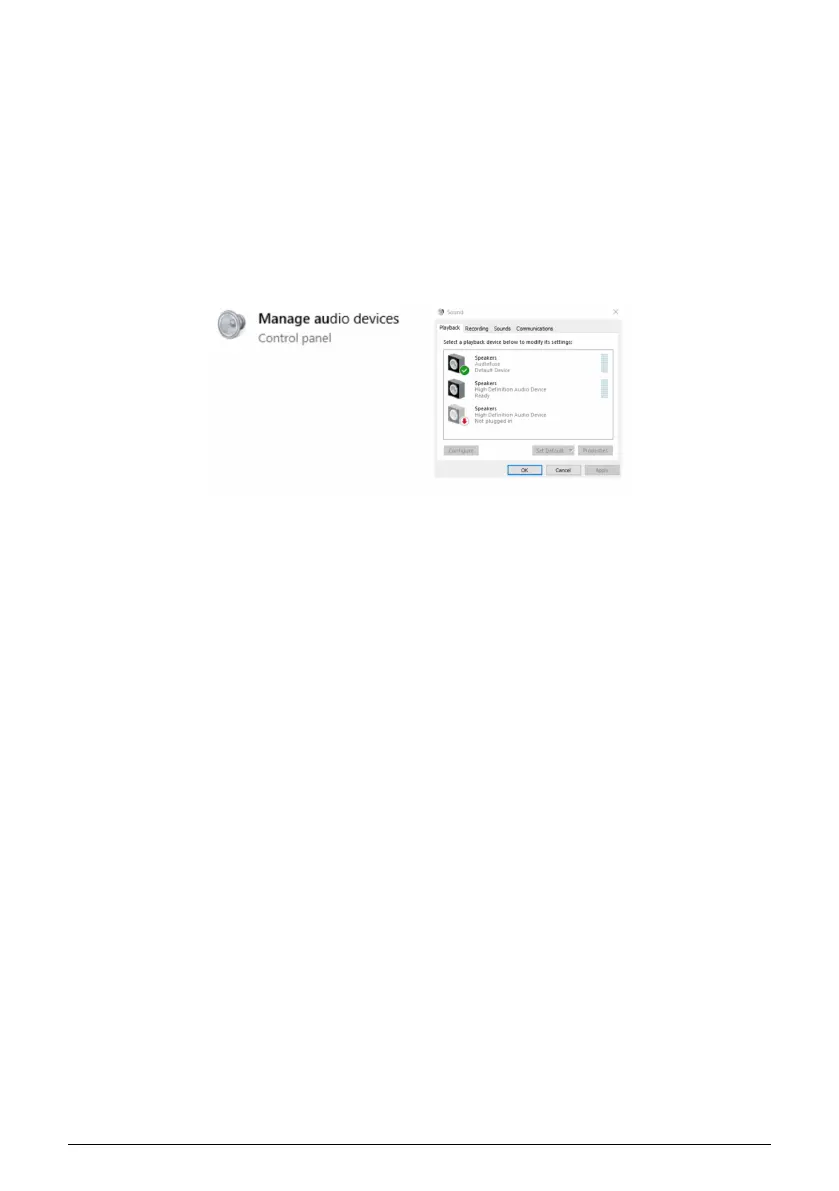
Open “Manage Audio Device”
Here you can configure AudioFuse Studio to be your default recording device, playback
device or both. To do so, select the interface under the
Playback
and
Recording
tabs and
press the
Set Default
button.
1.3.2.3. Set up on iPad/iPhone
First, connect AudioFuse Studio to its DC adaptor and switch on the unit. Next, connect
AudioFuse Studio to your iOS device through the camera connection kit (required).
AudioFuse Studio will appear under Settings > General > About > AudioFuse. For more
information please refer to www.arturia.com/audiofuse-start
1.3.2.4. Set up on Android
First, connect AudioFuse Studio to its DC adaptor and switch on the unit. Next, connect the
interface to an Android device through an On-The-Go cable. Android 5+ is required. For more
information please refer to www.arturia.com/audiofuse-start
14 Arturia - User Manual AudioFuse Studio - AudioFuse Studio


 To Next Page