2.4. The Main Window
Beneath its deceptively simple exterior, the AudioFuse Studio provides an astounding array
of features. The AudioFuse Control Center is the key to unlocking their full potential.
2.4.1. Input zone
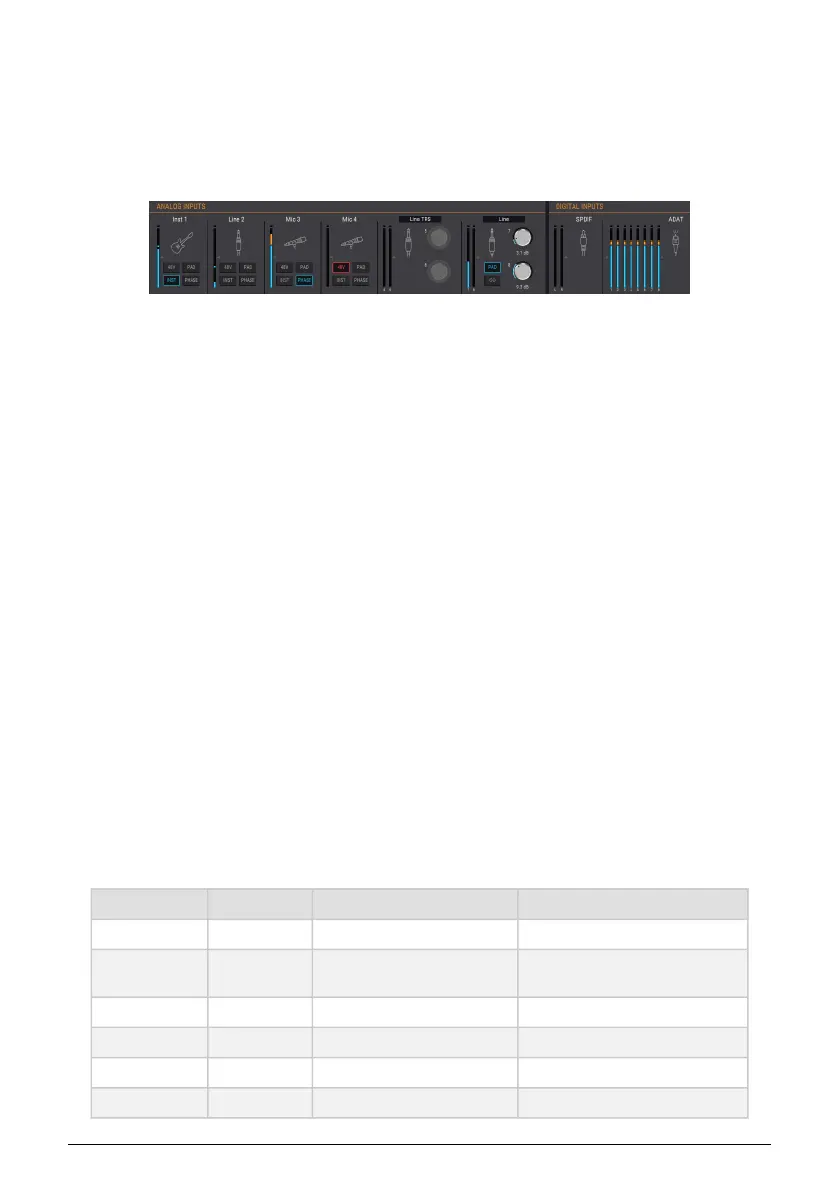
Spanning the width of the AFCC window beneath the Menu bar is the Input zone. It provides
a visual summary of the analog signals being fed into the AudioFuse Studio, along with
meters that display the signals that are arriving at the ADAT and SPDIF inputs.
2.4.1.1. Analog Inputs
In the expanded view this section shows the status and signal levels of the analog
connectors on the front and rear panels of the AudioFuse Studio. It has:
• buttons that match those on input channels 1-4, which can toggle (and be toggled
by) their physical counterparts
• buttons and knobs that link and control the levels of inputs 5-8, and menus that
specify the connection type
• LED meters that display the signal level of each input
• icons that represent the type of input device being used.
The icon for an unused input channel looks like one of the combo jacks on the AudioFuse
Studio. When you plug something in, the icons change to match the type of connection that
has been made.
For example, plug in an XLR connector and the icon becomes a microphone on a stand;
make a 1/4" connection and the icon becomes a 1/4" plug. When the INST button is activated
for inputs 1-14, the 1/4" plug icon becomes a guitar.
You'll notice that some buttons are greyed out when you use certain types of inputs. For
example, when you plug in a 1/4" cable the AudioFuse Studio knows you will not need
phantom power for that device, so the 48V button is deactivated.
The following table lists the buttons that can be used with each input type.
Analog input # Button name Visible for input type: Possible settings
1-4 48V Microphone On (lit red), Off
1-4 PAD
Microphone
Line, Instrument
Off, PAD (-20dB), BOOST (+10dB)
Off, PAD (-20dB)
1-4 INST Line, Instrument On (lit blue), Off
1-4 PHASE Microphone, Line, Instrument On (lit blue), Off
5-8 LINK Line RCA, Phono On (lit blue), Off
7-8 PAD Line, Instrument Off, PAD (-20dB)
Arturia - User Manual AudioFuse Studio - AudioFuse Control Center 53


 To Next Page