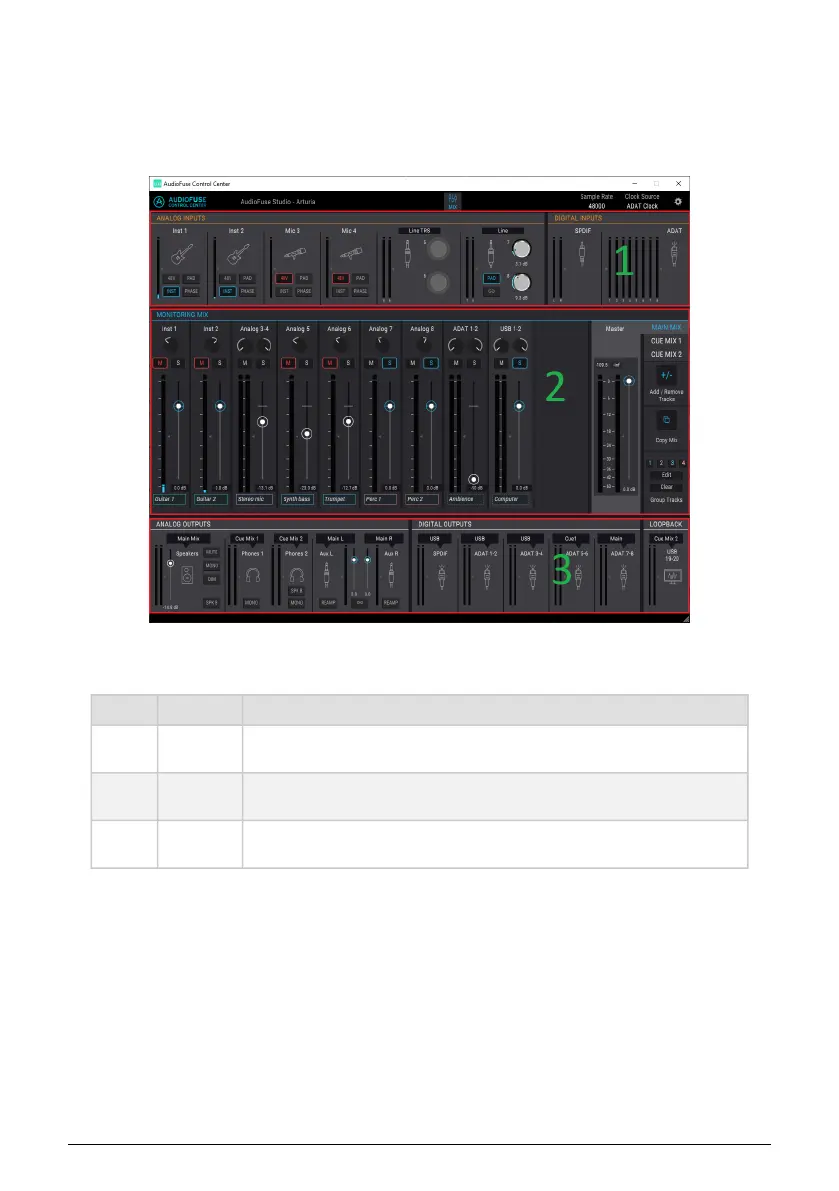
2.2.2. The AudioFuse Studio window
This window has three main sub-sections. You'll always see the same basic items in the
top and bottom sections. The middle window is the one that can change its appearance the
most, depending on the Monitor mix you want to have available. It also can be hidden and
revealed as needed to help maximize your screen space.
Section Name Function
1
Input
zone [p.53]
Displays input types, button options, and LED level meters
2
Monitoring
Mix [p.55]
Shows Cue Mix components, controls levels, pan, and solo/mute status, and allows
adding, removing, naming and grouping of channels
3
Output
zone [p.59]
Displays input/output assignments, allows editing of input assignments, provides
source selection for Loopback feature, and has LED level meters
2.2.2.1. AudioFuse Studio controls not in AFCC
Most of the AudioFuse Studio buttons are linked to a button in the AFCC, except for the Listen
and Talkback buttons. As the physical button is pressed the virtual button will toggle, either
in the Analog Inputs section or the Analog Outputs section.
The following AudioFuse Studio controls are analog and do not communicate their actions
to the computer. As a result they have no equivalent control in the AFCC:
The AudioFuse Control Center interface
40 Arturia - User Manual AudioFuse Studio - AudioFuse Control Center


 To Next Page