41
Expand
The projector has Expand menu that allows you to set the other various expand functions
described as follows.
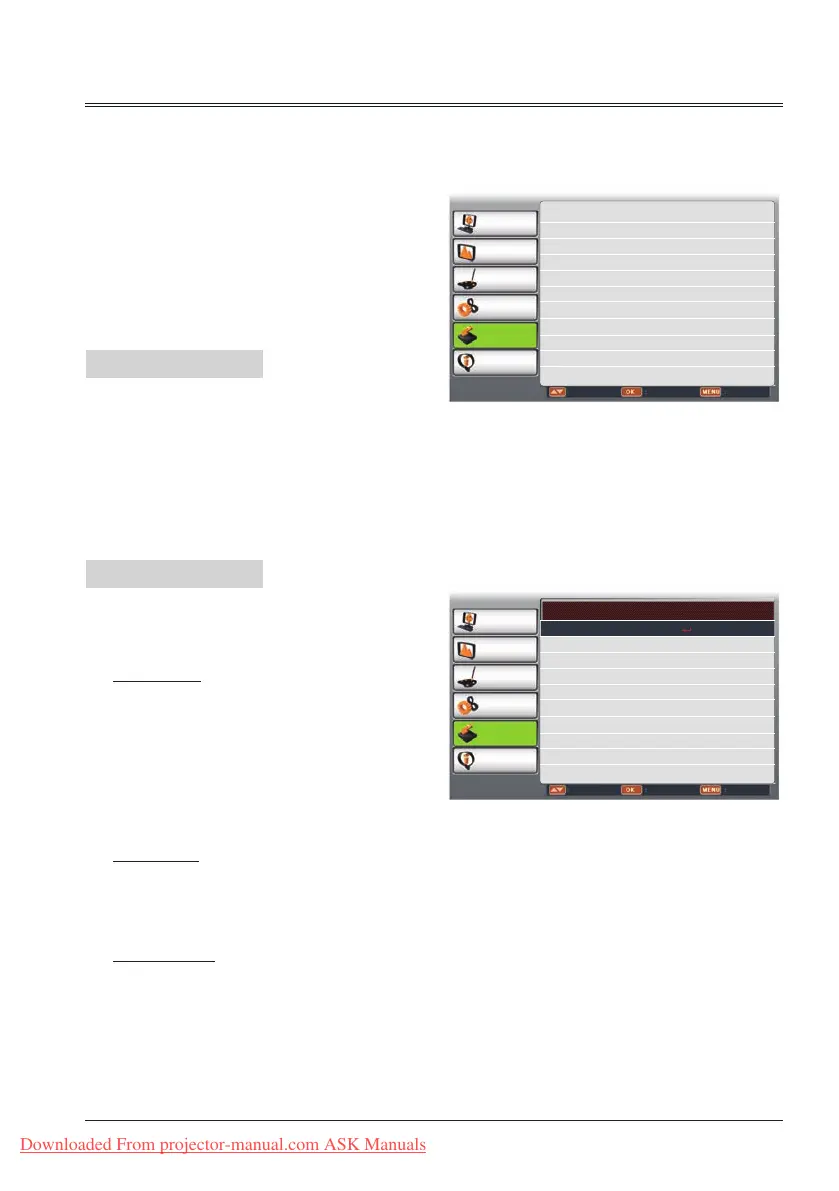
Expand menu
Auto setup
PC adjust
Display
Color adjust
Setting
Expand
Info.
Move Next Exit
Language
Auto setup
Logo
Security
Power management
Filter counter
Test pattern
Network
Factory default
PC adjust
Display
Color adjust
Setting
Expand
Info.
Move Next Back
Auto setup
Input search Off
Auto PC adj. On
Auto keystone Off
Language
Press
button to select the language for
screen manual.
This projector provides 23 lanuages.
Auto setup
Press AUTOSET button on the remote control
to execute Input search and Auto PC adj.
functions.
Input search
Allows you to automatically detect input
signals. It stops when a signal is found.
Press
button to select an option
below:
Off........Disabled.
On........Enabled. This function is used to
detect input signals automatically
and stops when nding a signal
.
Auto PC adj
On........Press the AUTOSET button on the
remote control to enable Auto PC
adj. function automatically.
Off........Cancel Auto PC adj. function.
Auto keystone
Off........Disabled.
Auto......To correct keystone distortion
depending on the slope of the
projector all the time.
Manual ..To enable the function by
pressing AUTOSET on the top
control or remote control.
Note:
- Only the last selected input source can be
detected.
- If the INPUT button on the top control or on the
remote control is pressed during Input search is in
progress, Input search will stop and go back to the
previous input signal.
- Input Search and Auto PC Adj.cannot be set Off at
the same time.
- Fine sync., Total dots, Horizontal and Vertical
position of some computers cannot be fully
adjusted with the Auto PC Adj. function.
When the image is not provided properly with this
operation, manual adjustments are required.
1 Press MENU button on remote contro to
display screen menu. Press
butto to
select Expand ,then press OK button.
2 Press
button to select the item you
want to set, press OK button.
3
Press
button to adjust the item, then
press OK button.
Downloaded From projector-manual.com ASK Manuals


 To Next Page