Viron eQ Salt Chlorinator With Bluetooth | Installation and Operation Manual
Page 18
5. The Chlorine set point and other Maintenance
tasks can be selected from the SETTINGS
page.
8.1.2 Updating Your Chlorinator Firmware
Using the ChlorinatorGo App
NOTE: The device will remain in the bootloader
for three (3) minutes before timing out and
resuming normal operation.
There are two (2) options to update the firmware:
1. Powering on the system:
• Ensure the Viron Chlorinator is completed power
OFF.
• Hold down the Timer button (located at the left
of the screen) and middle orange button (located
under the screen). See Figure 9.
• Power up the Viron Chlorinator while holding
down the buttons.
Timer
Clock
Pool
Mode
Spa
Mode
BOOTLOADER V1.02
Ready for download
Figure 18. Updating Firmware Bootloader Screeen
2. Bluetooth is already enabled:
MAINT > NEXT > NEXT > INSTALL > ACCEPT > NEXT
> NEXT > ACCEPT > NEXT > YES > (hold down both
indicated buttons on screen until bootloader is entered)
CHLORINE SET
+ 0
SET MAINT
MAINTENANCE MODE
SELECT FUNCTION
EXIT BACKWASH NEXT
MAINTENANCE MODE
SELECT FUNCTION
EXIT DOSE NEXT
MAINTENANCE MODE
SELECT FUNCTION
EXIT INSTALL NEXT
INSTALL
CHLORINATOR
EXIT ACCEPT NEXT
INSTALL
LIGHT
EXIT ACCEPT NEXT
HOLD BOTH
TO ENTER
BOOTLOADER V1.02
Ready for download
INSTALL
BLUETOOTH
EXIT
EXIT
ACCEPT NEXT
FIRMWARE
UPGRADE
YES NO
BLUETOOTH
ACCESS CODE
63F8
NEXT
LANGUAGE/SPRACHE
IDIOMA/LANGUE/LINGUA
ENGLISH
ACCEPT
NOTE: Bootloader
version may differ
from shown.
Figure 19. Bootloader Process Screens
Section 8. Bluetooth Setup
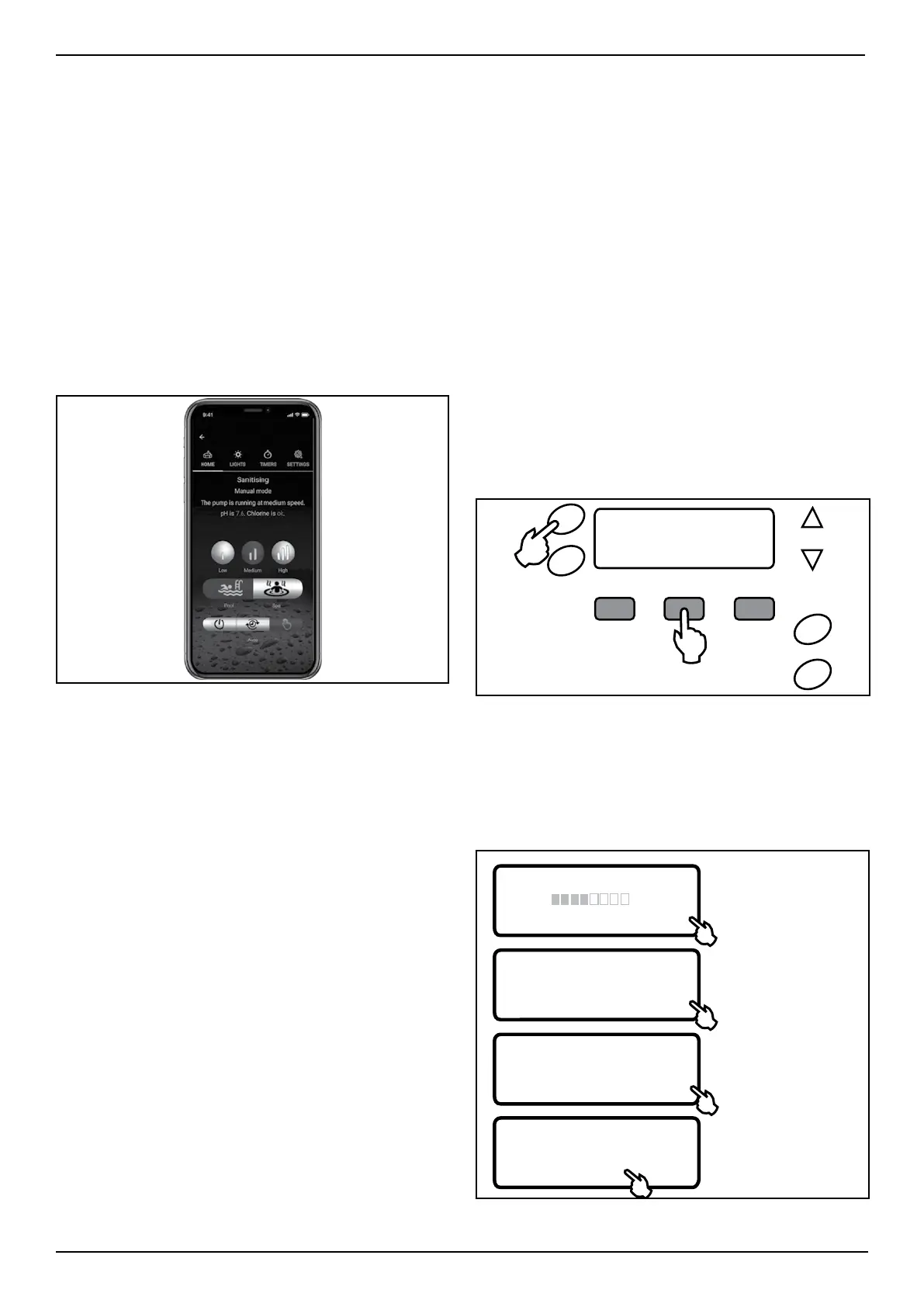
8.1 ChlorinatorGo App
The ChlorinatorGo App can be downloaded from
the Apple App store or from The Google Play store.
It allows wireless Bluetooth control for the Viron
Chlorinator and other compatible AstralPool lights
and pumps.
• Simple digital push button controls
• On/Off, Auto or Manual, Pool or Spa Modes
• Compatible pump speed controls (low, medium,
and high), compatible light controls, and
individual timer setup.
Figure 17. ChlorinatorGo App Screen
8.1.1 Installing and Using Bluetooth
MAINT > NEXT > INSTALL > NEXT > INSTALL > ACCEPT >
INSTALL CHLORINATOR > NEXT > INSTALL BLUETOOTH >
ACCEPT > (shows Bluetooth Access Code)
NOTE: Use this Bluetooth access code to connect with
the ChlorinatorGo App.
1. Once the App is installed and opened, press +
symbol, enter the Bluetooth Access Code from
above and press Save. Enter a name for your
Chlorinator at the prompt.
2. From the ChlorinatorGo HOME page, select
the Chlorinator name to connect wirelessly
and display the HOME page.
3. From the HOME page, turn the Viron
Chlorinator On, Off or to Auto, select Pool
or Spa Mode and set the pump speed (if a
compatible AstralPool pump is installed)
4. Select the LIGHTS page (if a compatible
Connect LITE+ is installed) or select the
TIMERS page (if Timers Enabled” was selected
during Installation)



 To Next Page