EasyManua.ls Logo

Atari Centipede - Regulator;Audio II PCB Removal; Printed-Circuit Board Removal; Game PCB Removal

Atari Centipede
63 pages
Print Icon
To Next Page IconTo Next Page
To Previous Page IconTo Previous Page
Loading...
Centipede
E.
Printed-Circuit
Board
Removal
You
may
wish to
remove the
Centipede™
game
printed
circuit board
(PCB) or
the
Regulator/Audio
II
PCB
for
service or
inspection.
To
do this,
refer
to
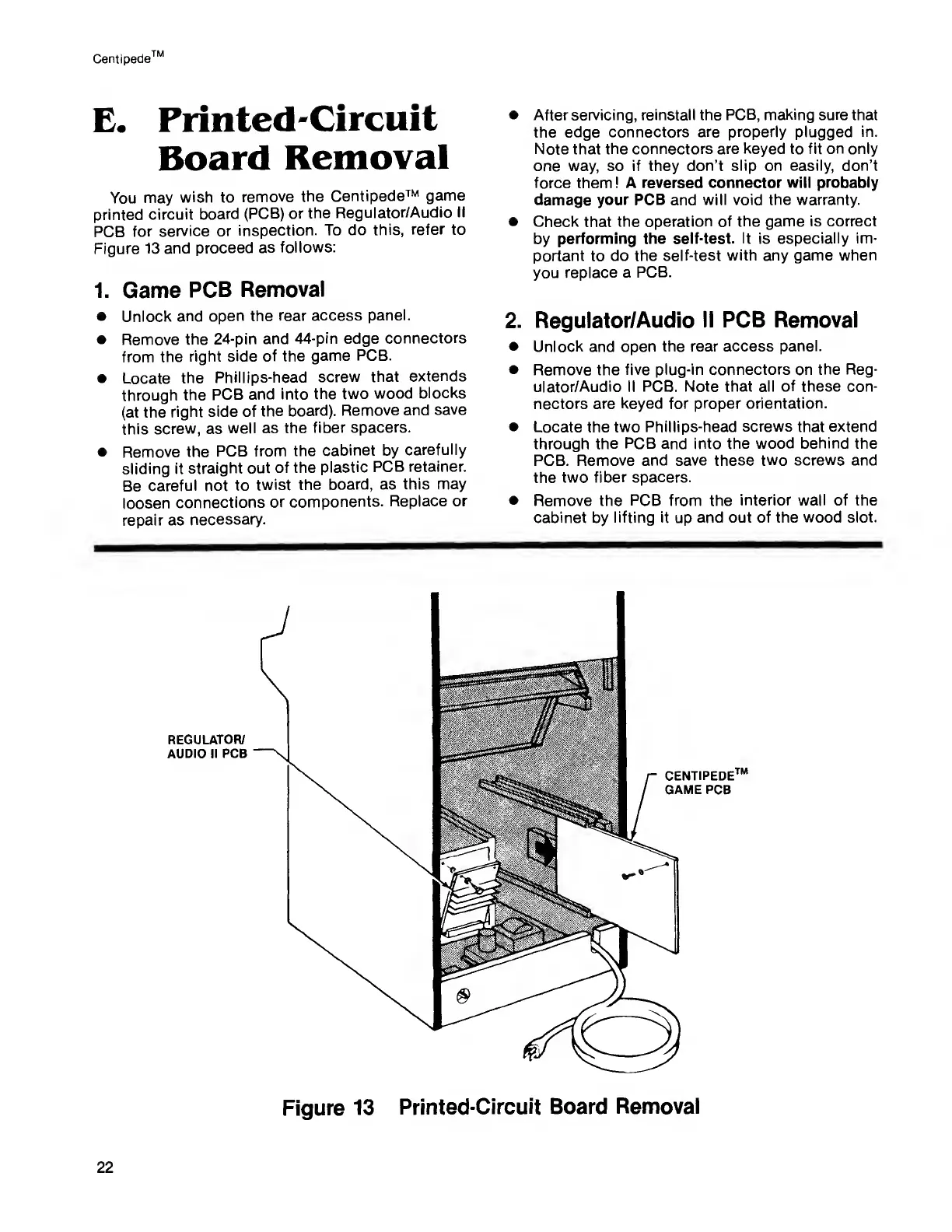
Figure
13 and
proceed
as
follows:
1.
Game
PCB
Removal
Unlock
and open the
rear
access
panel.
Remove
the 24-pin
and
44-pin
edge
connectors
from the
right
side of the
game
PCB.
Locate
the
Phillips-head
screw that
extends
through
the
PCB
and into
the two
wood
blocks
(at
the
right side
of
the board).
Remove and
save
this
screw, as
well as the
fiber spacers.
Remove
the
PCB
from the
cabinet
by
carefully
sliding
it straight
out
of the
plastic
PCB retainer.
Be
careful not
to
twist
the
board, as
this may
loosen
connections
or
components.
Replace
or
repair as
necessary.
After
servicing, reinstall the
PCB, making sure
that
the
edge connectors are
properly
plugged
in.
Note that
the connectors are keyed to fit
on
only
one way, so if they
don’t slip on easily, don’t
force them
! A reversed connector
will
probably
damage
your PCB
and
will void the warranty.
Check
that
the operation of
the game is correct
by
performing the self-test.
It
is
especially im-
portant
to
do the
self-test with any game
when
you
replace a
PCB.
2. Regulator/Audio
II PCB Removal
Unlock and
open the rear access
panel.
Remove the
five plug-in connectors on
the Reg-
ulator/Audio II
PCB. Note that all
of
these con-
nectors
are keyed for proper
orientation.
Locate the
two
Phillips-head screws
that
extend
through
the PCB and into
the wood behind the
PCB. Remove and save these two
screws and
the two
fiber spacers.
Remove
the PCB from the
interior wall
of
the
cabinet
by
lifting
it
up
and
out of the wood slot.

Related product manuals