ATEL V810 Series
V810A Data User Manual
V6.1, January 3, 2023
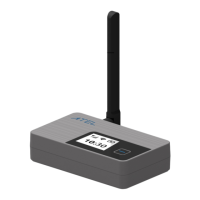
1. LCD Display
Displays different menus of V810A information such as Home, IMEI, Hotspot login info, and
Online Portal login info.
2. Power Button
Power the V810A on/off by pressing and holding this button (note that a long press is
required to boot up the device). You can also short press this button to wake up the screen
and check device information.
3. Battery Port
This battery port is used to connect to the Ni-MH rechargeable battery pack (battery pack
may be sold separately).
4. Reset Button
Use a pin to press and hold this button for factory reset.
5. SIM Card Slot
Insert your 4FF SIM card into this spring-loaded sim card slot. To r em ov e a s im, p ress the
edge of the sim inward and the sim would pop outward from the sim slot.
6. Type C Port
Insert your USB cable to this USB-C port and plug the other end into a wall adapter for
external power.
7. Ethernet Port (RJ45)
Insert an ethernet cable to this Port and plug the other end to your computer for internet
access.
8. Antenna Connector
Install an optional antenna (sold separately) to increase signal strength.
Power Management
Yo u r V 8 1 0 A comes with an AC wall adapter (a Ni-MH rechargeable battery pack is optional
and can be purchased separately through ATEL USA, if it is not included with your device).
For more information, visit www.ATEL-USA.com.
During a power outage or if the wall charger is unplugged, the V810A continues to run off
of the batteries to support Ethernet functions. Note that the Hotspot Wi-Fi function will only
be available if using the wall adapter or Ni-MH rechargeable battery pack.



 To Next Page