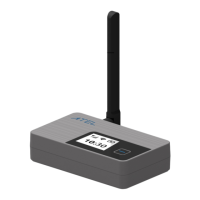
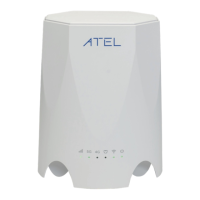
ATEL V810 Series
V810A Data User Manual
V6.1, January 3, 2023
4.
Troubleshooting
When properly installed, the V810A is a highly reliable product. Most problems are caused
by one of these issues:
1. Ethernet device was connected to incorrect ports.
2. Network coverage is unavailable due to coverage area, an account problem, or a
network problem.
The following tips may help solve some common problems encountered while using your
V810A.
1. Make sure you are using the V810A in the correct geographic region (within the
wireless coverage area of your service provider).
2. Ensure that your wireless coverage extends to your current location.
3. If you do not receive a strong wireless signal, try moving your V810A to a different
location near a window.
4. Ensure that you have an active service plan.
5. Restarting your V810A can sometimes resolve the issues.
IMPORTANT! Before contacting customer care, be sure to restart both your V810A and any
device to which it is currently connected.
Common Problems, FAQ’s and Solutions
1. How do I perform a Power Reset on V810A?
Yo u r V 8 1 0 A can be in 2 different power modes, AC power only or NiMH battery installed.
To Perform a Power Reset:
a) Using the Power button: Press and hold the power button for 5 seconds then
release, the device will power off. Then press the power button, the device will
power on.
b) If your V810A is in NiMH-only mode, remove the battery for 10 seconds and then
re-install the battery.
c) If your V810A is in AC power only mode (only plugged into the wall charger),
unplug the wall charger for 10 seconds and then plug the wall charger back.
d) If your V810A is plugged to the wall charger AND installed with the
battery, unplug the wall charger, AND remove the battery for 10
seconds. Then, plug the charger back and re-install the battery.
2. How do I perform a Device Reset using the RESET pin hole?
Using the RESET pin hole: Remove the back cover. Make sure your V810A is powered on.
Use an unfolded paper clip, insert it into the RESET pin hole and push down for 3 seconds,



 To Next Page